How to Insert New Shape Points
Shape Points
- The shape lines form a closed polyline through the shape points.
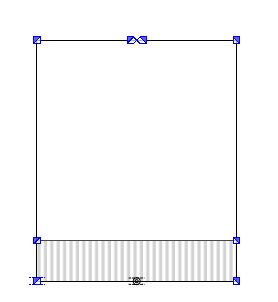
- Any number of shape points can be added to the polyline.
- The shape points can be added symmetrically to the vertical symmetry axis, which is positioned centered on the base line.
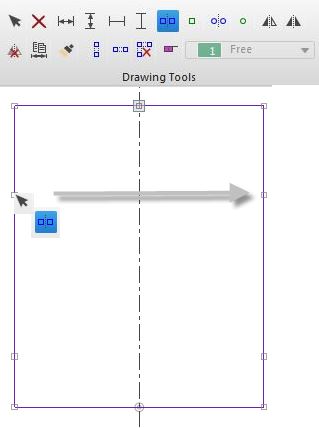
- The order analysis requires a symmetrical shape.
- The missing shape points are to be added.
- The dimensioned shape is opened in the Dimensioning View
 .
.
- 1
- Open the context menu for the desired shape line.
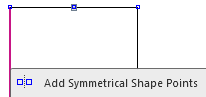
- 2
- Click
 .
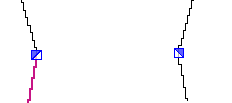
. - The shape point is represented by a square sign.

- A mirrored shape point appears on the opposite shape line.
- The previous line is divided into two lines.
- 3
- Shift the shape point horizontally with the mouse or by dimensioning.
- 4
- Control the line properties of the lines above or below the new shape point.
|
|
The added shape points will affect all sizes. |
|

 Possible Following Steps:
These steps will help you:
How to call up the context menus
 More Information:
Options of the Dimensioning View