Step by Step to Pattern-1
- A pattern project with one pattern and the desired settings is created.
- 1
- Work with the following drawing tools:
- Group Çizim aracı :
-
 Kurşun Kalem (V)
 -
 Çizgi (B)
 -
 Dikdörtgen (N)
 -
Without the selection of a pattern color - Yarn Color:
A selection is generated.
While drawing with drawing tools without the selection of a pattern color, a
selection is generated.
It can be deleted with the shortcut Ctrl+D.
-
With the selection of a pattern color - Yarn Color:
The yarn color is drawn into the basic pattern.
- Deleting all cursor attributes: Key ESC
- Deleting of individual cursor attributes with X via the corresponding attribute

|
|
|
|
|
For drawing the design pattern, with it several yarn carriers may be necessary for each yarn color.
|
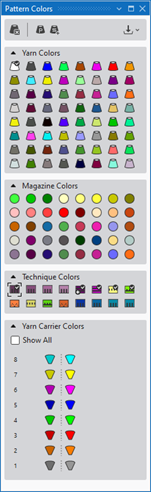
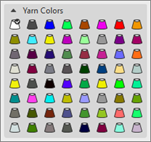


- 2
- Change the width and height of the pattern.
- Group Değiştir :
- Zoom (function button Z)
- Delete / insert row(s) / column(s)

- Select row(s) / column(s) and insert / delete
- 3
- Draw-in colored stripes in any yarn color from row 27 at the height of 18 rows.
- 4
- Adjust the view of the control columns.
- In the design pattern (before technical processing)
- In the technical pattern (after technical processing)
Displaying the control columns in the document window
- The control columns can be displayed in every document window.
-
 Kumanda sütunlarını göster (TAB)
 -
 Kumanda sütunlarını gizle (TAB)
 - The control columns are divided into colored groups.
View Options of the Control Columns:
- Kullanılan kumanda sütunlarını göster
- Tüm kumanda sütunlarını gizle
- Tüm kumanda sütunlarını göster
- Kullanıcı tanımlı kumanda sütunları
- Project Layout
- User Layout
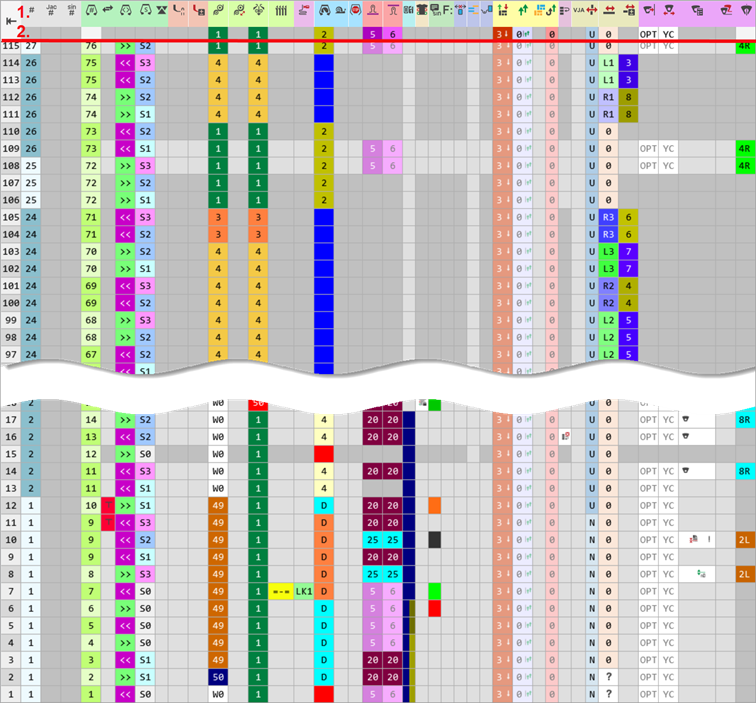
Overview of all possible control columns after technical processing
|
| |||
|
| |||
|
| |||
|
Table header |
1. |
Symbols to identify control columns | |
|
2. |
Default settings from global file STOLL for the respective control column with a new pattern project
| ||
|
| |||
|
Group 1 |
|
Desen sırası |
Display the consecutive numbering of the pattern rows.
|
|
|
Jakar satır numarası |
Display the Jacquard line number.
| |
|
|
Sintral satır numarası |
Display the Sintral line number.
| |
|
Group 2 |
|
Strok numarası |
Display stroke number
|
|
|
Strok |
Specifications for defining the carriage stroke | |
|
|
Semer yönü |
Presets of the carriage direction
| |
|
|
Sistem |
Presets of the use of knitting systems
| |
|
|
Sistem işlevi |
With the use of special cams
| |
|
Group 3 |
|
Ana merdane (WMF) |
Presets for comb, main take-down and auxiliary take-down |
|
|
Ana merdaneyi aç (=W= / =C=) | ||
|
|
Yardımcı merdane (W+F) | ||
|
|
Tarak | ||
|
Group 4 |
|
Toplama alanı kontrolü (LK / LW) |
Presets for the control of the collecting area
|
|
|
Kumaş sensörü (WS) |
Specifications for the fabric sensors
| |
|
Group 5 |
|
Hız (MSEC) |
Presets for carriage speed |
|
|
Makine yavaş (ML) | ||
|
|
Makine durdur (MS) | ||
|
Group 6 |
|
Ön ilmek uzunluğu (NPv) |
Presets for the stitch length on front and rear needle bed |
|
|
Arka ilmek uzunluğu (NP^) | ||
|
Group 7 |
|
Raport (RS) |
Specifications for cycles for length control
|
|
Group 8 |
|
Kenar sabitleme |
Presets for the border fixation |
|
Group 9 |
|
Sintral komutu / PRINT |
Presets for the Sintral and PRINT command |
|
|
Fonksiyon çağrısı (F:) |
Presets for function calls and additional commands | |
|
Group 10 |
|
Örgü çıkışı |
Presets for knitting-out all the yarn carriers of a common row |
|
|
Color Arrangement |
Color entry for Color Arrangements in use | |
|
|
İntersiya bağlantısı |
Presets for the tuck binding with intarsia / gore in a common row | |
|
Group 11 |
|
Çevreyi aktar |
Preset for transferring of the whole pattern or in a defined areas |
|
|
Çok Sistemli Aktarma | ||
|
|
Module Arrangement |
Color entry for Module Arrangements in use | |
|
|
İlmek kapama ve Aktarma |
Preset for combining transferring and casting-off in a common technical row of the whole pattern or in a defined areas | |
|
Group 12 |
|
Teknik sıralarını düzenle |
Specifications for
|
|
Group 13 |
|
Yatak kaydırma sırasında örgü (VJA^) |
Specifications for jacquard selection at the rear needle bed |
|
|
Yatak kaydırma türü (VN, VU, V#) |
Preset of racking type
| |
|
|
Jakar kırma değeri |
Specification of the racking step for the rear needle bed | |
|
|
Yatak kaydırma düzeltmesi (VCI) |
Preset for racking corrections | |
|
Group 14 |
|
Mekik derecelendirmesi (YD/YDI) |
Presets of yarn carrier staggering on the fabric selvedge for Setup |
|
|
Mekik düzeltmesi (YC / YCI) |
Presets of yarn carrier corrections for Setup | |
|
|
Mekik yönergeleri |
Specifications for
| |
|
|
Mekikler |
Column for display of all relevant yarn carrier data after | |


Two modes to enter data in the control columns:
In the Başlat ribbon under Çiz.
-
1 tık

Press LMB at start position and hold it until the end position. -
2 tık

Click and release LMB at start position and click it again at the end position.
Two modes to delete data in the control columns:
In the Başlat ribbon under Doldur.
- Delete All from Control Column (except racking)
 Sil
Sil - All Control Columns to Default
 Varsayılan
The procedure for multiple entries in control columns:
- Raport (RS)
- Mekik yönergeleri
- Mekik duruşu
Add an entry to an existing entry:
- Add

With the Ctrl key - Select the desired location in the menu:
- Set cursor to the start position.
- Press the CTRL key.
- Press LMB and hold it until the end position.
- Release the left mouse button.
- Add

With the Ctrl key - Select the desired location in the menu:
- Set cursor to the start position.
- Press the CTRL key.
- Click left mouse button.
- Draw the cursor to the end position.
- Click left mouse button again.
Delete Entry:
- Delete
With the CTRL + ALT key - Set cursor to the start position.
- Press LMB and hold it until the end position.
- Release the left mouse button.
- Delete
With the CTRL + ALT key - Select the desired location in the menu:
- Set cursor to the start position.
- Press the CTRL + ALT keys.
- Click left mouse button.
- Draw the cursor to the end position.
- Click left mouse button again.
Selecting Control Columns
- 1
- Position the cursor in the header of the control columns and press the right mouse button to open the context menu.
- The context menu appears.
- 2
- Select the desired control columns in the context menu via Kullanıcı tanımlı kumanda sütunları.
- 3
- Open the context menu with RMB.
- 4
- Select Görünümü tasarım deseni için varsayılan olarak kaydet in the menu.
- The setting will be saved and loaded when opening a design pattern.
Viewing Options of Control Columns
|
Kullanıcı tanımlı kumanda sütunları |
Adding or closing the desired control columns in the selection list |
|
Kullanılan kumanda sütunlarını göster |
Display of the control columns used in the pattern |
|
Tüm kumanda sütunlarını göster |
Display of all control columns |
|
Tüm kumanda sütunlarını gizle |
Hide the display of control columns |
|
Bu kumanda sütununu sabitle (çift tıklama) |
Freezed control columns keep visible when hiding control columns
|
|
Bu kumanda sütununu gizle |
Hide control columns at the cursor position. |
|
Bu grubu gizle |
Hide all control columns allocated to a group. |
|
Görünümü tasarım deseni için varsayılan olarak kaydet |
Save the selected control columns as user defined default for editing the design pattern. |
|
Tasarım deseni için görünüm varsayılanını yükle |
Restore the customized default for editing the design pattern. |
|
Tasarım deseni görünümünü STOLL varsayılanına sıfırla |
Restore the saved STOLL default setting. |
 : Unfreezing by
 - 5
- Change the following pattern parameters using the control column in the colored stripe:
- Stitch Length
- 1
- Position the cursor on the control column.
- 2
- Select Tabloda göster in the context menu.
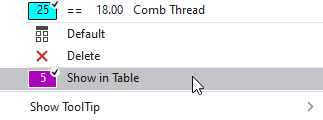
- or -
Select directly from the list of the Sık kullanılan. - The Setup verileri dialog box appears.
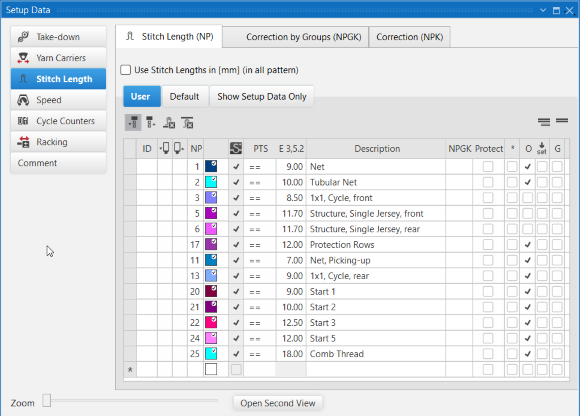
- 3
- Open the Varsayılan tab.
- or -
Open the Kullanıcı tab. - 4
- Select the desired existing entry from the tables.
- or -
In the Kullanıcı tab position the cursor in the first column and select Satır ekle... in the context menu. - New entry is added at the end of the table.
- 5
- Make the desired presettings for the entries in use:
- Define NP index.
- Change Color.
- Enter NP value.
- Enter the description.
- 6
- In the desired area of the control column enter the color of the stitch length.
Change the specifications for the stitch lengths in the pattern:
- See and modify the default settings for the stitch lengths in the
 Tasarım deseni.
 - The Ön ilmek uzunluğu (NPv)
 / Arka ilmek uzunluğu (NP^)
  control columns appear.
- 1
- Open the existing Desen projesi and save it with a new name via the Dosya / Farklı Kaydet menu.
- or -
Create new Desen projesi with an individual pattern. - 2
- Set the cursor to the Ön ilmek uzunluğu (NPv) / Arka ilmek uzunluğu (NP^) control columns of the Tasarım deseni document window and click the RMB.
- or -
Open the İlmek uzunluğu (NP) context menu in the second row of the table header containing the default settings. - The stitch lengths context menu appears.
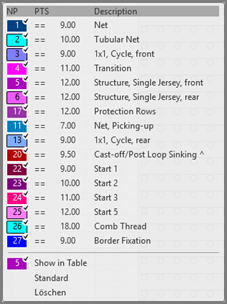
- The stitch lengths used in the pattern are displayed and are marked by the
 symbol.
 - The entries marked as favorites in the
 İlmek uzunluğu (NP) / Varsayılan tab under the İlmek uzunluğu section of the Setup verileri tool window are displayed.
- 3
- Select the desired stitch length and enter it in the control column.
- or -
Fill a selection.
Notice:
The stitch lengths shown in the context menu correspond to the table in theSetup verileri tool window under the İlmek uzunluğu section of the İlmek uzunluğu (NP) / Kullanıcı tab.
Open stitch length tab and select or change an entry:
-
Tasarım deseni is selected.
- 1
- Open the selection list in the Başlat ribbon under Parametreler at
 Araç penceresi
  and select the Setup verileri
  .
.
- or -
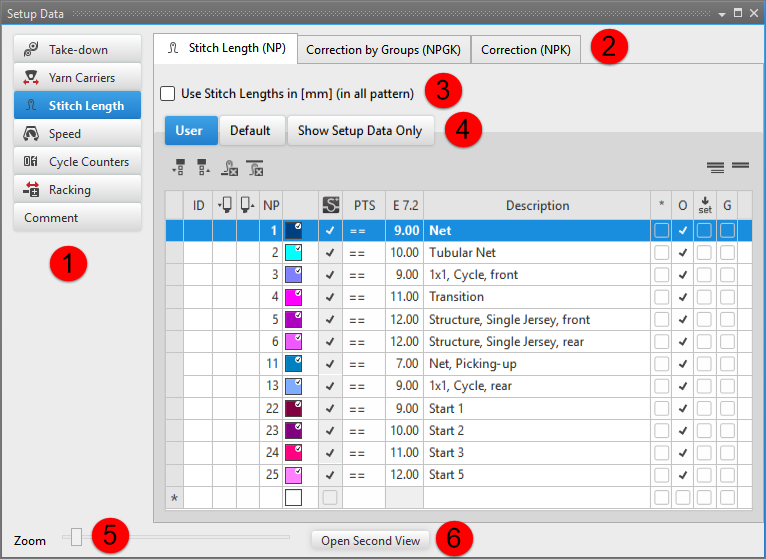
Click the symbol directly under Parametreler. - The Setup verileri tool window appears.
|
| |||
|
1 |
All sections of Machine Parameters appear in Setup | ||
|
2 |
Tabs for additional machine parameters | ||
|
3 |
|
Use stitch length values in the STOLL default unit | |
|
|
Use stitch length values in millimeters | ||
|
4 |
Tabs | ||
|
Kullanıcı |
| ||
|
Varsayılan |
All the stitch lengths of the STOLL template | ||
|
Sadece Setup verilerini göster |
All the stitch lengths used in the pattern
| ||
|
5 |
Zoom |
Zoom in or out | |
|
6 |
İkinci görünümü aç |
Opening an additional Setup verileri tool window. | |

- 2
- Select the İlmek uzunluğu section.
- 3
- Select the İlmek uzunluğu (NP) / Varsayılan tab.
- 4
- Select the desired stitch length in the
 or
or  column of the table and insert it in the control column.
-
Ön ilmek uzunluğu (NPv)
Click the stitch length in the column. -
Arka ilmek uzunluğu (NP^)
Click the stitch length in the column. -
Ön ilmek uzunluğu (NPv) and Arka ilmek uzunluğu (NP^)
Click the stitch lengths with the CTRL key in the and columns.
 The default settings in the control columns of these design rows will be overwritten.
Options in the toolbar
|
|
Selecting the default value to enter in the |
|
|
Selecting the default value to enter in the |
|
|
Deleting an entry in the |
|
|
Deleting an entry in the |
|
|
Show Pattern-related Values |
|
|
Hide Pattern-related Values |


Column labels of the stitch length tool window
|
Column |
Display |
|---|---|
|
ID / IDv / ID^ |
Consecutive numbering and sorting of the entries |
|
|
Selecting stitch length for the front needle bed to enter it into the control column and as PTS into the pattern |
|
|
Selecting stitch length for the rear needle bed to enter it into the control column and as PTS into the pattern |
|
NP |
Input and display of the index for the indirect (NPn=1-500) or direct (D) stitch length allocation |
|
Colors |
Display of colors to enter in the control columns |
|
PTS |
Specification for NPJ or PTS (Power Tension Setting). |
|
Gauge E |
List of stitch length values depending on the gauges of the selected machine |
|
Column |
Display | |
|---|---|---|
|
Description |
Comment on the use of the entry. | |
|
* |
|
Entry is not defined as favorite, meaning the entry is only within the Varsayılan table available. |
|
|
Entry is defined as favorite, meaning the entry is available within the Kullanıcı table or directly via the context menu of the control columns. | |
|
O |
|
Value cannot be overwritten (Overwrite) by a value of another table. |
|
|
Value can be overwritten (Overwrite) by a value of another table. (Default) | |
|
|
|
The entry will not be applied to the Setup data
|
|
|
The entry will be applied to the Setup data.
| |
|
G |
|
All settings of the Varsayılan or Kullanıcı table are STOLL defaults (STOLL Template).
|
|
|
These settings of the Varsayılan or Kullanıcı table are now User Standards (User-Template)
| |

Specify the favorites:
-
Tasarım deseni is selected.
- 1
- Open the Setup verileri tool window.
- 2
- Select the İlmek uzunluğu section.
- 3
- Select the İlmek uzunluğu (NP) / Varsayılan tab.
- 4
- Mark the desired entry in the column
 .
. - 5
- Close the tool window with
 .
.
- The selected entry will be displayed in the context menu and can be inserted in the design pattern for the front or rear stitch length.
Add a new entry in the stitch length tab:
Notice:
New entries can only be added in the Kullanıcı tab.
-
Tasarım deseni is selected.
- 1
- Open the Setup verileri tool window.
- 2
- Select the İlmek uzunluğu section.
- 3
- Select the İlmek uzunluğu (NP) / Kullanıcı tab.
- 4
- Set the cursor in the left table column to the row.
- 5
- Call up the Satır ekle... context menu.
- A new entry will be added at the end of the table.
- 6
- Make the desired specifications in the columns of the new entry.
- 7
- Close the table with .
- Changes are saved to the table and are available in the project for each order and for all of its individual patterns.
 : The changes will be saved to the *.spf file when saving the project.
Add entry of the Stitch Lengths (NP) tab to the pattern:
-
Tasarım deseni is selected.
- The control columns for Front Stitch Length and Rear Stitch Length are displayed.
- 1
- Open the Setup verileri tool window.
- 2
- Select the İlmek uzunluğu section.
- 3
- Select the İlmek uzunluğu (NP) / Kullanıcı tab.
- 4
- Select the desired stitch length in the or column:
- Entry in the control column:
Click on the stitch length in the column. - Entry in the control column:
Click on the stitch length in the column. - Entry in the and control column
Click on the stitch lengths with the CTRL key in the and columns.
- 5
- Enter the stitch length in the control column.
- 6
- If necessary, change more pattern parameters, e.g. in the colored stripe, via the control columns:
-
Ana merdane
:
Create new WMF index in the Setup table and enter it into the control column. : WM min /WM maks , N min / N maks is displayed after technical processing in the Setup table according to the pattern width.
Change the specifications for the main take-down in the pattern:
- You see and change the default settings for the main take-down in the Tasarım deseni.
- The
 Ana merdane (WMF) control column is displayed.
- 1
- Open the existing Desen projesi and save it with a new name via the Dosya / Farklı Kaydet menu.
- or -
Create new Desen projesi with an individual pattern. - 2
- In the document window Tasarım deseni, position the cursor on the Ana merdane (WMF) control column and click the RMB.
- or -
Open the context menu in the second row of the table header containing the default settings with RMB. - The context menu for the Ana merdane (WMF) appears.
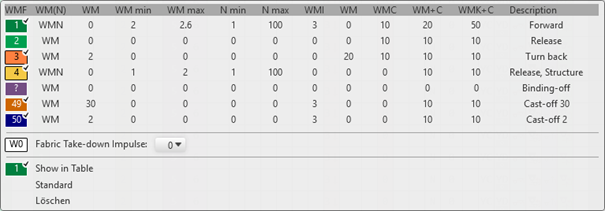
- The fabric take-down functions (WMF) used in the pattern are displayed and are marked by the symbol.
- The entries marked as favorites in the Ana merdane (WMF / WBF) / Varsayılan tab under the Kumaş çekimi section of the Setup verileri tool window are displayed.
- 3
- Select the desired main take-down value and enter it in the control column.
- or -
Fill a selection.
: The main take-down values (WMF) displayed in the context menu correspond to the table in the Setup verileri tool window in the Ana merdane (WMF) section of the Kullanıcı tab.
Select an entry of the Main Take-down (WMF) tool window and change it:
-
Tasarım deseni is selected.
- The Ana merdane (WMF) control column is displayed.
- 1
- Open the Setup verileri tool window.
Başlat ribbon -> Araç penceresi -> Setup verileri selection menu
- or -
Parametreler ribbon group-> Setup verileri. - The Setup verileri tool window appears.
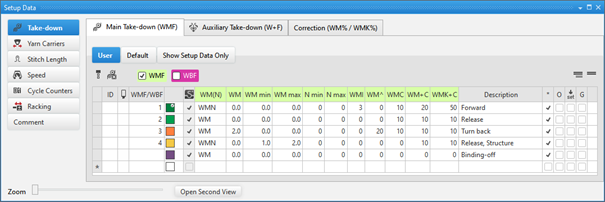
- 2
- Select the Kumaş çekimi section.
- 3
-
Ana merdane (WMF) / Varsayılan tab
- or -
Select Kullanıcı. - 4
- Select the desired main take-down value in the
 column and enter it in the control column.
- The default setting in the control column will be overwritten in these design rows.
Options in the toolbar
|
|
Selecting the default value to enter in the control column | |
|
|
Deleting an entry in the control column | |
|
WMF |
|
Hide the display of the columns wit the main take-down values for the Multiflex take-down |
|
|
Show the display of the columns wit the main take-down values for the Multiflex take-down | |
|
WBF |
|
Hide the display of the columns wit the take-down values for the belt take-down |
|
|
Show the display of the columns wit the take-down values for the belt take-down | |
|
|
Show Pattern-related Values | |
|
|
Hide Pattern-related Values | |


Column labels of the main take-down (WMF) tool window
|
Column |
Display | |
|---|---|---|
|
ID / IDv / ID^ |
Consecutive numbering and sorting of the entries | |
|
|
Selecting the main take-down value to enter it in the control column | |
|
WMF / WBF |
Index for indirect allocation of the fabric take-down value for the main take-down Multiflex or belt take-down | |
|
Color |
Display of colors to enter in the control columns | |
|
WM(N) |
WM |
Fabric take-down value when this is not changed in accordance with the quantity of needles. |
|
WMN |
Fabric take-down value when this is changed in accordance with the quantity of needles (fabric width). | |
|
WM |
Fabric take-down value when this is not changed in accordance with the quantity of needles. | |
|
WM min |
Fabric take-down value for minimum fabric width | |
|
WM max |
Fabric take-down value for maximum fabric width | |
|
N min |
Quantity of needles for minimum fabric width | |
|
N max |
Quantity of needles for maximum fabric width | |
|
WMI |
Fabric take-down impulse value | |
|
WM^ |
Specification of a number of degrees for the reverse rotation of the take-down | |
|
WMC |
Value for the sensitivity of the stop motion control of the main take-down | |
|
WM+C |
Specification of the system number for the fabric take-down control | |
|
WMK+C |
Specification of the system number for comb monitoring | |
|
Column |
Display | |
|---|---|---|
|
Description |
Comment on the use of the entry. | |
|
* |
|
Entry is not defined as favorite, meaning the entry is only within the Varsayılan table available. |
|
|
Entry is defined as favorite, meaning the entry is available within the Kullanıcı table or directly via the context menu of the control columns. | |
|
O |
|
Value cannot be overwritten (Overwrite) by a value of another table. |
|
|
Value can be overwritten (Overwrite) by a value of another table. (Default) | |
|
|
|
The entry will not be applied to the Setup data
|
|
|
The entry will be applied to the Setup data.
| |
|
G |
|
All settings of the Varsayılan or Kullanıcı table are STOLL defaults (STOLL Template).
|
|
|
These settings of the Varsayılan or Kullanıcı table are now User Standards (User-Template)
| |

Specify the favorites:
-
Tasarım deseni is selected.
- 1
- Open the Setup verileri tool window.
- 2
- Select the Kumaş çekimi section.
- 3
- Select the Ana merdane (WMF) / Varsayılan tab.
- 4
- Mark the desired entry of the table in the * column as
 .
. - 5
- Close the tool window with .
- The selected entry will be displayed in the context menu and can be inserted in the design pattern for the main take-down.
Add a new entry in the main take-down (WMF) tab:
: New entries can only be added in the Kullanıcı tab.
-
Tasarım deseni is selected.
- 1
- Open the Setup verileri tool window.
- 2
- Select the Kumaş çekimi section.
- 3
- Select the Ana merdane (WMF) / Kullanıcı tab.
- 4
- Set the cursor in the left table column to the row.
- 5
- Call up the Satır ekle context menu.
- A new entry will be added at the end of the table.
- 6
- Make the desired specifications in the columns of the new entry.
- 7
- Close the table with .
- Changes are saved to the table and are available in the project for each order and for all of its individual patterns.
: The changes will be saved to the *.spf file when saving the project.
Add entry of the Main take-down (WMF) tab to the pattern:
-
Tasarım deseni is selected.
- The Ana merdane (WMF) control column is displayed.
- 1
- Open the Setup verileri tool window.
- 2
- Select the Kumaş çekimi section.
- 3
- Select the Ana merdane (WMF) / Kullanıcı tab.
- 4
- Select the desired main take-down value in the column.
- 5
- Enter the selected main take-down value in the control column.
- Yardımcı merdane (W+F)
Change specifications for the auxiliary take-down in the pattern:
: In the  control column the value W+F1 is entered by default and the value is set to 'Don't Care'. This allows for activating / deactivating the auxiliary take-down at the machine.
- You see and change the default settings for the auxiliary take-down in the Tasarım deseni.
- The control column is displayed.
- 1
- Open the existing Desen projesi and save it with a new name via the / menu.
- or -
Create new Desen projesi with an individual pattern. - 2
- In the document window Tasarım deseni, position the cursor on the control column and click the RMB.
- or -
Open the Auxiliary take-down context menu in the 2nd row of the table header containing the default settings with RMB. - The context menu for the auxiliary take-down (W+F) appears.
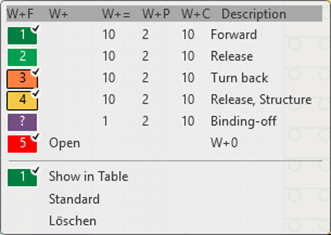
- The auxiliary take-down functions (W+F) used in the pattern are displayed and are marked by the symbol.
- The entries marked as favorites in the Yardımcı merdane (W+F) / Varsayılan tab under the Kumaş çekimi section of the Setup verileri tool window are displayed.
- 3
- Select the desired auxiliary take-down value and enter it in the control column.
- or -
Fill a selection.
: The auxiliary take-down values (W+F) shown in the context menu correspond to the table in the Setup verileri tool window under the Kumaş çekimi section of the Yardımcı merdane (W+F) / Kullanıcı tab.
Select an entry of the Auxiliary Take-down (W+F) tool window and change it:
- Tasarım deseni document window is selected.
- The Yardımcı merdane (W+F) control column is displayed.
- 1
- Open the selection list in the Başlat ribbon at Araç penceresi and select Setup verileri.
- or -
Directly under Parametreler click theSetup verileri icon. - The Setup verileri tool window appears.
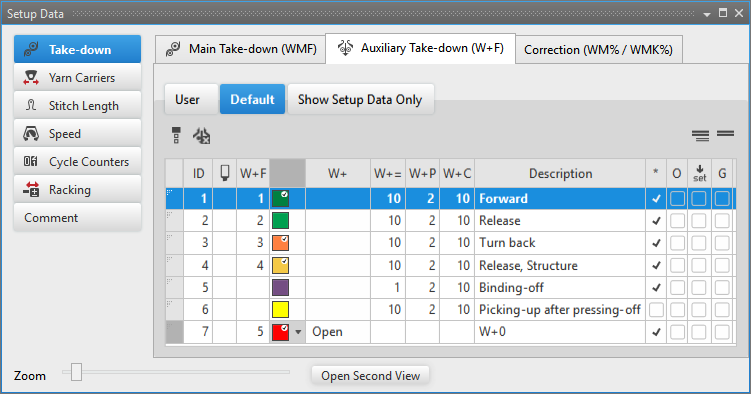
- 2
- Select the Kumaş çekimi section.
- 3
-
Yardımcı merdane (W+F) tab / Varsayılan
- or -
Select Kullanıcı. - 4
- Select the desired auxiliary take-down value in the
 column and enter it in the control column.
- The default setting will be overwritten in these design rows.
Options in the toolbar
|
|
Selecting the default value to enter in the control column |
|
|
Deleting an entry in the |
|
|
Show Pattern-related Values |
|
|
Hide Pattern-related Values |


Column labels of the auxiliary take-down (W+F) tool window
|
Column |
Display |
|---|---|
|
ID |
Consecutive numbering and sorting of the entries |
|
|
Selecting the speed value to enter it in the control column |
|
W+F |
Index for indirect allocation to the auxiliary take-down |
|
Color |
Display of colors to enter in the control columns |
|
W+ |
Open or close the auxiliary take-down |
|
W+= |
Speed of auxiliary take-down |
|
W+P |
Value for the contact pressure of the auxiliary take-down (CMS 822 only) |
|
W+C |
Specification of the system number for the auxiliary take-down control |
|
Column |
Display | |
|---|---|---|
|
Description |
Comment on the use of the entry. | |
|
* |
|
Entry is not defined as favorite, meaning the entry is only within the Varsayılan table available. |
|
|
Entry is defined as favorite, meaning the entry is available within the Kullanıcı table or directly via the context menu of the control columns. | |
|
O |
|
Value cannot be overwritten (Overwrite) by a value of another table. |
|
|
Value can be overwritten (Overwrite) by a value of another table. (Default) | |
|
|
|
The entry will not be applied to the Setup data
|
|
|
The entry will be applied to the Setup data.
| |
|
G |
|
All settings of the Varsayılan or Kullanıcı table are STOLL defaults (STOLL Template).
|
|
|
These settings of the Varsayılan or Kullanıcı table are now User Standards (User-Template)
| |
 : All entries used in the pattern are applied by default to the Setup data.
Specify the favorites:
-
Tasarım deseni is selected.
- 1
- Open the Setup verileri tool window.
- 2
- Select Kumaş çekimi section -> Yardımcı merdane (W+F) tab.
- 3
- Select the Varsayılan tab.
- 4
- Mark the desired entry in the * column .
- 5
- Close the tool window with
 .
.
- The selected entry will be displayed in the context menu and can be inserted in the design pattern for the speed.
Add a new entry in the auxiliary take-down (W+F) tab:
: New entries can only be added in the Kullanıcı tab.
- Tasarım deseni document window is selected.
- 1
- Open the Setup verileri tool window.
- 2
- Select the Kumaş çekimi section.
- 3
- Select the Yardımcı merdane (W+F) / Kullanıcı tab.
- 4
- Set the cursor in the left table column to the row.
- 5
- With the RMB open the context menu and select .
- A new entry will be added at the end of the table.
- 6
- Make the desired specifications in the columns of the new entry.
- 7
- Close the table with .
- Changes are saved to the table and are available in the project for each order and for all of its individual patterns.
: The changes will be saved to the *.spf file when saving the project.
Apply entry of the Auxiliary take-down (W+F) tab to the pattern:
- Tasarım deseni document window is selected.
- The control column is displayed.
- 1
- Open the Setup verileri tool window.
- 2
- Select the Kumaş çekimi section.
- 3
- Select the Yardımcı merdane (W+F) / Kullanıcı tab.
- 4
- Select the desired auxiliary take-down value in the column.
- 5
- Enter the selected auxiliary take-down value in the control column.
-
Semer hızı
:
Create new index for the carriage speed in the Setup table and enter it into the control column.
Change the specifications for the carriage speed in the pattern:
- See and modify the default settings for the stitch lengths in the Tasarım deseni.
- The
 Hız (MSEC) control column is displayed.
- 1
- Open the existing Desen projesi and save it with a new name via the Dosya / Farklı Kaydet menu.
- or -
Create new Desen projesi with an individual pattern. - 2
- In the document window Tasarım deseni, position the cursor on the Hız (MSEC) control column and click the RMB.
- or -
In the 2nd row of the table header, open the context menu containing the default settings with RMB. - The context menu for the Hız (MSEC) appears.
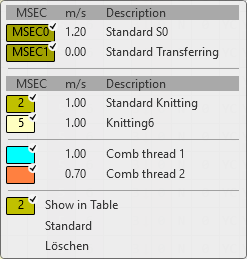
- The speed functions (MSEC) used in the pattern are displayed and are marked by the
 symbol.
 - The entries marked as favorites in the Setup verileri tool window under the Hız section of the Varsayılan table are displayed.
- 3
- Select the desired main take-down value and enter it in the control column.
- or -
Fill a selection.
: The velocity values (MSEC) displayed in the context menu correspond to the table in the Setup verileri tool window in the Hız section / Kullanıcı tab.
Select an entry of the Speed (MSEC) tool window and change it:
-
Tasarım deseni is selected.
- The Hız (MSEC) control column is displayed.
- 1
- Open the selection list in the Başlat ribbon at Araç penceresi and select Setup verileri.
- or -
click the Setup verileri icon directly under Parametreler. - The Setup verileri tool window appears.
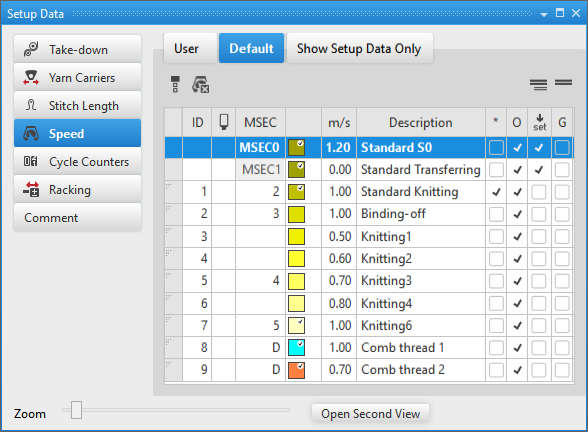
- 2
- Select the Hız (MSEC) section.
- 3
-
Varsayılan Tab
- or -
Select Kullanıcı. - 4
- Select the desired speed value in the column and enter it in the control column.
- The default setting will be overwritten in these design rows.
Options in the toolbar
|
|
Selecting the default value to enter in the control column |
|
|
Deleting an entry in the control column |
|
|
Show Pattern-related Values |
|
|
Hide Pattern-related Values |

Column labels of the Speed (MSEC) tool window
|
Column |
Display |
|---|---|
|
ID / IDv / ID^ |
Consecutive numbering and sorting of the entries |
|
|
Selecting the speed value to enter it in the control column |
|
MSEC |
Index for indirect allocation of the speed |
|
Color |
Display of colors to enter in the control columns |
|
m/s |
Value for the speed |
|
Column |
Display | |
|---|---|---|
|
Description |
Comment on the use of the entry. | |
|
* |
|
Entry is not defined as favorite, meaning the entry is only within the Varsayılan table available. |
|
|
Entry is defined as favorite, meaning the entry is available within the Kullanıcı table or directly via the context menu of the control columns. | |
|
O |
|
Value cannot be overwritten (Overwrite) by a value of another table. |
|
|
Value can be overwritten (Overwrite) by a value of another table. (Default) | |
|
|
|
The entry will not be applied to the Setup data
|
|
|
The entry will be applied to the Setup data.
| |
|
G |
|
All settings of the Varsayılan or Kullanıcı table are STOLL defaults (STOLL Template).
|
|
|
These settings of the Varsayılan or Kullanıcı table are now User Standards (User-Template)
| |
Specify the favorites:
-
Tasarım deseni is selected.
- 1
- Open the Setup verileri tool window.
- 2
- Select the Hız (MSEC) section.
- 3
- Select the Varsayılan tab.
- 4
- Mark the desired entry in the * column .
- 5
- Close the tool window with .
- The selected entry will be displayed in the context menu and can be inserted in the design pattern for the speed.
Add a new entry in the speed (MSEC) tab:
: New entries can only be added in the Kullanıcı tab.
- Tasarım deseni document window is selected.
- 1
- Open the Setup verileri tool window.
- 2
- Select the Hız (MSEC) section.
- 3
- Select the Kullanıcı tab.
- 4
- Set the cursor in the left table column to the row.
- 5
- Call up the Satır ekle... context menu.
- A new entry will be added at the end of the table.
- 6
- Make the desired specifications in the columns of the new entry.
- 7
- Close the table with .
- Changes are saved to the table and are available in the project for each order and for all of its individual patterns.
: The changes will be saved to the *.spf file when saving the project.
Apply entry of the Speed (MSEC) tab to the pattern:
- The Tasarım deseni document window is selected.
- The Hız (MSEC) control column is displayed.
- 1
- Open the Setup verileri tool window.
- 2
- Select the Hız (MSEC) section.
- 3
- Select the Kullanıcı tab.
- 4
- Select the desired speed value in the column.
- 5
- Enter the selected speed value in the control column.
- 7
- Import the existing sleeve shape and position it.
: If the basic pattern is too small for the shape, then the size of the basic pattern will be automatically adjusted to the size of the shape.
Attention: Perhaps the color strap needs to be adapted.
- 8
- Open the line table by the
 Çizgi tablosu button to get an explanation of a shape.
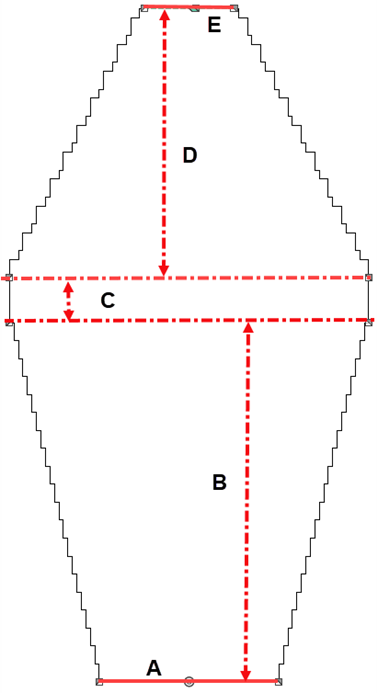
Structure of a basic shape
|
|
A |
Starting line |
|
B |
Area with shape modification because of widening | |
|
C |
Area without shape modification | |
|
D |
Area with shape modification because of narrowing | |
|
E |
End line | |
|
| ||
|
| ||
Fading-out
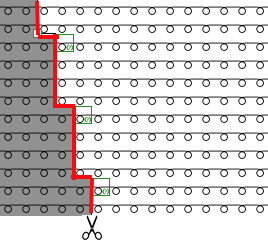
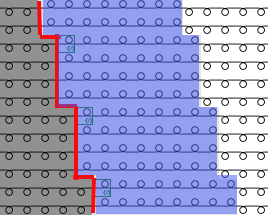
Exchange of the knitting mode at the shape edges
While cutting out the shape, the knitting mode is replaced at the shape edges.
|
|
1 |
Cutting-out the shape
|
|
|
2 |
Marked area (blue):
|
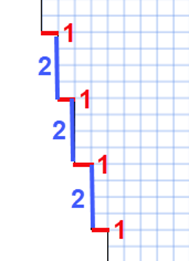
Widening
Widening of a fabric piece
|
|
1 |
Step width of widening
|
|
2 |
Step height of widening = Number of rows between two widening steps
| |
|
Widening Width |
Depending from the selected widening module
| |
Narrowing
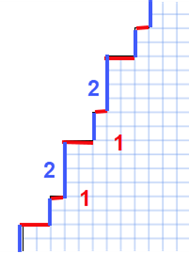
Narrowing of a fabric piece
 : The transfer of stitches results in double stitches (fashioning marks).
|
|
1 |
Step Width
|
|
2 |
Step height = Number of rows between two narrowing steps
| |
|
Narrowing Width |
Depending on the knitting mode of the basic pattern | |
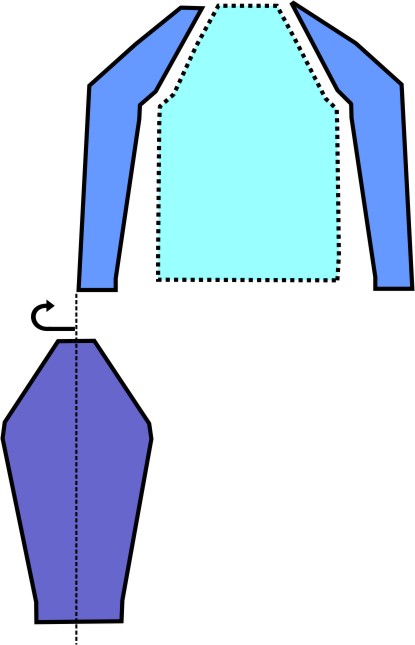
Rules for a raglan sleeve shape in the SJ knitting mode
|
Shape Attributes |
Rules |
|---|---|
|
Knitting Mode |
Single Jersey |
|
Step width of widening |
1 needle (stitch) per knitting row |
|
Step height of widening |
As desired |
|
Quantity of rows without shape modification |
As desired |
|
Step width when narrowing |
1 - 3 needles (stitches) |
|
Step height when narrowing |
As desired |
|
Narrowing Width |
As desired |
|
Fading-out Width |
As desired |
|
Knitting mode for fading-out |
Front Stitch with Transfer (default) |
- 9
- Click the
 Mekikler button under Önizleme in the Başlat ribbon.
 - The document window is opened as view and the Mekikler ribbon appears.
|
Yarn Carrier Color as Background | ||
|
|
Switching the view between the different pattern colors
| |
|
| ||
|
Show Knitting-out | ||
|
|
inactive |
Knitting-out of the yarn carriers is not displayed in the graphic. |
|
Active |
Knitting-out of the yarn carriers is displayed in the graphic.
| |

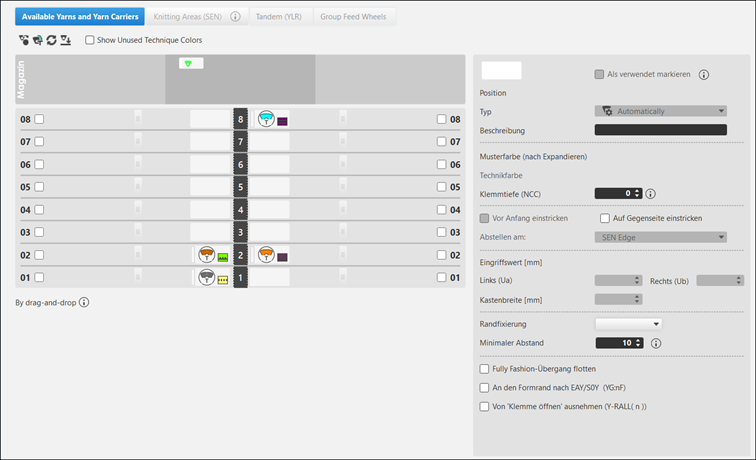
- 10
- Open the tool window with the Mekikler button ->
 Mekikleri göster -> Mevcut iplikler ve mekikler tab
- 11
- Select the desired yarn carrier.
- 12
- Make the following changes:
- Combine yarn carriers from the pattern with the yarn carriers from the start.
- Mekikleri birleştir
- Mekikler birleştirilmesin
- Allocate the yarn carriers to the rails.
- 13
- Apply the changes:
Düzenle group -> Uygula
- or -
Düzenle group -> Uygula ve kapat
|
|
Senkronizasyon |
Tasarım desenindeki değişiklikleri açık mekik görünümüne uygular ve her iki görünümü güncel desen durumuna senkronize eder. |
|
|
Uygula |
Mekik değişikliklerini tasarım desenine alır. Diğer değişiklikler (örneğin renk parametreleri) hemen etkili olur. |
|
|
Uygula ve kapat |
Mekik değişikliklerini tasarım desenine alır ve görünümü kapatır. Diğer değişiklikler (örneğin renk parametreleri) hemen etkili olur. |
|
|
İptal |
Değişiklikleri siler ve mekik görünümünü kapatır. Close with İptal if you only opened the Yarn Carrier view for control. |

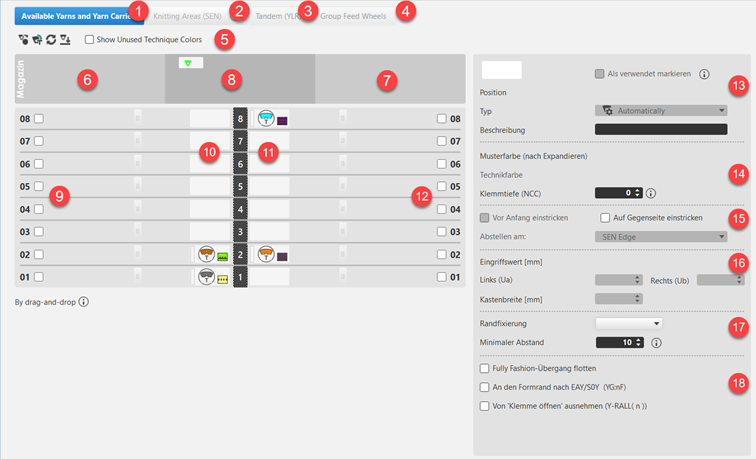
Explanation of the Mekikler tool window:
|
| ||||||
|
1 |
Mevcut iplikler ve mekikler Tab | |||||
|
| ||||||
|
5 |
|
Returning yarn carriers to the magazine according to their position at the left or right side of the yarn carrier rails.
| ||||
|
|
Allocating the yarn carriers for technique colors to the yarn carrier rails according to the standard preallocation. | |||||
|
|
Returning yarn carriers from the yarn carrier rails to the magazine as 'undefined'.
| |||||
|
|
Allocating the yarn carriers from the magazine to the yarn carrier rails. | |||||
|
Kullanılmayan teknik renklerini göster | ||||||
|
|
In the view of the yarn carrier rails, only the technique colors used in the pattern are displayed. | |||||
|
|
In the view of the yarn carrier rails, the technique colors not used in the pattern are displayed as well. | |||||
|
6 |
Display of the yarn carriers for yarn and magazine colors regarding the positioning on the left side during rail allocation.
| |||||
|
7 |
Display of the yarn carriers for yarn and magazine colors regarding the positioning on the right side during rail allocation.
| |||||
|
8 |
Display of the yarn carriers for yarn and magazine colors undefined.
| |||||
|
9 / 10 |
|
Release for allocation of the rail with a yarn carrier left / right | ||||
|
|
No release for allocation of the rail with a yarn carrier left / right | |||||
|
10 / 11 |
Graphic presentation of the yarn carrier rails with the used yarn carrier types on the left / right side and specification of the corresponding colors. | |||||
|
| ||||||
|
Input panel for the selected yarn carrier | ||||||
|
13 |
|
Set as Used | ||||
|
|
Yarn carrier position is free for allocation | |||||
|
|
Yarn carrier position is not free for allocation
| |||||
|
Pozisyon |
Specification of the yarn carrier position of a yarn carrier color | |||||
|
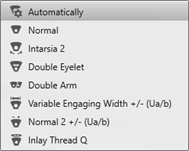
Tipi |
| |||||
|
Açıklama |
Comment on a yarn carrier
| |||||
|
14 |
Desen rengi (genişlettikten sonra) |
Display of the pattern color of the selected yarn carrier | ||||
|
Teknik rengi |
Display of the technique color of a selected technical yarn carrier | |||||
|
Tutma derinliği |
Needle sinking of clamping and cutting needle | |||||
|
15 |
Başlangıçtan önce örgüye gir |
|
Selected yarn carrier is not knit-in in the Knitting-in before start function. | |||
|
|
Selected yarn carrier is knit-in in the Knitting-in before start function. | |||||
|
Karşı yönden örgüye gir |
|
A yarn carrier remains on the corresponding side based on its home position. | ||||
|
|
A yarn carrier is knitted before the start to the opposite side of its home position.
| |||||
|
Bırakma noktası: |
| |||||
|
16 |
Çekiş değeri [mm] | |||||
|
Sol (Ua) |
Engaging width for the left side | |||||
|
Sağ (Ub) |
Engaging width for the right side | |||||
|
Takoz eni [mm] |
Specification depending on the yarn carrier type specified under Tipi
| |||||
|
17 |
Kenar sabitleme |
Selection of the knitting mode for the border fixation (module) | ||||
|
Minimum mesafe |
Distance for the border fixation in rows | |||||
|
18 |
Fully Fashion geçini atla |
|
At the end a yarn carrier is moved to the home position according to the setting in the Yarn Field Allocation. | |||
|
|
At the end a yarn carrier is moved to its home position without knitting.
| |||||
|
EAY/S0Y sonrasında şekil kenarına (YG:nF) |
|
The yarn carrier will not be positioned at the counters #L and #R. | ||||
|
|
The yarn carrier will be positioned at the counters #L and #R and follows the shape. | |||||
|
'Tutucuyu aç''tan çıkart (Y-RALL( n )) |
|
Selected yarn carrier is controlled by the Y-RALL function. | ||||
|
|
Selected yarn carrier will be excluded from the Y-RALL function and can be defined differently by the value (rows) at | |||||
|
| ||||||


 : Use:
 Color Parameters under
  .
.Additional tabs:
|
2 |
Örgü alanları (SEN) |
Working with several SEN areas:
|
|
3 |
Tandem (YLR) |
Change of the yarn carrier home position with tandem machines |
|
4 |
İplik besleme cihazlarını gruplandır |
Use when working with feed wheels
|

- 14
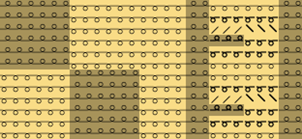
- Open the Expanded Symbol View with the
 Sembol button as preview if necessary to check the design pattern before further editing.
- and / or -
Open the expanded fabric view with the Örgü button
Expanded Symbol View
- The desired pattern is selected.
- 1
- Click the Önizleme button in the ribbon under Sembol.
: An additional document window appears with the expanded view of the design pattern.
- 2
- Close the document window with
 in the tab.
|
|
|
|---|---|
|
|
|
|
| |
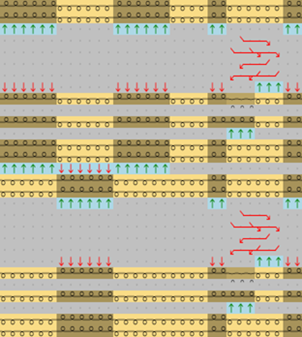
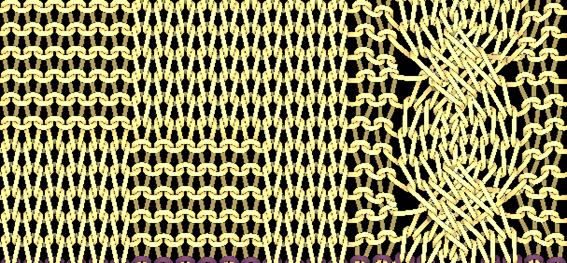
Genişletilmiş örgü görünümü
- The desired pattern is selected.
- 3
- Click the Önizleme button in the ribbon under Örgü.
: An additional document window appears with the fabric view of the design pattern.
- 4
- Close the document window by in the tab.
|
Fabric View | ||
|---|---|---|
|
| ||
|
Options in the status bar | ||
|
Açılmış olarak |
|
Show Genişletilmiş örgü görünümü with knitting rows and not knitting rows (transfer, cast-off, etc.) |
|
İç içe düşmüş olarak |
|
Show Genişletilmiş örgü görünümü only with knitting rows |
|
Çekimi hesapla |
|
Calculate the stitch distortion in order to get a realistic fabric view. |
|
İlmek yoğunluğu oranında gösterim |
|
Show Genişletilmiş örgü görünümü with the specified stitch ratio |
|
İlmek düşmeleri çözülmesin |
|
Drop stitches are displayed. |
|
Koruma sıralarını göster |
|
Display of the protection rows |
|
Ayırma ipliğini çek |
|
Display of the draw thread |
|
İplik dokusu |
|
View of the selected yarn texture from the Yarn Explorer |
|
Arka plana |
|
Set background color for Genişletilmiş örgü görünümü |
|
| ||


- 15
-
 Start Technical Processing:
-
 Show symbol view after technical processing.
: Tip
Open the yarn carrier path in the "Technical View"  :
:
The yarn carrier for the protection thread 1 (#205) will be clamped after the start and at the end brought in again in the protection rows in the Atla, kilitle, kumaş kenarı module from Configuration.
Technical processing of an individual pattern:
- 1
- Select the desired pattern for the technical processing in the Desen ribbon under Başlat .
- or –
Open the desired pattern in the Desen tool window double clicking. - 2
- Start the technical processing for the selected pattern by the button in the Başlat ribbon under Teknik.
: The result is shown in the document window by an unprotected symbol view.
- 3
- Close the document windows with in the tab of the document windows.: The data will not get lost and can at any time be shown and edited in a document window by the Sembol button.
- The success of technical processing is shown by in the Desen tool window behind the pattern name.
|
| |
|
|
Technical Processing successfully performed |
|
|
Outdated technical processing
|
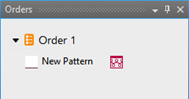

Presentation of the views
|
Design Pattern |
Processed Symbol View (not write-protected) |
|---|---|
|
|
|
|
Before Technical Processing: |
After Technical Processing:
|
|
| |

: Changes will be overwritten by re-processing .
Multiple Selection of Patterns for Technical Processing:
You can select several patterns for technical processing to start it more quickly.
- Several patterns are created.
- 1
- Click the
 İşlem button in the Başlat ribbon under Çoklu işlem
.
İşlem button in the Başlat ribbon under Çoklu işlem
. - The Teknik işlem dialog box appears.
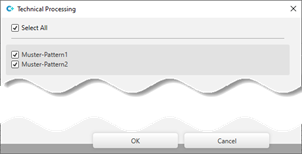
- 2
- Select the desired setting.
: You cannot start the technical processing for patterns greyed-out as data may be missing.
- 3
- Close the dialog box with Tamam.
- The technical processing is done automatically and shown by in the Desen tool window.
- 4
- Close the document windows by in the tab of the document windows.: The data will not get lost and can at any time be shown and edited in a document window by the Sembol button.
- Successful processing is shown in the Desen tool window by behind the pattern name.
- 16
- Generate
 Sintral.
Generate knitting program for a single pattern:
- Pattern is successfully processed.
- 1
- Select the desired pattern in order to create it for the knitting program in the Başlat ribbon under Desen .
- or –
Open the desired pattern in the Desen tool window double clicking. - 2
- Start the technical processing by the button in the Sintral ribbon.
- The *.sin; *.jac and *.setx files will be generated for the current patten.
The elements of the program are displayed by the following buttons:
|
|
Sintral |
Displaying the Sintral file |
|
|
Jakarlar |
Displaying the packed Jacquard file |
|
|
MC-Setup |
Displaying the Setup file |


Generate knitting programs for several patterns:
: You can select several patterns for the Örme programı oluştur procedure to start it more quickly.
- Several patterns or an order with several patterns is created and the technical processing is carried out for all patterns.
- 1
- Click the Örme programı oluştur button in the Başlat ribbon under Çoklu işlem
.
- The Örme programı oluştur tool window is displayed.
- 2
- Select the desired setting.
- You cannot start the Örme programı oluştur processing for patterns greyed-out as data may be missing.
- 3
- Close the dialog box with Tamam.
- The processing step is automatically done for the selection and the patterns are marked with
 symbol in the Desen tool window.
- 17
-
 Start Sintral Check
Sintral Check for a single pattern:
- The Örme programı oluştur processing step was performed so that the *.sin / *.jac / *.setx files are created for one pattern.
- 1
- Select the desired pattern for the Sintral Check in the Başlat ribbon under Desen .
- or –
Open the desired pattern in the Desen tool window double clicking. - 2
- Start the Sintral Check with the Sintral Kontrolü button.
- The Sintral Kontrolü dialog box appears.
- 3
- Start the simulation by the START button.
- The Simulation OK message appears
- 4
- Close the dialog box with X.
- 5
- Continue with the next pattern.
Run the Sintral Check for several patterns (multiple selection):
You can select several patterns for the processing step
Sintral Kontrolü, to start it more quickly.
- Several patterns or an order with several patterns is created and processing steps are carried out until Örme programı oluştur.
- 1
- Click the Sintral Kontrolü... button in the Başlat ribbon under Çoklu işlem
.
- The Sintral Kontrolü tool window is displayed.
- 2
- Select the desired setting.
: You cannot start the Sintral Check for greyed-out patterns as data may be missing.
- 3
- Close the dialog box with Tamam.
- The processing step is automatically done for the selection and the patterns are marked with symbol in the Desen tool window.
- 18
-
 Extract knitting program.
 - A program for the knitting machine will be created: CMS530.Pattern-1.zip.
Extract an individual pattern (*.zip) and save it:
- The Örme programı oluştur processing step was performed so that the *.sin / *.jac / *.setx files are created for one pattern.
- Sintral Check was done.
- 1
- Select the desired pattern in order to extract it in the Başlat ribbon under Desen .
- or –
Open the desired pattern in the Desen tool window double clicking. - 2
- Click the Genişlet button in the Başlat ribbon under Sintral.
- The Farklı Kaydet dialog box will appear.
- 3
- Change file name if desired.
- 4
- Select the desired path for the *.zip file.
- Local Drive
- USB Memory Stick
- Network Drive
- 5
- Close the dialog box with the Kaydet button.
- After saving it, the zip file can be loaded and knitted on the machine.
Multiple selection of patterns or orders to create knitting programs:
You can select several patterns or orders for the processing step Genişlet..., to start it more quickly.
- Several patterns are created.
- The processing steps up to Örme programı oluştur, even up to Sintral Kontrolü... are done.
- 1
- Click the Genişlet button in the Başlat ribbon under Çoklu işlem
.
- The Search Folder dialog box will be opened.
- 2
- Select an existing folder.
- or –
Create a new folder under the desired path by the Create folder button. - 3
- Select the folder.
- 4
- Close the dialog box with OK.
- Note appears: Following files successfully extracted:
- You cannot start the Genişlet... processing step for greyed-out patterns / orders as data may be missing.
- 5
- Close the dialog box with OK.
- The extracted knitting programs are available in the folder and can be loaded on the machine.
- 19
- Load knitting program into the machine.
: The extracted file CMS530.Pattern-1.zip can be loaded onto the machine with an USB stick or via Ethernet.