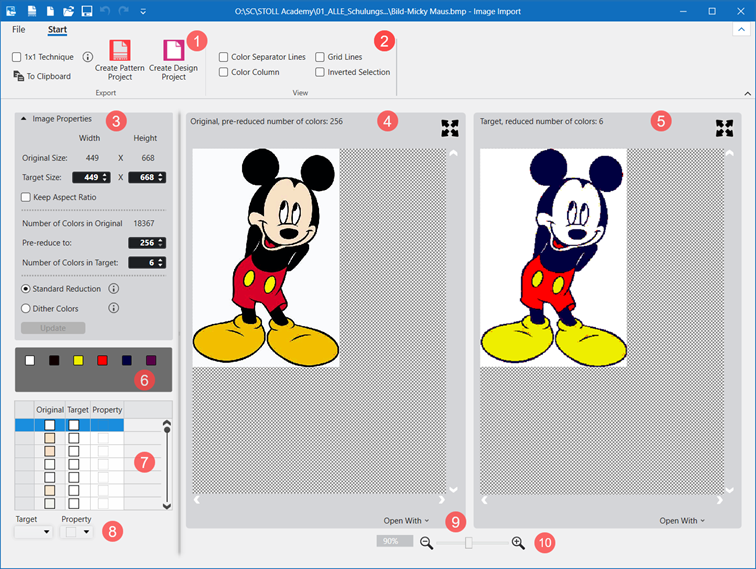
Image Import dialog box
Working with the Image Import dialog box
Options to open the dialog box
- In the start window of Create Plus -> start
 Resmi al
 - In the pattern project -> over Dosya -> İçe aktar -> Resmi al
Importing an image:
- 1
- Start the program double-clicking
 .
. - 2
- Click Resmi al in the start page under Start.
- or -
In the started CREATE PLUS, in the Dosya ribbon, İçe aktar tab, select Resmi al. - The Image import dialog box is opened without display of an image.
- 3
- Select and open the path of the desired image in the Dosya ribbon over Aç.
 : The following formats can be read: bmp, jpg, jpeg, jpe, jfif, gif, tiff, tif, png
 - The image reduced by the default settings is displayed in the dialog box under Hedef and the original one under Orijinal.
|
| |||||
|
Start ribbon | |||||
|
1 |
Group Ver | ||||
|
|
1x1 teknik |
The image will be doubled in the width (1x1 technique).
This affects the insertion of the image! | |||
|
|
Panoya |
The edited image is copied to the clipboard.
| |||
|
|
Desen proje oluştur |
A pattern project with a design pattern is opened from an edited image. | |||
|
|
Tasarım projesi oluştur |
A design project with a design pattern is opened from an edited image. | |||
|
2 |
Group Görünüm
| ||||
|
|
Renk ayırma çizgileri |
Display of the Hedef, düşürülmüş renk sayısı: view of colored separating lines for subdividing the different areas with different quantity of colors | |||
|
|
Kılavuz çizgileri |
Display of a grid in the Hedef, düşürülmüş renk sayısı: view | |||
|
|
Renk sütunu |
Display of an additional column in the Hedef, düşürülmüş renk sayısı: view with the existing colors in each case. | |||
|
|
Ters seçim |
Display of the selected color
| |||
|
3 |
Resim özellikleri | ||||
|
Orijinal boyut: |
Display of the original size of the image in width x height | ||||
|
Hedef boyut: |
Edit boxes for the size of the target in width x height | ||||
|
|
Kenar oranını uydur |
|
Size of the image freely changeable in width and height. | ||
|
|
Size of the image changeable depending on the aspect ratio. | ||||
|
Orijinaldeki renk sayısı |
Original quantity of colors in the original image | ||||
|
Öncesinde şuna düşür: |
Entry of the quantity of colors to which the image is to be reduced when loading it.
| ||||
|
Hedefteki renk sayısı: |
Entry of the quantity of colors for reducing the Orijinal to Hedef | ||||
|
|
Type of reduction of an image, e.g. for Jacquard | ||||
|
|
Type of reduction of an image with smooth color transitions, e.g. for photos | ||||
|
Güncelleştir |
Apply changes of the settings | ||||
|
4 |
Display of the Orijinal with already previously reduced number of colors | ||||
|
5 |
Display of the Hedef image with the specified quantity of colors | ||||
|
6 |
| ||||
|
7 |
Table with the following columns | ||||
|
Orijinal |
Quantity of colors which were entered at Öncesinde şuna düşür:. | ||||
|
Hedef |
Allocation of a target color to a original color
| ||||
|
Sahiplik |
|
Allocate 'outside shape' to one or more selected target colors.
| |||
|
|
One or more selected target colors are imported as color in the CPS.
| ||||
|
|
Allocate Transparan to one or more selected target colors.
| ||||
|
8 |
Hedef |
Selection of the target color for the allocation of a property | |||
|
Sahiplik |
Selection of the desired property for the selected target color | ||||
|
9 |
Şununla aç |
Open the original or the target in an image editing app to make changes | |||
|
10 |
Yakınlaştır |
Zoom display | |||