Raster-Shape
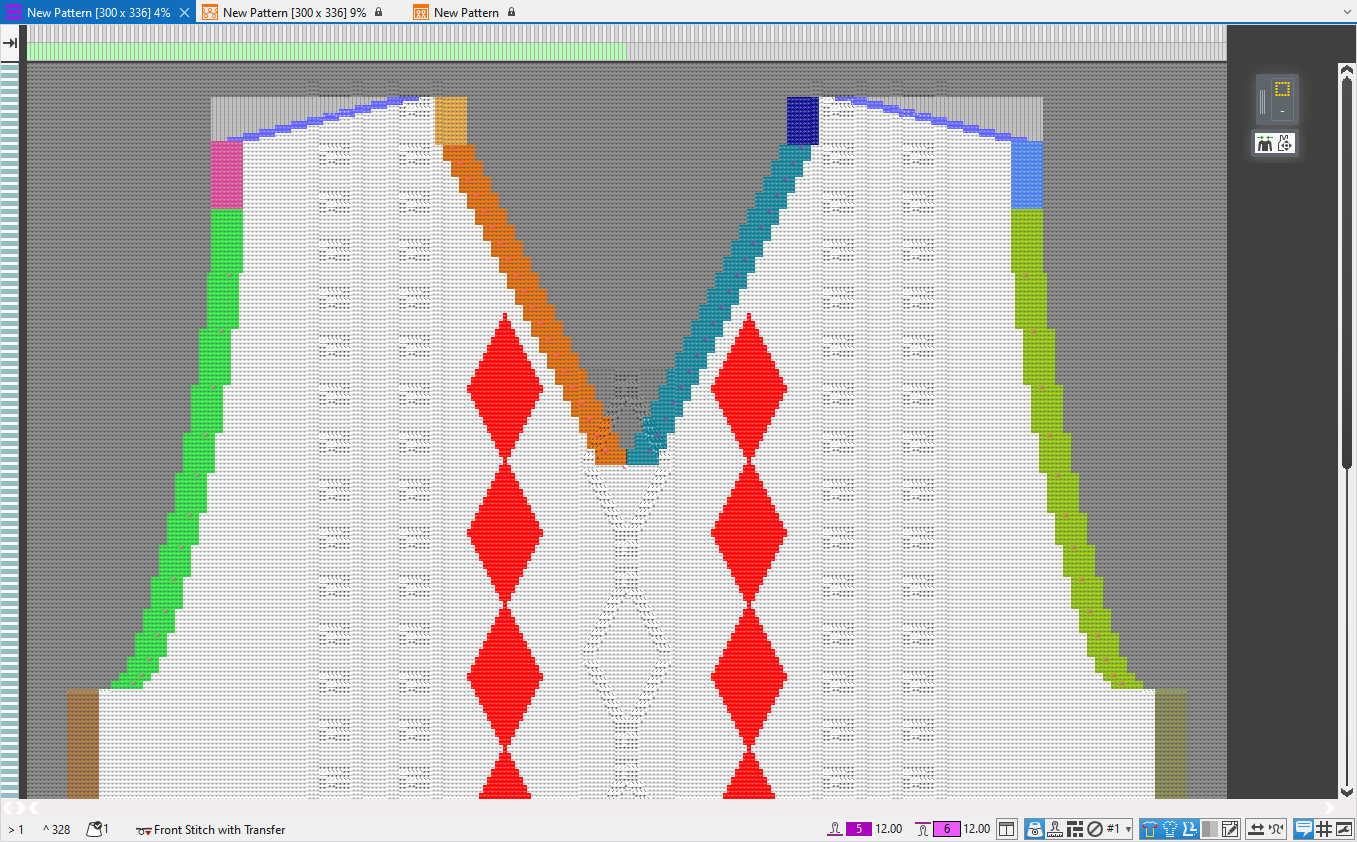
Beside the lined shape and the dimensioned shape there is also the possibility to create a shaped pattern using the raster-shape.
- Draw the raster-shape on the pattern manually.
- - or -
- Position the shape on the pattern and convert it to the raster shape.
For drawing and editing the raster-shape:
- Shape Symbols of the 模型符号 tool window
- Shape Edges of the 模型边缘 tool window
- 绘图工具
- Functions of the context menu
- Modules of the编织资源管理器 for:
- 边缘组织
- 收针
- 放针
- 拷针
Status Bar
In the status bar of the raster-shape you can make the following settings for the representation:
Draw Manually
Some tips to draw manually:
Disable background and foreground
To draw manually it is very useful to set the view in the status bar to  禁用前景色 and 禁用背景.
This way the pattern is hidden and the raster-shape can be edited more easily.
Cursor Attributes Window
In the Cursor Attributes window you can find some drawing tools developed specially for the raster-shape that considerably facilitate the editing of the shape edges.
Shape Symbols
In the shape symbols you can find beside the modules, all attributes that you need to draw in the raster-shape.
Shape edges and shape markings can be found in the drop-down menu of the corresponding shape symbol.
Shape symbols can also in addition be selected and drawn-in using the CTRL key.
Drawing Tool 多重复制
All drawing tools from the menu bar are available to edit the raster-shape.
The 多重复制 drawing tool can be especially helpful.
With repetitions you can create the shape edges quickly.
Add Missing Shape Symbols
- You can also draw the shape as a contour with the
 模型内 and
  模型外 attributes.
 - Or load the contour as a two-colored image file.
And assign the two color areas the 模型内 and 模型外 attributes. - Then call up the 添加缺失的模型符号... function in the context menu.
- In the 添加缺失的模型符号 tool window you make the settings for the shape edges.
- Clicking on Generate shape symbols the shape edges with the shape attributes are determined and drawn-in automatically.
- Add Missing Shape Symbols
- Image Import
Create from a shape
It can be very helpful to use a 线模型 or a 尺寸模型 as a basis for the raster-shape.
Position the desired shape on the pattern and click on 转换模型为栅格模型
in the context menu.
The raster-shape appears according to the positioned shape and can then be edited manually.
In the context menu you have the following options for the editing of the raster-shape:
Tool Window 模型边缘
The created shape edges can be selected in the Shape Symbols tool window to draw.
To edit the shape edges or create new ones, you open in the context menu the 模型边缘tool window.
In the upper area you make in the table the settings for the listed shape edges.
In the lower area you can find and replace raster-shape data.
Tool Window 模型标记
In the Shape Markings tool window you can assign different knitting elements to the shape at any desired points.