Recalculate Size
You can call up the dialog box with the Recalculate Size... function in the context menu of the view.
-
In the Fabric Pieces and Sizes tool window
Example: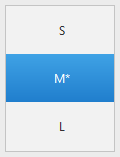
 Fabric Pieces and Sizes
-
In the column header of the desired size in the Measure Table
Example: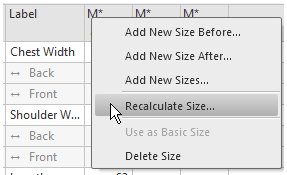
Elements in the dialog box:
-
Starting Size

Recalculate the measures based on the selected size. -
 Reduce Starting Size
The new size will be smaller as the starting size (e.g. M to S). -
 Increase Starting Size
The new size will be larger as the starting size (e.g. M to L). -
Resizing
-
 Factor
Specify percentage.
The value of the starting size will be increased (or decreased) by the percentage. -
Absolutely (difference from the table)
The values of the Dif column will be added (or subtracted) to the corresponding value.
 |
A size can be recalculated even based on its own.
Therefore select the same size as starting size. |
