How to Recalculate the Sizes After Changes
- The order requires a dimensioned shape in several sizes.
- The size differences are created with the percentage according to the order.
- The XL size presents an exception due to a higher percentage specification.
- The Dimensions
 tool window is open.
- The Show All Sizes
 status icon is activated in the dimensioning view.
 Options of the Dimensioning View
 - Select the Size
 menu of the ribbon.
- This size appears with a bold border in the dimensioning view.
- The dimensionings of this shape size appear.
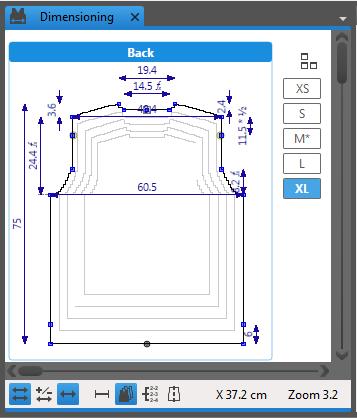
- Open the context menu in the XL* column title of the Dimensions table.
- Select Recalculate Size....
- The Recalculate Size XL dialog box appears.
- The starting size L is displayed in the dialog box.
- The
 Increase Starting Size button appears active.
- Select the
 Factor option button.
- Replace the value with the percentage of the order in the
 % edit box.
- Confirm with
 .
.
- The position of the shape points adjusts to the newly calculated dimensions.
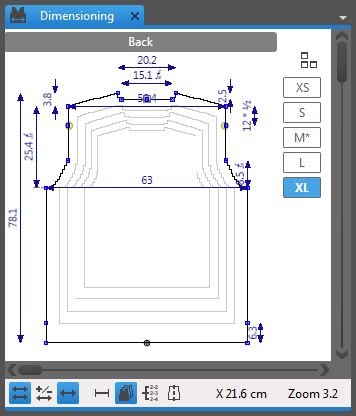
 How to Proceed:
