Add New Sizes
You can call up the dialog box with the Add New Sizes... function in the context menu of the view.
In the Fabric Pieces and Sizes tool window
Example: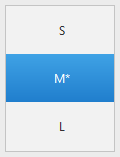
 Fabric Pieces and Sizes
-
In the column header of the desired size in the Measure Table
Example: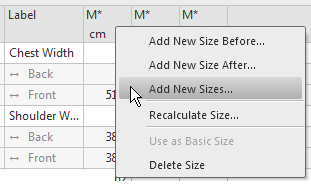
Elements in the dialog box:
Sizes group box on the left-hand side:
-
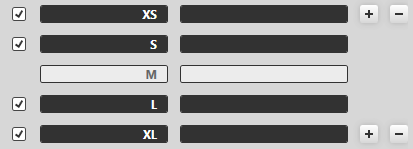
Table with cells for the selection, the Label and the Description of the sizes -
Buttons at the top


-
adds the next smaller size.
-
removes the smallest size.
-
Buttons at the bottom
-
adds the next larger size.
-
removes the largest size.
On the right-hand side:
Grading
 Grading
Calculates the new size according to the following settings.
-
Starting Size

Calculate the measures based on the selected size. -
 Reduce Starting Size
The new size will be smaller as the starting size (e.g. M to S). -
 Increase Starting Size
The new size will be larger as the starting size (e.g. M to L). -
Resizing
-
 Factor
Specify percentage.
The value of the starting size will be increased (or decreased) by the percentage. -
Absolutely (difference from the table)
The values of the Dif column will be added (or subtracted) to the corresponding value.
 Grading
Adds the new size with unchanged measures to the table.
Change the individual measures in order to get a different size.
 How to Proceed:
 Examples concerning this topic: