Gore
How to Define a Shoulder Gore:
- The dimensioned shape is opened in the Dimensioning View
 .
.
- The shape line of the shoulder is mirrored.
- The startpoint and endpoint of the shoulder are dimensioned horizontally and vertically.
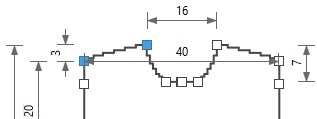
- The stepping specifications for the shoulder are entered.
- Open the context menu for the left shape line of the shoulder.

- Select the
 Line Properties.
 - The Line Properties tool window appears.
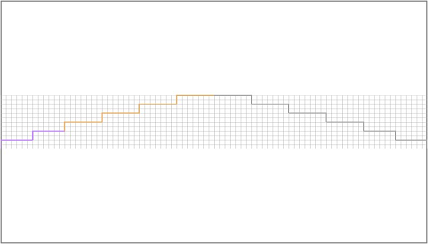
- The selected shape line and the mirrored shape line appear in the detail view on the
right.
- Keep the Standard option in the Behavior
 list box.
- Keep the
 Fill Neckline check box deactivated.
- Do not make settings in the Stepping Parameters group box.
- Go to the row with line identification M in the Line table.
- Select the Gore option in the list box of the Function column.
- The function of the main row M is passed down to the sub-rows.
- Go to the Attributes section.
- Activate the
 With Knitting-off Rows check box.
- The Options... button appears enabled.
- Click the Options... button.
- The Knit-off Gore Options dialog box appears.
- Select a value for each of the left and the right gore under Quantity of rows in the
Additional Knitting Rows
 edit boxes .
- The Align Quantity of Rows by Interlock check box appears enabled in case of different values for left and right.
- Select a value for each of the left and the right gore in the Knitting Rows within the Gore Line edit boxes.
- The Align Quantity of Rows by Interlock check box appears enabled in case of different values for left and right.
- Activate the Binding-off checkbox.
- The list box for knitting element selection appears enabled.
- Select a knitting element in the list box.
- Confirm settings with
 .
.
- The Knit-off Gore Options dialog box closes.
- The selected specifications are determined for the shape line.