Widening Settings
How to Change the Widening Settings in the Shape Line Following the Waist:
- The dimensioned shape is opened in the Dimensioning View
 .
.
- The widening stepping specifications are entered.
- The Widening, Transfer outward, Closing Stitch widening module is required
- The widening width 4 is required.
- 1 stitch widening cover width is required.
- Open the context menu for the left shape line of the widening after the waist.

- Select the
 Line Properties.
 - The Line Properties tool window appears.
- The selected shape line and the mirrored shape line appear in the detail view on the
right.
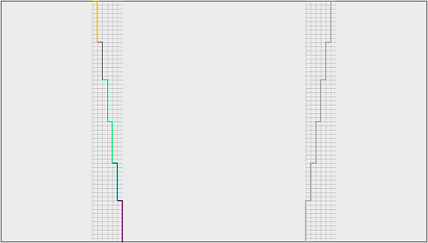
- Keep the Standard option in the Behavior
 list box.
- Keep the
 Fill Neckline check box deactivated.
- Do not make settings in the Stepping Parameters group box.
- Click on the line ID M of the main row in the Line table.
- The attributes of the M line appear in the group box at the bottom.
- Go to the Attributes section.
- Select the Widening, Transfer outward, Closing Stitch module in the list box of the Widening group box.
- Select the value 4 in the Width
 edit box.
- Select the 1 Stitch option in the Cover Width list box.
- The widening specifications of the main row M are passed down to the sub-rows.
- The selected widening specifications are determined for the shape line.