How to Define and Transfer Properties of Marking Points
You can copy and transfer properties of different objects of the dimensioning view
with the  Property Painter drawing tool. Target objects for pasting the copied properties get highlighted.
How to Proceed:
- Several marking points shall be recognized within the pattern by the same module.
- Shape with marking points is opened in the dimensioning view.
- Run the Properties function in the context menu of the marking point.
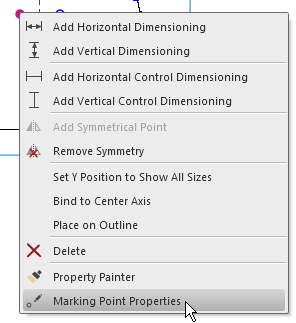
- Select a Knitting Element as marking.

e.g. Pointelle, Stitch v
The inserting direction does not matter in this case. - Confirm the dialog box with
 .
.
- Transfer the new property to the next marking points.
Double click theProperty Painter - Click the marking point with knitting element as source.
- Click the desired marking points.
- The Pointelle, Stitch v knitting element is pasted to all the marking points you clicked on.