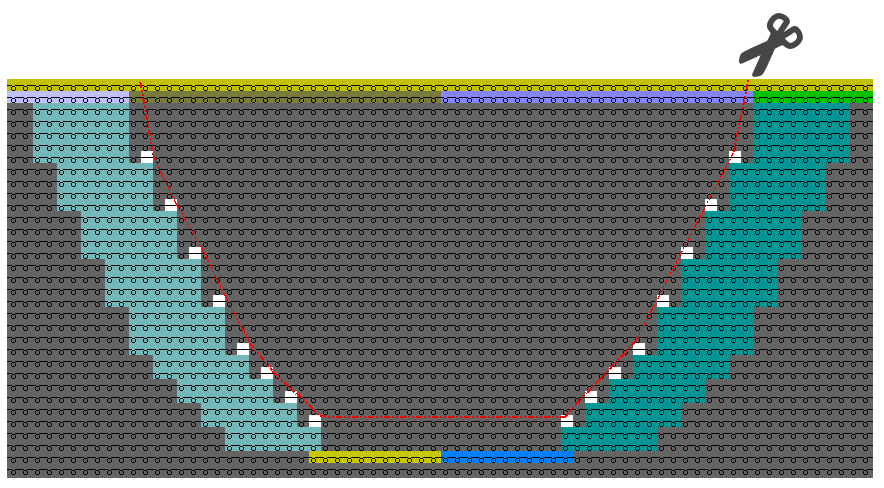
How to Fill the Neckline
You can specify for a neckline that within the shape edges will be knitted.
-
Only one yarn carrier will be necessary in the area of the neckline
-
Advantages in productivity by less carriage movements
How to Specify the Behavior of the Shape Line
- The dimensioned shape is opened in the Dimensioning View
 .
.
- Existing lines for the neck opening
- Open the context menu for the right shape line of the neck opening.
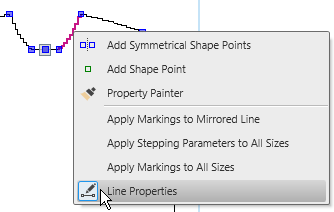
- Select the
 Line Properties.
 - The Line Properties tool window appears.
Line Properties
The selected shape line and the mirrored shape line appear in the detail view on the right.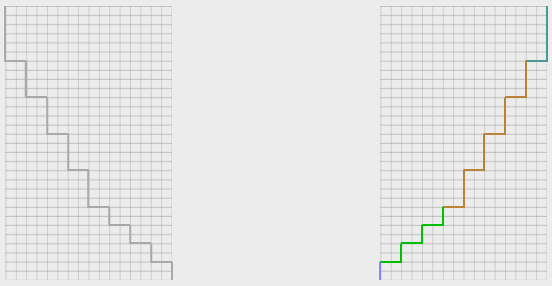
- Activate the
 Fill Neckline check box.
- Go to the binding-off line of the neck opening by the
 Back navigation button.
- The selected shape line and the mirrored shape line appear in the detail view on the
right.

- Activate the Fill Neckline check box.
- The option is activated for both lines on the right and their counterparts.
The area between both shape edges gets to an area within shape.
You can fill this area with special knitting modes with the pattern.
Using the Result in a M1plus Pattern
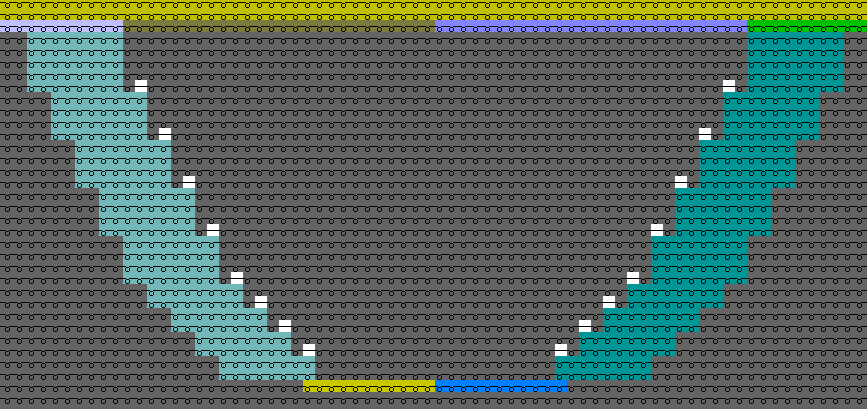
- Import the front of the GKS shape file into M1plus.
- Fill in floats into the intermediate area, if desired.
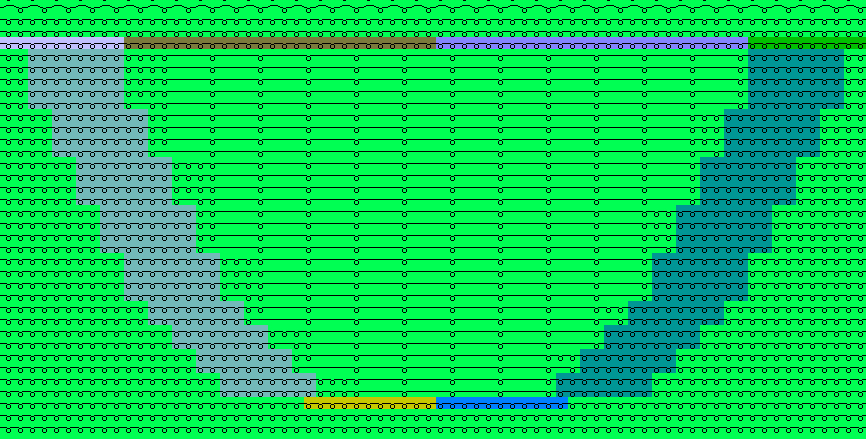
- Cut-out shape and expand pattern.
- Complete and knit the pattern.
- Cut-out the neckline from the fabric along the white markings.