How to Check and Edit the Printout in Advance
The print preview shows the printout in advance:
-
With header and footer as defined in the Basic Page Layout
 Basic Page Layout (dialog box)
 -
With the content as selected and arranged in the Content Layout
Content Layout (dialog box) -
With the input of the Information tab according to the provided placeholders
Information
How to Change the Printout of Individual Sizes of the Shape File:
- Print only XS + XL of the XS, S, M, L, XL sizes
- Do not print the Do Not Wash hint in size XS
- Open the Print dialog box of the Backstage View.
 Print
Print - The Print Preview appears with the settings of the Basic Page Layout and Content Layout dialog boxes.
- Open the Sizes
 picklist and select User Defined....
- Deactivate checkbox for the sizes S, M + L in the Print Sizes dialog box.
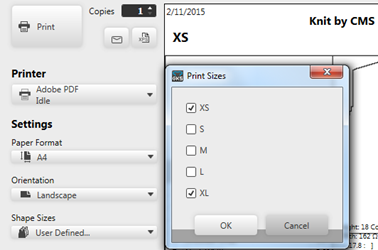
- Close the Print Sizes dialog box with OK.
The pages for XS + XL only appear in the preview. - Scroll to page XS.
- Move the cursor to
 Move grasper of the Do Not Wash text box.
- Open the context menu of the grasper and click Remove.
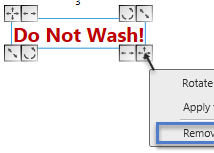
- Pages for S, M + L and the Do Not Wash text box are hidden and will not be printed.
 Tips
Tips
-
Call-up the Restore Content Layoutfunction of the preview in order to show the text box again.
-
You can apply text boxes, added to the print preview, to the print template of the current shape file by the Apply to Content Layoutfunction of the context menu of text boxes.