Content Layout (dialog box)
Define the layout of the hard copies of the current shape file with these dialog box.
The Basic Page Layout serves as its basis.

Modify the Basis Page Layout in order to change the header and footer of all hard
copies of all shape to come. Basic Page Layout (dialog box)
Call up the Content Layout dialog box in the Print Preview dialog box by the  Content Layout... button. All the settings work directly in the Print Preview and are saved to the shape file.
Settings
-
Fabric Pieces

Open the picklist and select the desired fabric pieces. -
All
-
Back
-
Front
-
Sleeve
-
Collar
-
[New Fabric Piece 1]
Fabric pieces added by you. -
User Defined...
Opens the Print Fabric Pieces dialog box to specify the objects to print. -
Text Boxes

Open the picklist and select the desired data to be printed next to the graphics. -
Default (all)
-
User Defined...
Opens the Print Text Boxes Beside Graphics dialog box to specify the objects to print.
-
Insert Placeholder
-
Insert placeholders at the mouse position in the preview.
-
-
Insert Placeholder with its Title
-
Insert placeholders with its title at the mouse position in the preview.
-
Example
Placeholder: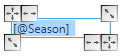
Printed hard copy: Season: Spring
 You can enter the @ character directly into a placeholder in order to print the title of the placeholder.
-
Insert Text
Insert a text box at the cursor position and type the text.
You can rotate or delete the text box with the context menu of the graspers.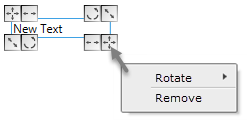
-
Insert Picture 1 and Insert Picture 2
Inset left and right image of the Information tab.
You can rotate or delete the text box with the context menu of the image.
Example: QR code and image of the itemInformation -
Insert Table
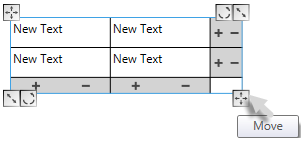
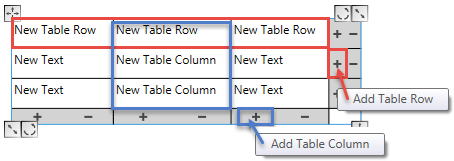
-
Insert Arrow
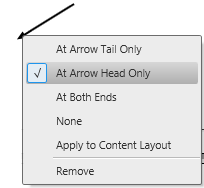
Insert an arrow and drag it with the mouse into the desired direction.
You can style head and tail of the arrow with the context menu.
-
Restore Basic Page Layout
View Options
-

Zoom in the preview -

Zoom out the Preview -

Best fit to the Preview -
 Fit to Width
Full Width as Preview -
 Whole Page
Full Page as Preview -
 Two Pages
Two Pages as Preview
Formate Placeholders
How to Formate Texts to Print out:
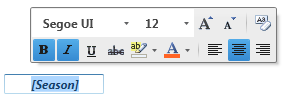
- Select the name of the placeholder including its brackets.
Example: [Season] - The mini toolbar with the formatting tools appears.
- Click the desired formatting items.
- Move the cursor away from the mini toolbar and the placeholder box.
- The new text styles are applied to the text.
Accordingly formatted text appears in the print preview.
Example: Bold, italic and centered
Incompletely selected placeholders will not be replaced by text within the print
preview.
Position Placeholders
How to Position the Placeholders with these Graspers:
-
 Move
Move
Click the grasper and move the placeholder with the mouse button pressed. -
 Rotate
Click the grasper and rotate the placeholder around its center point with the mouse button pressed. -
 Change Width
Click the grasper and drag the placeholder wide or narrow with the mouse button pressed.
The text will break if necessary. -
 Scale
Scale
Click the grasper and draw the placeholder great or small with the mouse button pressed. -
Moving the mouse to the center point makes the placeholder smaller and reduces the font size
-
Moving the mouse to the center point enlarges the placeholder and the font
 How to Proceed:
How to get the Brand Name to the Page Layout
How to Specify the Page Layout
How to Specify the Printable Content of a Shape File