How to Specify the Printable Content
How to Specify the Content of Printouts:
- Without table of the stitch densities
- With hints concerning the collar
- Open the Print dialog box of the Backstage View.
 Print
Print - The Print Preview dialog box appears with predefined layout and content.

- Open the Text Boxes picklist and select User Defined....
- The Print Text Boxes Beside Graphics dialog box appears.
- Deactivate

 Stitch Density Table.
- Close the Print Text Boxes Beside Graphics dialog box with OK.
- The table will be hidden in the preview and not be printed on the graphic page.

- Move the cursor under the collar in the preview.
- Call-up the Insert Text context menu.
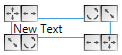
The text box appears at the cursor position.- Type the desired hint and format it.
For example Do Not Wash!
- The print preview appears without stitch density table and with the hint.
