Print Preview (dialog box)
You can make the following settings in order to print a shape file in the Print / Print Preview dialog box and start the printing.
You can open the Print / Print Preview dialog box by  Print... in the backstage view.
ButtonPrint
Start printing with the current settings
Copies
Enter the desired quantity of hard copies
-
 Send As E-mail
Send XPS file as attachment of an e-mail.
The new message with attachment appears in the default mail client. -
 Save As XPS File
The Save as dialog box appears.
Printer

Open the picklist and select the desired printer.
The current state of the selected printer will be displayed.
Settings
-
Paper Format

Open the picklist and select the desired attribute. -
Orientation
Open the picklist and select the desired attribute. -
Landscape

-
Portrait

-
 Edit Mode
Switch the Print Preview to the edit mode in order to edit the layout. -
True to Scale
Specifies the zoom level 1:1 -
Use case: Print cutting bow on plotter
-
Only one fabric piece selected
-
No tables or stepping specifications
-
Fabric Pieces

Open the picklist and select the desired fabric pieces. -
All
-
None (of the Fabric Pieces)
-
Back
-
Front
-
Sleeve
-
Collar
-
User Defined...
Opens the Print Fabric Pieces dialog box to specify the objects to print. -
Tables

Open the picklist and select the desired tables. -
All
-
None (of the Tables)
-
Measures
-
Stitch Density Table
With specifications for the raw fabric -
Knitting Modes
-
User Defined...
Opens the Print Tables dialog box to specify the objects to print. Measures
  Print Sub-rows
 Columns of Correction Values
 Stitch Density Table
 Knitting Modes
Layout for all Hard Copies of the Shape File
-
 Content Layout…
Open the Content Layout dialog box and specify the content and the layout of the content for the printouts of the shape file.
Preview of the Hard Copy
-
Insert Text
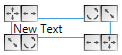
Insert a text box at the cursor position and type the text.
You can rotate or delete the text box with the context menu of the graspers.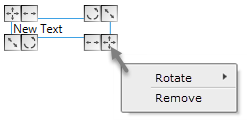
-
Insert Picture 1 and Insert Picture 2
Inset left and right image of the Information tab.
You can rotate or delete the text box with the context menu of the image.
Example: QR code and image of the item Information
 -
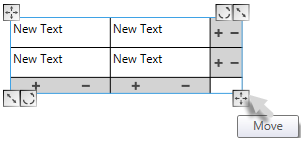
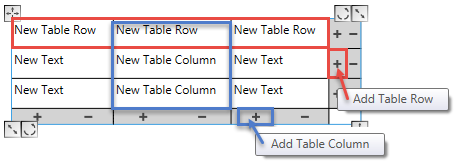
Insert Table
-
Insert Arrow
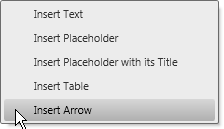
Insert an arrow and drag it with the mouse into the desired direction.
-
Restore Fabric Piece
Select the hidden fabric pieces in the submenu -
Restore Content Layout
 Available only after changing the print preview.
Attention: Newly inserted text boxes or tables may get lost!
View Options
-

Zoom in the preview -

Zoom out the Preview -

Best fit to the Preview -
 Fit to Width
Full Width as Preview -
 Whole Page
Full Page as Preview -
 Two Pages
Two Pages as Preview
Graspers to Position the Text Boxes and Graphics
How to Position the Text Boxes and Graphics with these Graspers:
-
 Move
Move
Click the grasper and move the object with the mouse button pressed. -
 Rotate
Click the grasper and rotate the object around its center point with the mouse button pressed. -
 Change Width Not available for all objects
Click the grasper and drag the text box wide or narrow with the mouse button pressed.
The text will break if necessary. -
 Scale
Scale
Click the grasper and drag the object great or small with the mouse button pressed. -
Moving the mouse to the center point makes the object smaller and reduces the font size
-
Moving the mouse to the center point enlarges the object and the font
Format the Text
How to Formate Texts to Print out:
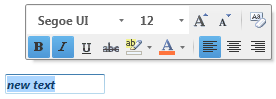
- Select the text in the text box.
Example: new text - The mini toolbar with the formatting tools appears.
- Click the desired formatting items.
- Move the cursor away from the mini toolbar and the text box.
- The new text styles are applied to the text in the text box.
Accordingly formatted text appears in the print preview.
Example: Bold, italic and centered