Drawing with Keyboard
With the symbol  in the drawing tools toolbar, you switch the keypad mode on or off. In the keypad mode, you insert pattern elements, modules or attributes observing the direction of the arrow keys of the numeric keypad. With the cursor keys, you change the position without drawing.
The keypad mode works independently from the Windows MouseKeys, which you can activate via .
|
| |||
|
Num |
./. |
* |
- |
|
|
|
|
+ |
|
|
Insert at the start position |
| |
|
|
|
|
Enter |
|
Insert |
Del | ||
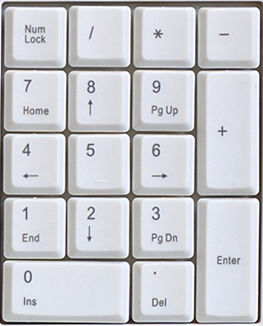


The cursor keys for navigating: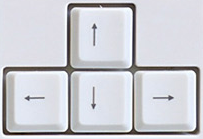
Drawing with the arrow keys of the keypad:
- 1
- A pattern element, module or attribute is selected.
- 2
- The keypad mode is active.
- 3
- Click on the desired start position in the pattern.
- 4
- Enter a repetition factor via the alphanumeric keys.
- The repetition factor is displayed in the Tool properties toolbar.
With Esc you cancel the entry.
With the backspace key, you delete the repetition factor.
- 5
- Press the direction key 5 to insert at the start position.
With Enter, you insert at the start position as well.
- 6
- Press one of the eight direction keys.
- The last pattern element, module or attribute inserted with the keypad mode will be inserted in the direction of the activated direction key. Without repetition factor it will be inserted once.
As long as you hold down the direction key, it will be drawn continuously.
Anything will be inserted outside the pattern edge.
Modules can be inserted incompletely: