Generate MC Jacquard newly
A MC Jacquard is used for creating Jacquards which do not need automatic processing steps, technical processing and Sintral generation.
Generate MC Jacquard
- 1
- Run the function in the menu.
- The New jacquard editor dialog box appears
- 2
- Enter a name.
- 3
- Define the size. Width, height
- 4
- Define the starting line.
- 5
- Define the step width.
- 6
- Confirm input with OK.
- The Symbol View will be opened.
- The Jacquard .AYT… and Jacquard Symbols module groups are loaded into the Module toolbar.
Draw MC Jacquard
- 1
- Draw with the modules of the Jacquard .AYT… and Jacquard Symbols module groups from the Jacquard module data base.
Jacquard .AYT... | Jacquard Symbols |
|---|---|
|
|
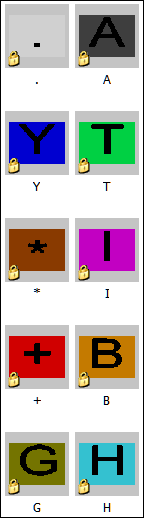
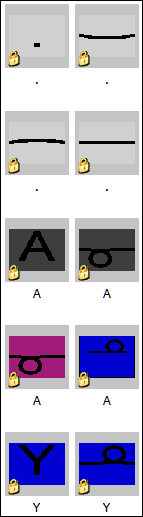
The first letter of the module name is determined for each individual position in the pattern field and used for the MC Jacquard.
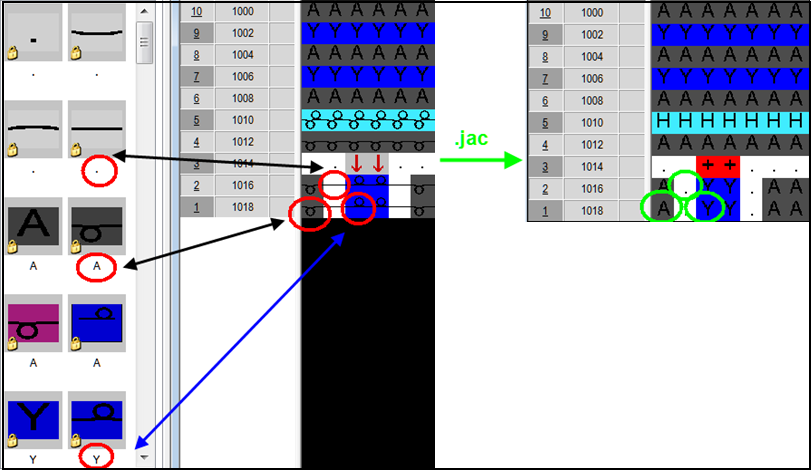
If this letter does not represent a valid jacquard symbol, the ? symbol is entered into the MC Jacquard.
In the case of a drawing a pattern to be converted into an MC Jacquard, the module found in each position is important. The yarn color used is irrelevant. The yarn colors can be used, however, to select areas within the pattern.
- 2
- Save the Jacquard as .jac or as .mdv.
Calculate Jacquard line numbers
When changing the Jacquard rows and / or the starting row carry out a Jacquard row numbering.
- Jacquard is opened
- 1
- Right-click on the Jacquard row control column.
- The Calculate line numbers dialog box opens up.
- 2
- Activate the dialog.
- The input field appears.
- 3
- Define the starting line and the step width.
- Confirm with OK.
Open an existing .jac file
- A .jac file is available.
- 1
- Call-up the / / menu.
- The Open dialog box appears.
The MV Jacquard (*.jac) file type is selected.
- 2
- Select the desired file in the Open dialog box and click the Open button.
- A new pattern will be generated from the Jacquard and displayed with Jacquard symbols.