Generate jacquard module
With a jacquard module you can define the sequence of the jacquard yourself. To differentiate from a jacquard generator, this module is also called a Table jacquard.
Generate jacquard module:
- 1
- Run the function in the menu.
- The Jacquard Module Definition dialog box appears.
- 2
- Specify parameters in the dialog box.
At least the following parameters must be entered:
- Number of jacquard colors
- Pattern rows per color
- Columns per color
- Picture side of jacquard
The module name can also be entered as an option.
In addition, you can select a jacquard generator as template. In this case you then only need to enter the number of jacquard colors. - 3
- Close the dialog box with the OK button.
- The Module editor appears in which the desired sequence can now be drawn in with needle actions.
Ensure that the yarn colors are deactivated.
You can also use other colors, but you must ensure that a new color is used across the entire width.
The number of rows and columns may not be changed.
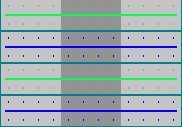
|
Example: | |
|
|
checkbox activated |
|
|
Jacquard colors = 2 |
|
|
Pattern rows = 2 |
|
|
Columns per color = 4 |
The module is divided into blocks with a different colored background in which the sequences must be drawn. Each block is used for drawing in the sequence for a color (background = alternating light-gray and dark-gray).
If the checkbox has been activated, then an additional block (background = dark-green) is displayed in which the sequence for the relief can be draw in.
- 4
- Enter the module parameters and technical row data.
- 5
- Run the function in the menu.
- or -
Click on the button on the right edge of the title bar.
- A window asking whether the module is to be saved in the database appears.
- 6
- Click on the Yes button.
- The Properties of: <module name> dialog box appears.
- 7
- Entry of the module properties.
If knitting with the jacquard module is not carried out over the entire pattern width, you have to specify for the technical processing, which knitting mode is to be utilized with the jacquard module. This is necessary so that the correct net pick-up will be inserted automatically.
For jacquard modules with the knitting mode Jac-Net, the type of ladder back that is used with the jacquard module also has to specified.
For this purpose, you select one of the following settings on the tab in the section in the list field:
- No net pick-up required
- Net 1x1
- Net 1x2
- Net 1x3
- Net full - 8
- Click on the OK button.
- A message appears saying that the module will be saved in the New modules module group.
- 9
- Click on the OK button.
If you click the No button, the module disappears without being saved in the database. - 10
- Move the module in the module explorer to the matching module group.
From the New modules module group to the subgroup of the Jacquard module group with the corresponding number of colors.
By doing so, the module in the section of the Jacquards dialog box can be selected, and can therefore be allocated to a pattern area.