Move selection
A selection can be moved either while selecting or at a later time.
I. Move selection while selecting:
- 1
- Pull open a selection and then press the Tab key with the mouse button still hold down.
- A hand appears at the cursor.

- 2
- Move the mouse with the mouse button hold down to the desired position.
- 3
- Release the left mouse button.
- 4
- Release the Tab key.
- The Selection is moved.
The arrow appears at the cursor.
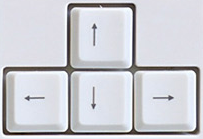
Position a selection with the arrow keys exactly:
- The Symbol View of a design pattern is active.
- 1
- Drag up a selection
- Activate the symbol
 in the Drawing tools toolbar.
- 2
- Move the selection with the arrow keys to the desired position.
- The Selection is moved.
II. Move a selection at a later time:
- The symbol view or fabric view is active.
- 1
- Activate the function in the menu.
- A rectangular frame appears around the selection.
- 2
- Move the mouse over the selection.
- 3
- The moving arrow appears at the mouse pointer.

- 4
- Drag the frame to another position with the mouse button pressed.
- During offsetting the percentage by which the selection is offset is shown in the status line (with the extended coordinate display activated, on the cursor as well).
With the Esc key the function can be canceled and the original state restored. To do this the key must be pressed as long as the right mouse button is also pressed.
When you click on a grasper with the right mouse pattern, you must also hold down the Tab key to move the selection.
If you also hold down the Ctrl key during the action described, the selection is copied.
Pressing and holding the Ctrl and Shift keys duplicates the selected area when moving.