Generate a Technical Container Module for Narrowing
Narrowing with a french shoulder:
|
Knitting and transfer mode | |
|---|---|
Left edge | Right edge |
| |
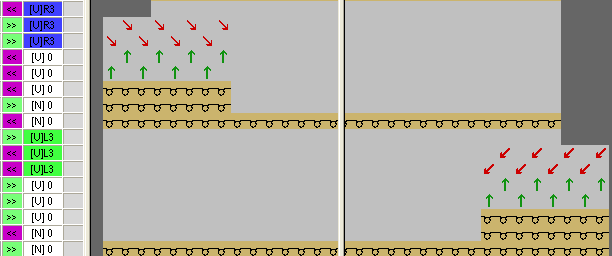
Watch out when generating modules:
- The narrowing modules must be matched to the shape.
- The stepping for narrowing existing in the shape must be observed by the racking step in the module.
I. Generate a module for knitting:
- 1
- Via the / / menu call up the New Module dialog box.
- 2
- Define the following in the dialog box:
- Module Name
- Pattern Type
- Width and height of the module
- Basic structure of the module
- 3
- Close the dialog box with OK.
- The Module Editor appears.
- 4
- Draw the knitting procedure for the rows below the transferring rows in the Module Editor.
- 5
- Define the direction of the carriage.
- 6
- Select knitting rows and group them to one pattern row.
Module for the left shape edge:
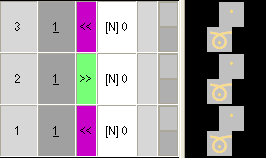
- 7
- Close the Module Editor with
 .
.
- The module will be saved.
- 8
- Copy the module for the right shape edge and change the carriage direction.
II. Generate modules for transferring:
- 1
- Via the / / menu call up the New Module dialog box.
Take care of the racking step when specifying the module width.
- 2
- Draw in the transfer procedure in the Module Editor.
- 3
- After drawing-in transfers with racking delete the columns that are not needed.
- 4
- Select the rows and group them to one pattern row.
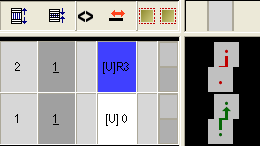
- 5
- Close the Module Editor with .
- The module will be saved.
- 6
- Generate a module for the right shape edge following the same procedure.
III. Generate Technical Container Modules for narrowing:
- 1
- Via the / / menu call up the Technical container module dialog box.
- 2
- Drag the generated modules with drag-and-drop into the Technical container module.
Technical container module for the left shape edge:
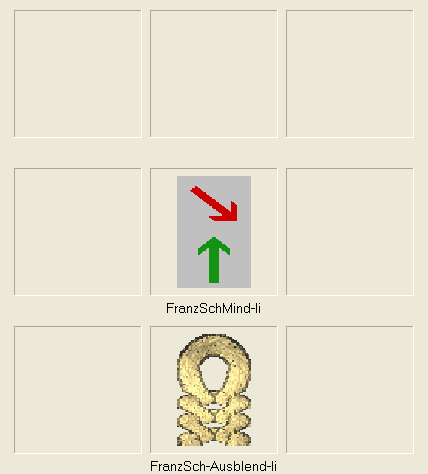
- 3
- Save the Technical container module with OK.
- The module will be saved.
- 4
- Generate a technical container module for the right shape edge following the same procedure.
- 5
- Select module.
- 6
- Call up the context menu.
- The Properties of: ... dialog box appears.
- 7
- Make the following settings in the tab:
- 3
- 3
-
Select the knitting mode that should use the module. - :
- Select the > direction: Module will be used at the left shape edge.
- Select the < direction: Module will be used at the right shape edge.
- 8
- Confirm the settings with OK.
Further information about module properties can be found under Further topics in the chapter Module properties.
IV. Save the modules in the Module Explorer of Database in a separate directory:
- 1
- In the Module Explorer of Database under User / XY create a New module group.
- 2
- Rename new folder.
for example French shoulder - 3
- Create a sub-folder for the elements in this folder.
- 4
- Move the Technical Container Module into the new folder.
- 5
- Move the elements for knitting and transferring into the sub-folder.
V. Another possibility: Save the modules in the Module Explorer of Database in a sub-group of the Technical directory:
- 1
- Generate a New Module Group as sub-group of the corresponding knitting mode in the Module Explorer of Database under Technical / Narrowing.
- 2
- Name the new module group.
Example: French Shoulder - 3
- Create a sub-folder for the elements in this folder.
- 4
- Move the Technical Container Module into the new folder.
- 5
- Move the elements for knitting and transferring into the sub-folder.