Generate technical container module for widening and allocate to the shape
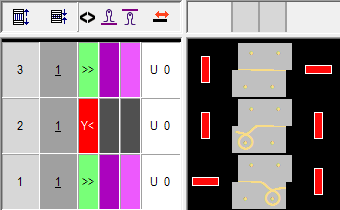
Closing stitch knitting sequence:
|
Knitting and transfer mode | |
|---|---|
|
Left edge |
Right edge |
|
| |
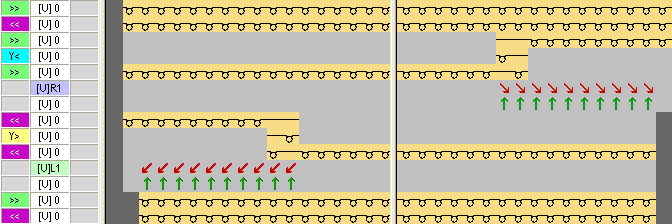
Watch out when generating modules:
- The widening modules must be adapted to the shape.
- The stepping existing in the shape for widening (1 needle) must be observed by the racking step in the module.
Generate modules for transferring:
Take care of the racking step when specifying the module width.
- 1
- Via the / / menu call up the New Module dialog box.
- 2
- Define the following in the dialog box:
- Module name
- Pattern Type
- Width and height of the module
- Basic structure of the module: Miss-knit
- 3
- Close the dialog box with OK.
- The Module Editor appears.
- 4
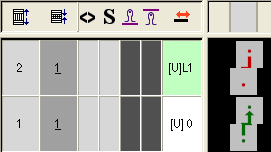
- In the Module Editor draw the transfer sequence.
- 5
- After drawing-in transfers with racking delete the columns that are not needed.
- 6
- Select knitting rows and group them to one pattern row.
Module for the left shape edge:
- 7
- Close the Module Editor with
 .
.
- The module will be saved.
- 8
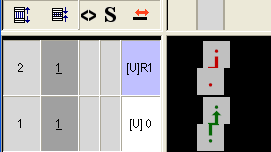
- Generate a module for the right shape edge following the same procedure.
Module for the right shape edge:
II. Generate modules with docking points:
- 1
- Via the / / menu call up the New Module dialog box.
- 2
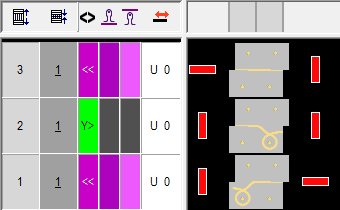
- In the Module Editor draw-in the closing stitch knitting sequence with the Stitch with transfer and Float needle actions.
- 3
- Select all rows and group them to one pattern row.
- 4
- Retain the row selection and via the / menu call up the dialog box.
- The Set docking points dialog box appears.
- 5
- Select the following in the dialog box:
- Under starting direction: Set the carriage direction for the first row
- Processing with changing knitting direction:


- Mode of processing: common processing

- 6
- In the control column
 enter the Carriage direction and autarkic direction
  or
or  .
. - 7
- Close the Module Editor with .
- The module will be saved.
Module with docking points left shape edge:
- 8
- Generate a module for the right shape edge following the same procedure.
Module with docking points right shape edge:
III. Generate technical container modules for widening:
- 1
- Via the / / menu call up the Technical container module dialog box.
- 2
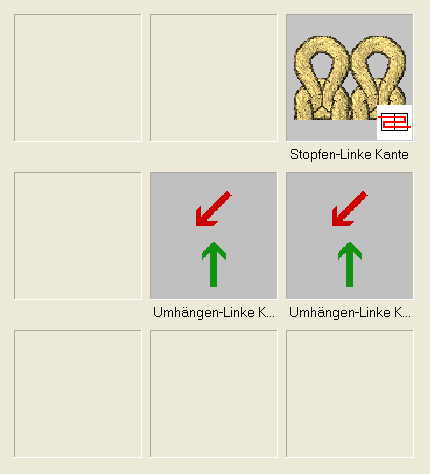
- Drag the generated modules with drag-and-drop into the Technical container module.
Technical container module for the left shape edge:
- 3
- Save the Technical container module with OK.
- The module will be saved.
- 4
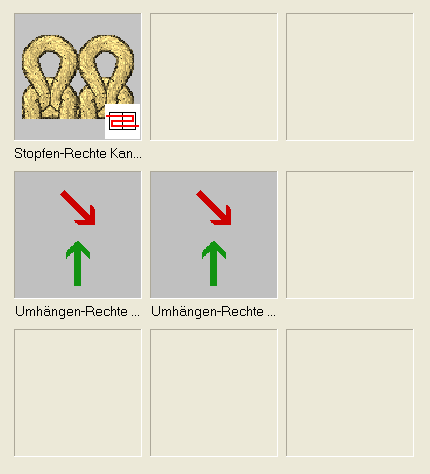
- Generate a technical container module for the right shape edge following the same procedure.
Technical container module for the right shape edge:
IV. Allocate the technical container modules to the shape edges:
- 1
- Call up the via the / Shape Editor (Generate or Edit Shapes)... menu.
- 2
- Load the generated shape with
 .
.
- The tables for the left and right shape parts appear.
- 3
- Under / call up the Left lines no.: 2 dialog box.
- The tab is active.
- 4
- Under allocate the corresponding technical container module for the left edge with drag-and-drop to the respective knitting mode.
- 5
- Set the desired narrowing width under .
- 6
- Confirm the entry with Apply or OK.
- 7
- Following the same procedure allocate the corresponding technical container module for the right edge with drag-and-drop to the Left lines no.: 3 dialog box.
To both technical container modules you can allocate the needed properties and then save them in the directory in its own folder.
This simplifies the allocation of the modules in the shape editor.