Shapewizard: Determine docking points and k&w Arrangements
I. Open ShapeWizard and set docking points:
- 1
- Open the ShapeWizard dialog box via the / menu.
- 2
- Open the Docking Points dialog box with the
 icon in the toolbar of the Shapewizard.
 - 3
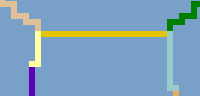
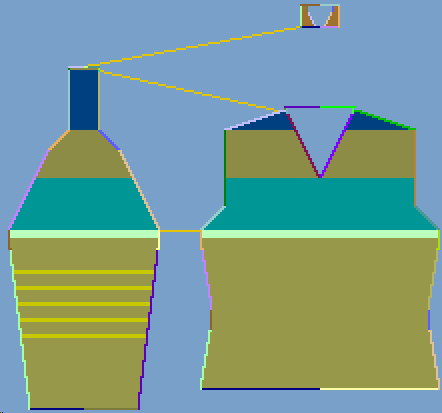
- Set the docking point for sleeve-body.
- 4
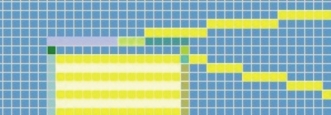
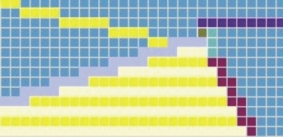
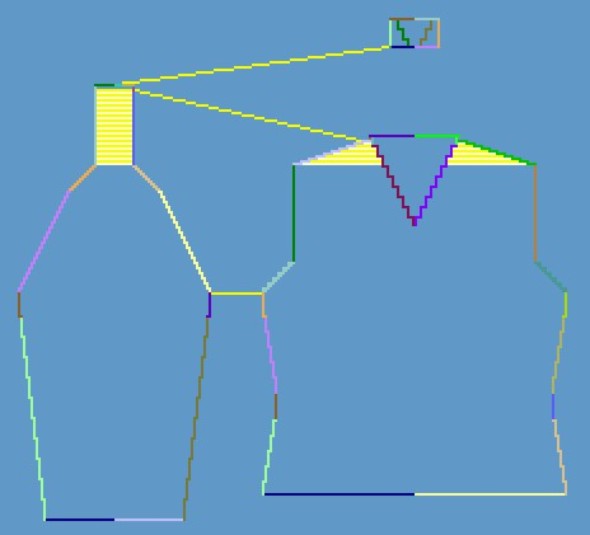
- Docking point Suspend Body.
To create this connection, use the Ctrl key.
|
Docking point Suspend Body | |
|---|---|
|
Sleeve - saddle |
Body - shoulder |
|
|
|
- 5
- Set the docking point Collar.
- The width of the collor element is adjusted by the docking point.
II. Determine k&w Arrangements:
- 1
- Press Determine k&w Arrangements.
The determined k&w Arrangements can be deleted with the Initialize button.
- 2
- Save the k&w Arrangements as kaw -file via the / or .
The elements of the shape (front, back, sleeve and collar) and the kaw file must all be located in the same directory.
- 3
- Close the Shapewizard dialog box.