Position and cut-out the shape and expand the pattern
I. Erstelltes k&w File auf das Grundmuster auflegen
- 1
- Über Menü / aufrufen.
- 2
- Mit
 die Form mit der Endung .kaw laden.
 - 3
- Mit OK die Auswahl bestätigen und die Form Elemente auf das Grundmotiv legen.
II. Form positionieren:
- Form mit k&w Arrangements liegt nach k&w Schnitte und Formen öffnen auf dem Muster.
- 1
- Mit ausgewähltem Symbol
 und gedrückter linker Maustaste die Form-Elemente Arm und / oder Leib mit Kragen auf dem Motiv positionieren.
- oder -
Mit ausgewähltem Symbol das gewünschte Form-Element selektieren.
Mit den Pfeiltasten der Tastatur das selektierte Form-Element positionieren.
- oder -
mit Hilfe des Dialogs Werkzeug Eigenschaften
Resultat:
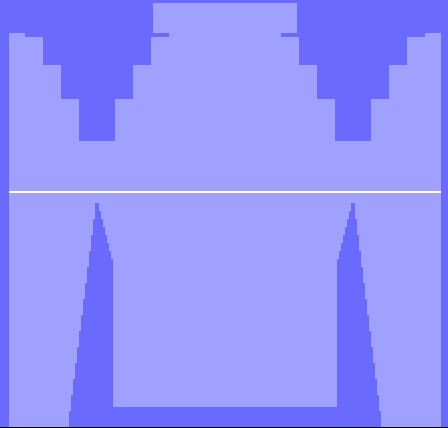
III. Struktur einzeichnen:
- 1
- Über Menü / die Registerkarte Strickbereiche k&w öffnen.
- 2
- Unter Eingeklappt ausschneiden auswählen.
Resultat:
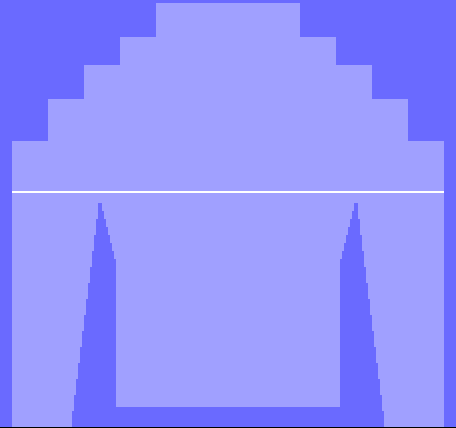
- 3
- Struktur Petinet mit Container-Modul Spiegelung Petinet Masche_^ einzeichnen.
Die Petinet-Struktur wird von Minderstufe zu Minderstufe in der Breite schmäler.
- Lage L1: Modul Petinet Masche_^_1> und Petinet Masche_^_1<
- Lage L0: Modul Petinet Masche_^_0> und Petinet Masche_^_0>