Shapewizard: Determine docking points and k&w Arrangements
I. Open the dialog to define docking points:
- 1
- Open the Shape View and the Docking Points dialog box with
 in the toolbar of the Shapewizard.
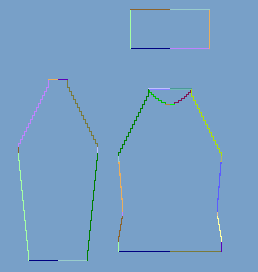
II. Define the docking point for sleeve-body:
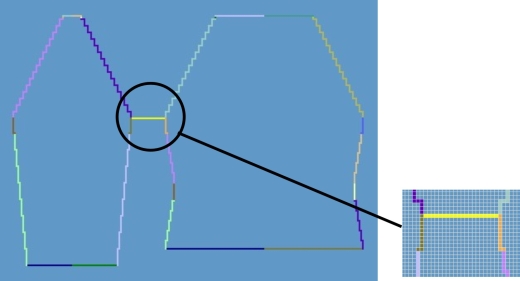
- 1
- Click in the pattern with the left mouse button and hold it.
- 2
- Move the cursor in the element to be connected and specify the end position of the connection, then release the left mouse button.
- 3
- Change the position by a manual entry in the Docking Points dialog box in order to correct a docking point.
- or -
Press to delete a connection.
Press the Ctrl key while specifying the docking points, in order to jump with the cursor automatically to the nearest edge start or edge end.
III. Define the docking point for the collar:
- 1
- Define the Collar docking points in the Docking Points dialog box.
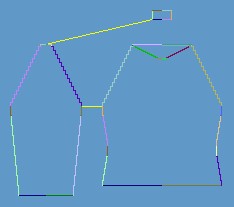
- Always set the connecting line on the left collar side.
- The same position is automatically applied for the right side.
- If the collar is to be positioned asymmetrically, then you can overwrite the positions.
IV. Generate k&w shape:
- 1
- Press the Determine k&w Arrangements button.
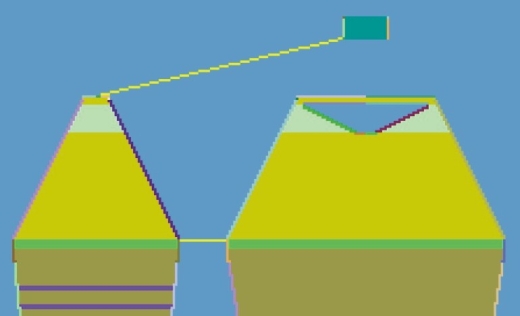
The determined k&w Arrangements are represented color coded in the grafical Shape Display.
- 2
- Save the shape as kaw file via the / menu.
The elements of the shape (front, back, and sleeve) and the kaw file must all be located in the same directory.
- 3
- Exit the Shapewizard.