Create and draw a pattern
Generate pattern (overview):
- 1
- Generate new pattern.
- 2
- Draw the motif with different drawing tools.


- 3
- Select modules from the Modules toolbar.
- or -
Select the modules in the Module Explorer of Database.
- or -
Select needle actions from the Needle Actions - Stitch Lengths toolbar. - 4
- Draw modules into the pattern.
I. Use needle actions of the Needle Actions - Stitch Lengths toolbar:
- 1
- Select the desired needle action in the Needle Actions - Stitch Lengths toolbar.
|
Module group |
Module Symbol View |
Module Fabric View |
Label |
|---|---|---|---|
|
Needle Actions |
|
|
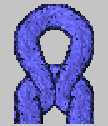
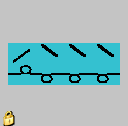
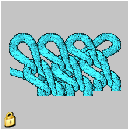
Front stitch
|
|
|
|
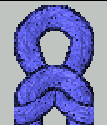
Back stitches |


II. Use modules from the Modules toolbar:
- 1
- Activate the
 Modules of Database module group in the Modules toolbar.
 - 2
- Select the desired module group in the selection list.
|
Module group |
Module Symbol View |
Module Fabric View |
Label |
|---|---|---|---|
|
Aran |
|
|
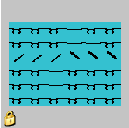
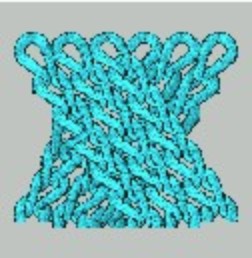
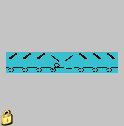
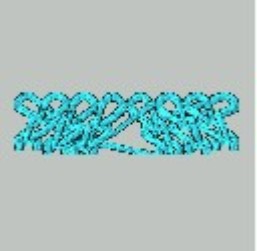
Aran 3x1X< |
|
|
|
Aran 3x1><R | |
|
|
|
Aran 3x1<R | |
|
|
|
Aran 3x1>R |
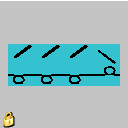
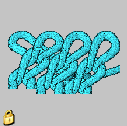
III. Use the modules from the Module Explorer of Database.
- 1
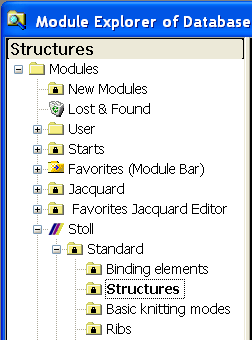
- Open the Module Explorer of Database via / .
- 2
- Select the module groups Stoll / Default / Structures and Ribs.
|
Module group |
Module Symbol View |
Module Fabric View |
Label |
|---|---|---|---|
|
Structures |
|
|
1X1 half cardigan |
|
Ribs |
|
|
2x2 RL rib |

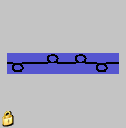

- 3
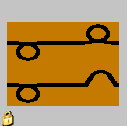
- Create motif with Structure module and Rib module.
IV. Adopt stitch length:
Stitch lengths according to the knitting mode are allocated to the Stoll default modules in the Module Explorer of Database.
- 1
- Activate the Module Data toolbar.
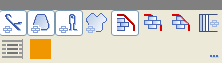
- 2
- Activate the
 button and draw-in the module.
- The stitch lengths available in the module will be applied to the pattern.
Symbol view with the stitch length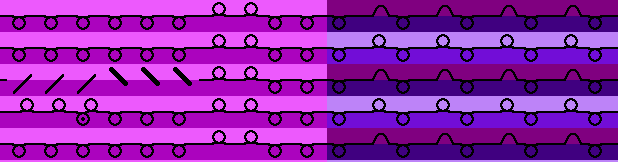
Fabric view and technical view with stitch length after expanding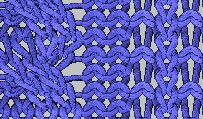
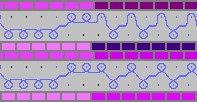
A pattern row contains different stitch lengths now.