The Transfer tab of the Configuration Dialog Box
How to influence the transfer cycle:
- In the entire pattern
- in the areas of the pattern
I. Use multi-system transferring within the whole pattern:
- 1
- Save the pattern under a new name.
- or -
Generate new pattern. - 2
- Open the Configuration dialog box via the / menu.
- 3
- Set the specifications in the tab under .
|
Option field |
Function |
Meaning | |
|---|---|---|---|
|
|
Switch off transferring in several technical rows (systems). |
Transfer processes will not be separated into several technical rows. | |
|
|
Two neighboring transfer processes will be divided up into two technical rows. |
The first needle coming from the left will be transferred in the first technical row. | |
|
|
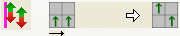
The first needle coming from the left will be transferred in the second technical row. | ||
|
|
The first needle coming from the left or right will be transferred in the first technical row. | ||
|
|
The first needle coming from the left or right will be transferred in the second technical row. | ||
|
|
Edit box
|
Freely definable order coming from the left or from the right. |
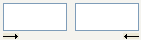
Neighboring transfer processes will be divided-up into up to six technical rows.
|
 OFF
OFF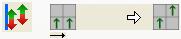



- 4
- Make settings under .
|
Option field |
Function |
Meaning |
|---|---|---|
|
Max. Distance |
Specification of the distance for transferring in several technical rows. |
Number of needles between two neighboring transfer processes in order to separate them on two technical rows (systems). |
|
From racking |
Specification of the racking step for transferring in several technical rows. |
Transferring will be separated on several technical rows from the specified racking on only. |
|
|
Transfer to the front and to the rear |
Transfer specifications for both directions will be separated to several technical rows. |
|
|
Transfer to front only |
Only transfer specifications from rear to front will be separated to several technical rows. |
|
|
Transfer to rear only |
Only transfer specifications from front to back will be separated to several technical rows. |


- 5
- Confirm setting with Apply or OK.
- These settings are taken into account during the Technical Processing.
II. Transfer surrounding in the entire pattern:
- 1
- Open the Configuration dialog box via the / menu.
- 2
- Make the settings in the tab under .
|
Option field |
Function |
Meaning |
|---|---|---|
|
|
Surrounding will not be transferred. |
|
|
|
Transfer surrounding to front |
The reverse stitches will be transferred to the front needle bed. |
|
|
Transfer surrounding to rear |
The jersey stitches will be transferred to the rear needle bed. |
|
|
Specification of the racking step for transfer surrounding. |
Transfer surrounding will be carried out only from the specified racking on. |
- 3
- Confirm setting with OK.
- The setting is taken into account during Technical Processing.
III. Group transfer and cast-off in the entire pattern:
- 1
- Open the Configuration dialog box via the / menu.
- 2
- Make the settings in the tab under .
|
Option field |
Function |
Meaning |
|---|---|---|
|
|
Do not group cast-off and transfer |
Cast-off and transfer will not be carried out together in the same technical row (system). |
|
|
Group cast-off and transfer. |
Cast-off and transfer will be grouped in a technical row. |


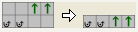
Grouping cast-off and transfer is possible only in subsequent technical rows, which contain the same racking specifications.
- 3
- Confirm setting with OK.
- The setting is taken into account during .
IV.IV. Specify multi-system transferring in individual rows (areas):
You can make the settings shown above on single pattern rows or areas as well.
- 1
- Back to the basic pattern clicking on
 .
.
The specifications are not contained in the basic pattern.
- 2
- Activate the technical row presentation
 .
. - 3
- Switch-on the control column for Multi-System Transferring
 .
. - 4
- Activate the selection menu with the right mouse button in the control column.
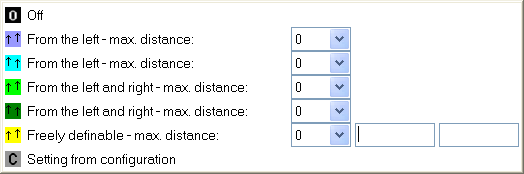
- 5
- Select the desired transferring sequence and draw it at the corresponding place into the control column.
- or -
Create one or more selections and fill the selection / selections with .
.
|
Function |
Meaning | |
|---|---|---|
|
|
|
Switch off transferring in several technical rows (systems). |
|
|
|
The first needle coming from the left will be transferred in the first technical row. |
|
|
|
The first needle coming from the left will be transferred in the second technical row. |
|
|
|
The first needle coming from the left or right will be transferred in the first technical row. |
|
|
|
The first needle coming from the left or right will be transferred in the second technical row. |
|
|
|
Freely definable order coming from the left or from the right. |
|
|
|
The setting of Configuration will be applied |


The settings will be taken into account during the step of processing Technical Processing for the selected areas only.
V. Make further specifications in the same way:
- Transfer surrounding

- Group cast-offs / transfers
