M1plus Machine Explorer
For knitting programs with split-stitch technique, the machine being used should be equipped with split cams in the knitting systems.
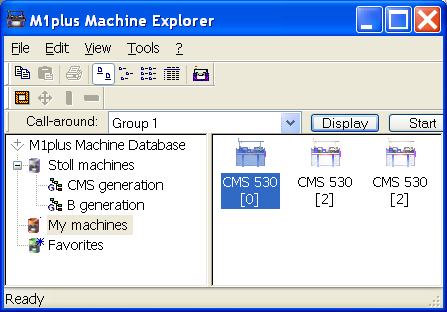
I. Make machine specific settings in the M1plus Machine Explorer:
- 1
- M1plushard disk.
- 2
- Open the M1plus Machine Explorer dialog box by the / menu.
- 3
- Select the desired machine in the directory.
- 4
- Set the specifications for split in the tab via the context menu.
- 5
- Select the knitting system for split.

- 6
- Activate the setting under Cam functions
- 7
- Confirm the entry with Apply or OK.
- The machine related settings will be saved.
If the machine with the defined properties is used when generating the program, the specifications will be considered when generating the program.
II. Make pattern specific settings in the MC Attributes dialog box:
- 1
- Generate new pattern.
- 2
- Call up the MC Attributes dialog box via the / menu.
- 3
- Select the tab.
- 4
- Under and activate the setting .
Example: Define splitting - 5
- Confirm the entry with Apply or OK.
- These settings will automatically be saved with the pattern.
The pattern related settings are only active for the pattern, which is currently being processed.
III. Generate your own machine in the M1plus Machine Explorer.
With the function you can add a machine from the Stoll machine database to your own machine pool.
- 1
- M1plushard disk.
- 2
- Open the M1plus Machine Explorer dialog box in the / menu.
- 3
- In the directory open the subgroup.
- 4
- Select the desired machine.
- 5
- Call up the context menu with the right mouse button and select .
- The Set up new my machine dialog box appears.
- 6
- In the Set up new my machine dialog box specify the machine label, the and the gauge.
- 7
- Confirm entries with OK.
- The newly generated machine is displayed in the directory.
You can adjust the properties of My Machines via the settings.
IV. Create favorites in the M1plus Machine Explorer:
Links to the machines of the Stoll machines and My machines group can be created in the Favorites directory. This is advantageous for machines, which are used to set-up the pattern or by which you often change settings (e.g. yarn carrier specifications).
- 1
- Select the desired machine in Stoll machines or My machines
- 2
- Drag with drag & drop to the Favorite directory.
V. Change the machine properties:
You can change the properties of your own machines only in the My Machines directory and under Favorites.
- 1
- M1plushard disk.
- 2
- Open the M1plus Machine Explorer dialog box in the / menu.
- 3
- Select a machine in the My machine or Favorites directory.
- 4
- Call up the context menu with the right mouse button and select .
- The <Machine name> Properties dialog box is opened.
- 5
- Make changes in the corresponding tab:
|
tab |
Function |
|---|---|
|
|
Properties of the machine (e.g. Setup Type, Gauge) |
|
|
Allocate knitting functions to the systems |
|
|
List of optional devices and yarn carrier specifications |
|
|
Settings for tandem operation |
|
|
Settings for online connection |
|
|
Display of the machine data with online query |
|
|
Select data record lock or assuming of possession of a data record |
- 6
- Confirm the entry with Apply or OK.