Drawing the Structure and the Jacquard Bordering
I. Generate structure pattern:
- 1
- Select modules from Module or Module Explorer of Database... toolbar and create motif.
|
Module group |
Module Symbol View |
Module Fabric View |
|---|---|---|
|
Rear stitch with transfer |
|
|
|
Cable 3X3< |
|
|
|
Aran Crossing 2X1X> |
|
|
|
Aran End 2X1>< |
|
|
|
Aran 2X1<L |
|
|
|
Aran 2X1>L |
|
|

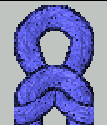
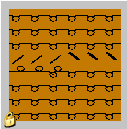
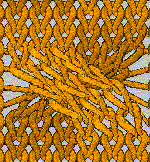
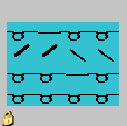
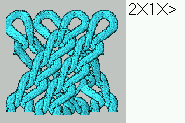
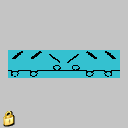
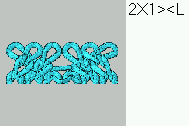
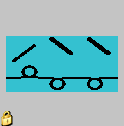
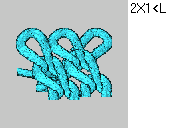
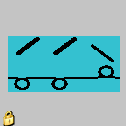
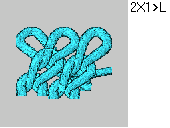
You can select and insert structure pattern elements from the Module Explorer as well.
The structure pattern elements are saved under: / Pattern elements / MT Standard / MT Aran.
The Multi-Copy  tool can be helpful.
Draw the structure pattern with pattern elements only; otherwise no Module Arrangement can be generated.
II. Create a color jacquard bordering:
- 1
- Insert rows.
- 2
- Draw the motif for the color jacquard bordering into the structure pattern.
- 3
- Create a row selection in the area of the jacquard.
- 4
- Call up the Jacquard dialog box via the / menu.
- 5
- Select a Jacquard generator for ladder back and insert it via Apply.
- or -
Insert another jacquard generator.
III. Influence the start and end module:
A module for net setup and for net end will be inserted under at and . If necessary, the module color can be changed.
- 1
- Select the inserted Jacquard from the list of Jacquard generators.
- 2
- Select the desired yarn / yarn carrier color and click in the color field of the start and end module.
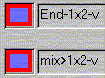
- or -
Allocate another start or end module from the Module Explorer of Database with drag & drop.
Modules are contained in the Module Explorer of Database under Technical / Net pick-up_block / ….
- 3
- Press the Apply key.
- The changes will be applied to the pattern.
- 4
- Close the dialog box with the OK button.