How to Load a New License to the Smart Card
- E-mail with credit code

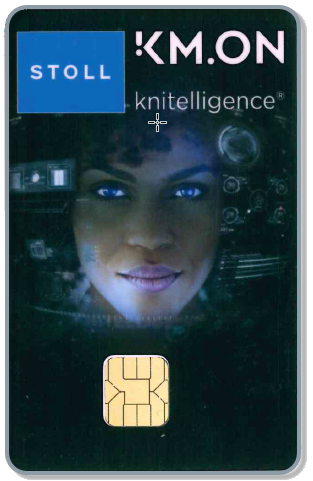
- STOLL KM.ON Smart Card at the computer
- 1
- Start the CREATE PLUS CREATE DESIGN CREATE LITE .
- 2
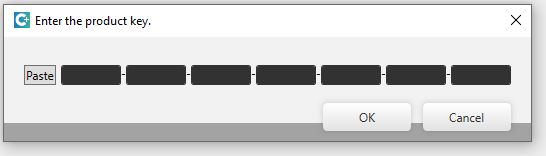
- If your STOLL KM.ON Smart Card has no license or an invalid license, this input window appears.
- or -
Open the input window purposefully.
Fichier ribbon / Support / Saisir la clé de production button - 3
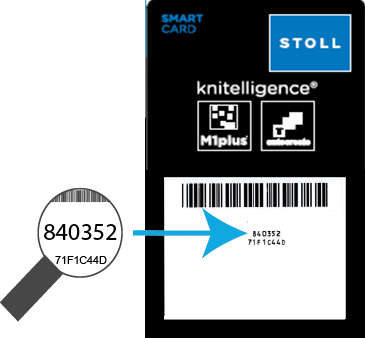
- Compare the serial number of the Smart Card in the input window with the one in the e-mail.
- 4
- Copy the credit code to the clipboard.
- 5
- Click the Paste button at left of the edit boxes.
- 6
- Click the OK button.
- The successful loading of the card is confirmed to you.
If the credit is not yet expired or for additional features:
- 7
- Start the CREATE .
- 8
- Open the input window purposefully.
Fichier ribbon / Support / Saisir la clé de production button - 9
- Compare the serial number of the Smart Card in the Support window with the one in the e-mail.
- 10
- Copy the credit code to the clipboard.
- 11
- Click the Paste button at left of the edit boxes.
- 12
- Click the OK button.
- The successful loading of the card is confirmed to you.

- E-mail with credit code
- The knitelligence Smart Card is connected to the current M1plus workstation.
- No other Smart Card is connected to the current M1plus workstation.
- 1
- Compare the serial number of the Smart Card with the one in the e-mail.
- 2
- Start the .

- 3
- Change to the disk drive of the M1plus installation.
- 4
- Enter the file path to the M1.exe application file.
Example: "C:\Program Files (x86)\Stoll\M1plus\6.10.021\bin\m1.exe" - 5
- Add –EVP to the input.
"C:\Program Files (x86)\Stoll\M1plus\6.10.021\bin\m1.exe" -EVP - 6
- Copy the Charge Code to the clipboard.
- 7
- Add the Charge Code from the clipboard to the input.
- 8
- Confirm the entry with the Enter key.
- The successful loading of the card is confirmed to you after a short time.

- 9
- Exit the Command Prompt.
If the credit is already expired:
- E-mail with credit code
- STOLL KM.ON Smart Card at the computer
- No other Smart Card is connected to the current M1plus workstation.
- 1
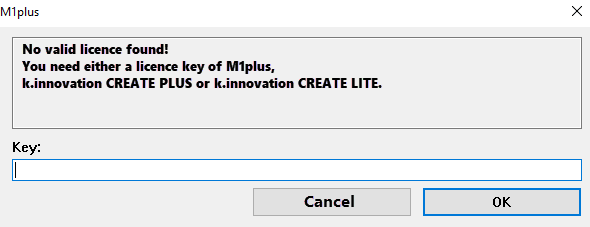
- Start the M1plus .
-
- 2
- Copy the Charge Code to the clipboard.
- 3
- Paste Charge Code from the clipboard into the edit box.
- 4
- Confirm input with OK.
- The successful loading of the card is confirmed to you after a short time.
If the credit is not yet expired or for additional features.
- E-mail with credit code
- STOLL KM.ON Smart Card at the computer
- No other Smart Card is connected to the current M1plus workstation.
- 1
- Start the .
- 2
- Change to the disk drive of the M1plus installation.
- 3
- Enter the file path to the M1.exe application file.
Example: "C:\Program Files (x86)\Stoll\M1plus\6.10.021\bin\m1.exe" - 4
- Add –EVP to the input.
"C:\Program Files (x86)\Stoll\M1plus\6.10.021\bin\m1.exe" -EVP - 5
- Copy the Charge Code to the clipboard.
- 6
- Add the Charge Code from the clipboard to the input.
- 7
- Confirm the entry with the Enter key.
- The successful loading of the card is confirmed to you after a short time.
- 8
- Exit the Command Prompt.
If the credit is not yet expired or for additional features:
- 1
- Start the CREATE .
- 2
- Open the input window purposefully.
Fichier ribbon / Support / Saisir la clé de production button - 3
- Compare the serial number of the Smart Card in the Support window with the one in the e-mail.
- 4
- Copy the credit code to the clipboard.
- 5
- Click the Paste button at left of the edit boxes.
- 6
- Click the OK button.
- The successful loading of the card is confirmed to you.