Generate and insert Color Arrangements
I. Sleeve-body connection
- 1
- Open the via the / Module Explorer of Database... menu.
- 2
- Under k&w Arrangements / Stoll / Connections / 3 tubulars / without opening / without gore, select the Color Arrangement CA_B1-Typ 1 (no connection L0-L1).
- 3
- Insert the selected CA in the control column
 in the designated area of the sleeve-body connection over 8 rows.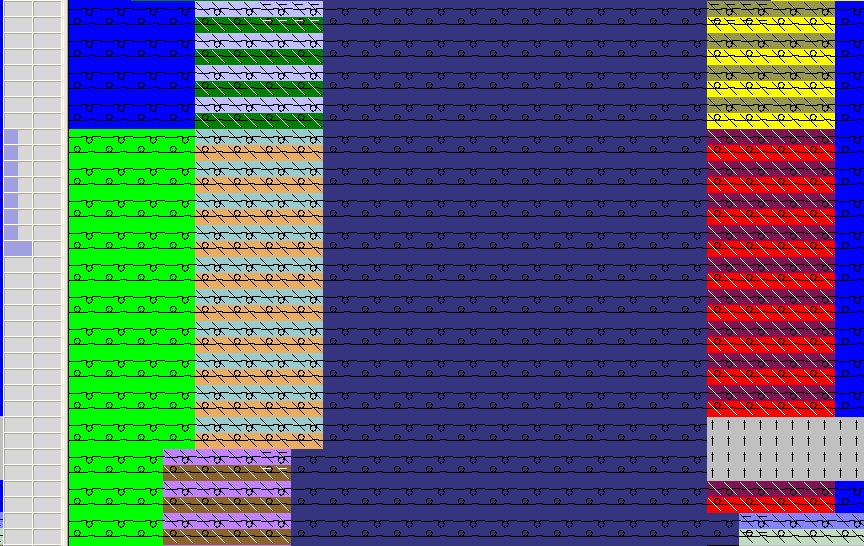
- 4
- Draw-in the markings for the sleeve-body connection:
- Left Sleeve: Transferring inward >
- Body: Prepare
- Right Sleeve: Transferring inward <
- 5
- In the Shape tool toolbar under
 , select the corresponding marking color.
 - 6
- Draw-in the selected marking with the Alt key pressed in the first row of the CA over the total width of the corresponding shape element.
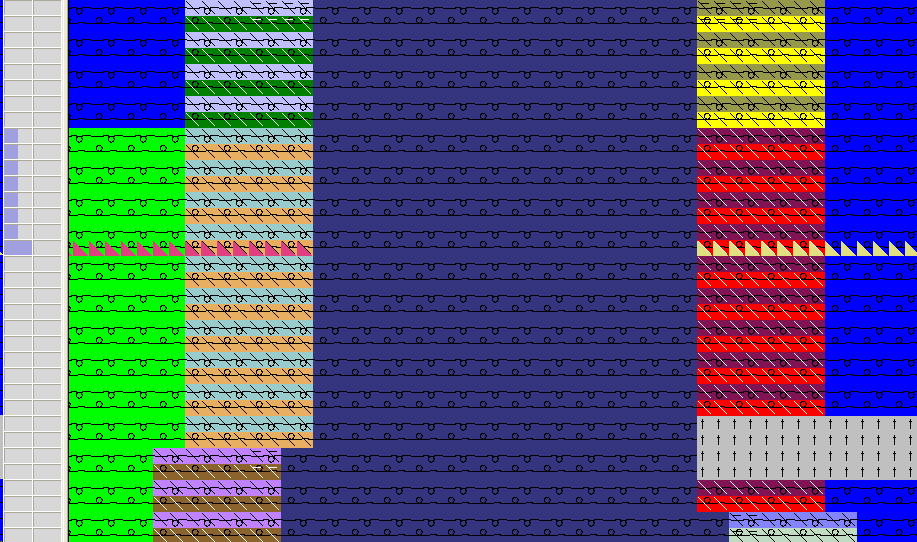
Result:
The Color Arrangement controls the procedure of connecting sleeve and body.
Stoll modules control the preparing and transferring inward.
You can have the preparing and transferring inward controlled by the Color Arrangement as well.
Markings are not necessary then.
II. Draw-in aligning symbols at the left and right between sleeve - body - sleeve:
- 1
- Select
 in the Shape tools toolbar.
 - 2
- Select the
 drawing tool.
 - 3
- Enter the symbol with LMB pressed between left sleeve and body.
Starting at the second row of the Color Arrangement sleeve-body connection up to the start of the collar. - 4
- Select
 in the Shape tools toolbar.
 - 5
- Enter the symbol with LMB pressed between right sleeve and body in the same rows as on the left side.
- After stamping out
 , you can present the sleeves folded in or out by
  due to the aligning symbols.
III. Generate Color Arrangement for 3 tubulars:
- 1
- Open the via the / Module Explorer of Database... menu.
- 2
- Under k&w Arrangements / Stoll / 3 tubulars / without opening / without gore, select the k&w Arrangement A1-3 tubulars
- 3
- Open the context menu with RMB.
- 4
- Select in the menu.
- A Color Arrangement is generated from the selected k Arrangement and saved under Modules / User / ... / New Color Arrangements.
The Color Arrangement generated receives the name of the k&w Arrangement with the addition CA_ xxx.
- 5
- Modify the Color Arrangement.
Example: Group three knitting rows to one knitting row
All the knitting rows in the Color Arrangement must have a carriage direction.
- 6
- Enter the Color Arrangement below the sleeve-body connection in the pattern rows without gore.
IV. Generate Color Arrangement for 3 tubulars with gore L0 + L1:
- 1
- Open the via the / Module Explorer of Database... menu.
- 2
- Under k&w Arrangements / Stoll / 3 tubulars / without opening / without gore, select the k&w Arrangement A1-3 tubulars
- 3
- Open the context menu with RMB.
- 4
- Select in the menu.
- A Color Arrangement is generated from the selected k Arrangement and saved under Modules / User / ... / New Color Arrangements.
- 5
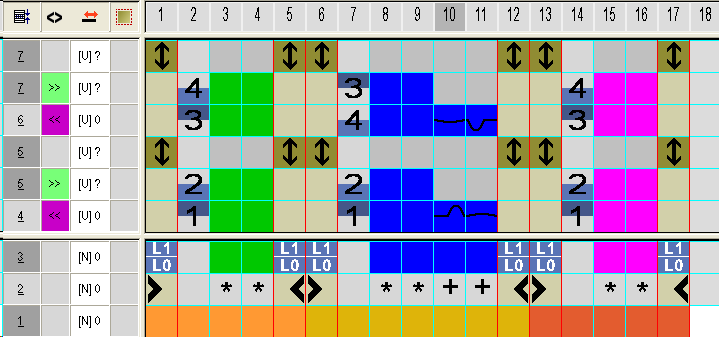
- Modify the generated Color Arrangement:
- 6
- Enter the Color Arrangement below the sleeve-body connection in the pattern rows with gore on L0 + L1.
V. Generate Color Arrangements for 3 tubulars with gore L0:
- 1
- Open the via the / Module Explorer of Database... menu.
- 2
- Under k&w Arrangements / Stoll / 3 tubulars / without opening / with gore, select the k&w Arrangement A20-3 tubulars with gore (L0)
- 3
- Open the context menu with RMB.
- 4
- Select in the menu.
- A Color Arrangement is generated from the selected k Arrangement and saved under Modules / User / ... / New Color Arrangements.
- 5
- Modify the Color Arrangement generated.
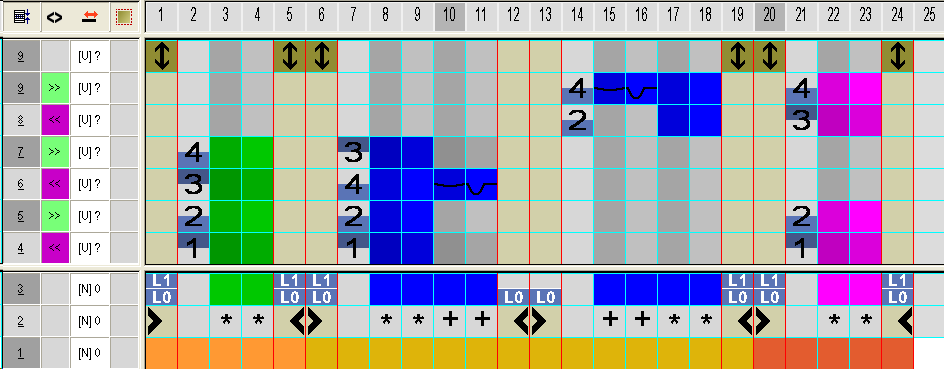
Two color segments will be generated in the CA for the body element (shape part color 1) by the symbol for separation or by the opening element in the shape front.
The information of L1 present in the left color segment will be applied to right part of the body.
- 6
- Enter the Color Arrangement below the sleeve-body connection in the pattern rows with gore on L0.
VI. Generate Color Arrangement for 3 areas 1:1:1:
- 1
- Open the via the / Module Explorer of Database... menu.
- 2
- Under k&w Arrangements / Stoll / 3 areas / 1:1:1 ratio / without opening / without gore, select the k&w Arrangement C37-3 areas 1:1:1
- 3
- Open the context menu with RMB.
- 4
- Select in the menu.
- A Color Arrangement is generated from the selected k Arrangement and saved under Modules / User / ... / New Color Arrangements.
- 5
- Enter the Color Arrangement above the sleeve-body connection in the pattern rows without gore.
VII. Generate Color Arrangement for 3 areas 1:1:1 with gore L0:
- 1
- Open the via the / Module Explorer of Database... menu.
- 2
- Under k&w Arrangements / Stoll / 3 areas / 1:1:1 ratio / without opening / with gore, select the k&w Arrangement C11-3 areas 1:1:1 with gore (L0)
- 3
- Open the context menu with RMB.
- 4
- Select in the menu.
- A Color Arrangement is generated from the selected k Arrangement and saved under Modules / User / ... / New Color Arrangements.
- 5
- Enter the Color Arrangement above the sleeve-body connection in the pattern rows with gore (neck gore).
VIII. Generate Color Arrangement for collar:
- 1
- Open the via the / Module Explorer of Database... menu.
- 2
- Select the k&w Arrangement D11-Collar under k&w Arrangements / Stoll / Collar / without opening / without gore.
- 3
- Open the context menu with RMB.
- 4
- Select in the menu.
- A Color Arrangement is generated from the selected k Arrangement and saved under Modules / User / ... / New Color Arrangements.
- 5
- Open Color Arrangement double clicking.
- 6
- Check shape part color and replace with shape part color 4, if necessary.
When generating a Color Arrangement from a k&w Arrangement for collar, the shape part collar 1 is used in the collar by default.
- 7
- Enter the Color Arrangement in the area of the collar.