Create the shape in the ShapeSizer and open it in the pattern
I. Open shape and work out in the ShapeSizer:
- 1
- Open the ShapeSizer program via the / menu.
- 2
- Open the desired shape in the overview with double click.
- or -
Select the shape and press Continue >.
- The next window of the ShapeSizer appears.
- 3
- Set the measure unit and the stitch density.
- The measure unit (2) and the stitch density (3) + (4) will be used for further processing.
- 4
- Open the next dialog window with Continue >.
- 5
- Generate basic size in the < * 6 > column.
- 6
- Open the next dialog window with Continue >.
- 7
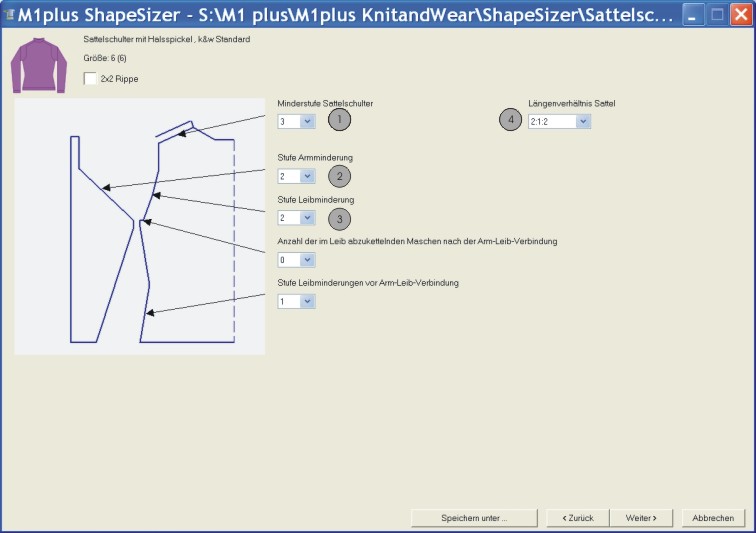
- Enter size specifications.
|
No. |
Function |
|---|---|
|
1 |
Narrowing stepping of saddle shoulder in body |
|
2 |
Narrowing stepping in sleeve |
|
3 |
Narrowing stepping in body |
|
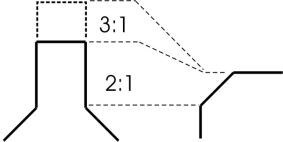
4 |
Stitch ratio between sleeve and body (saddle shoulder) |
- 8
- Open the next dialog window with Continue >.
- If the size table has not yet been saved as an shz file, then a window for saving the data now appears automatically.
- 9
- After saving the size table, the next dialog window appears.
- or -
Open the next dialog window with Continue >.
The selected size will be saved as shp file to the directory and the data is displayed in the dialog window.
- 10
- Open the element to be changed under :
- Front
- Back
- Sleeve
- Collar
- 11
- Carry out changes in the shape editor:
- Narrowing type + narrowing width
- Widening type + widening width
- Fade out + fade out width
- 12
- Open the next dialog window with Continue >.
- k&w Arrangements are determined and saved as kaw file in the same directory.
- 13
- Press the
 key with the activated checkbox.
- The kaw file is laid onto the active pattern.