Position and cut-out the shape and expand the pattern
I. Position the shape:
- The shape with k&w Arrangements is located on the pattern after the ShapeSizer is closed.
- 1
- Position the shape elements Sleeve and / or Body with collar on the motif with the
 symbol selected and the left mouse button pressed.
- or -
Select the desired shape element with the selected symbol and position the selected shape element with the arrow keys of the keyboard.
- or -
using the Tool properties dialog box - 2
- Select desired k&w pattern presentations:


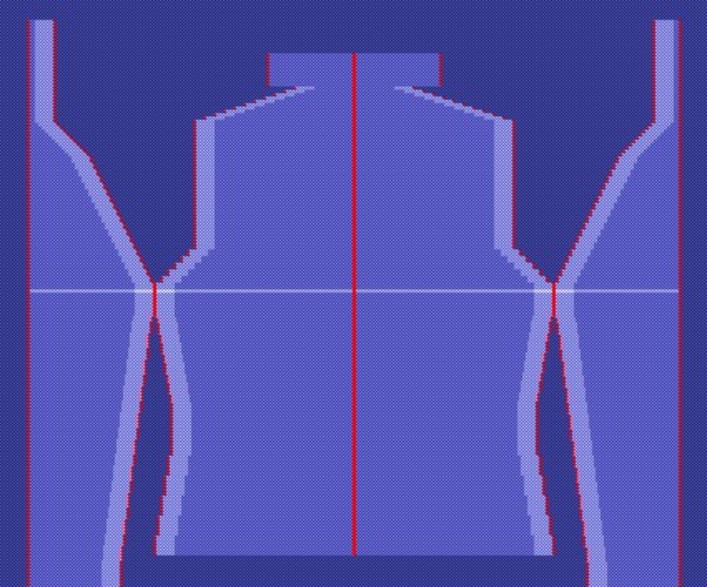
II. Cut-out the shape:
You can make pattern related settings in the Configuration k&w dialog box before cutting out.
- 1
- Cut out the shape with
 in the Steps of Processing toolbar.
- The k&w Options for Cut out dialog box appears.
- 2
- Confirm the settings in the dialog box with OK.
- The Insert/Replace k&w Start dialog box appears.
- 3
- Select the desired start.
- 4
- Confirm with OK.
III. Expand the pattern:
- 1
- Expand the pattern with
 of the Steps of Processing toolbar.
- The Correction of Widening dialog box appears.
- 2
- Confirm with Yes.
- The shape edges with the Widening attribute are corrected.
The bind-off module for the collar is inserted.