Edit shape in the shape view.
I. Insert columns:
- 1
- In the shape view, position the cursor in the shape element in which you want to insert the column.
- 2
- Press the Ins key on the keyboard.
- The Insert columns dialog box appears and automatically shows the shape part in which the cursor is located when opening the dialog box.
- 3
- Specify the number of columns to be inserted.
Only an even number of columns can be inserted.
- 4
- Modify the specified shape part via the selection box if necessary.
- Body left or body right
- Left sleeve or right sleeve
- 5
- Confirm the entry with OK.
- The specified number of columns is inserted in the selected shape part.
II. Delete columns:
- 1
- In the shape view, position the cursor on the shape element in which you want to delete columns.
- 2
- Press the Del key on the keyboard.
- The Delete Columns dialog box appears and automatically shows the shape part in which the cursor is located when opening the dialog box.
- 3
- Specify the number of columns to be deleted.
Only an even number of columns can be deleted.
- 4
- Confirm the entry with OK.
- The specified number of columns is deleted in the selected shape part.
When entering an impermissible number of columns the allowed number of columns at the maximum appears.
III. Insert rows or k&w Arrangements:
- Both layers are active.
- 1
- Select a row in the row bar of the shape view.
Insert rows always between k&w Arrangements, not within a k&w Arrangements.
- 2
- Press the Ins key on the keyboard.
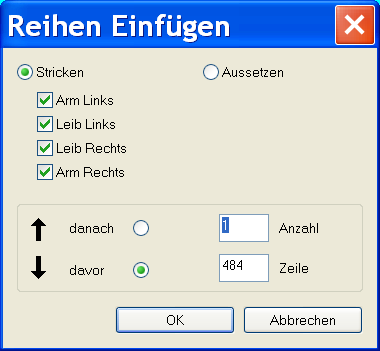
- The Insert rows dialog box appears.
- 3
- Select the type of rows to be inserted:
- Knit: Insert knitting rows
- Suspend: Insert non-knitting rows
- 4
- Select , in which are to be inserted rows.
- Left body
- Right body
- Sleeve on the left
- Sleeve on the right
- 5
- Specify the number of the rows to be inserted.
- 6
- Specify the row under , from which the number of rows is to be inserted.
The row number of the previously selected row is entered by default.
- 7
- Activate
 or .
or . - 8
- Confirm entries with OK.
Insert manually the corresponding k&w Arrangements in the inserted rows.
IV. Delete rows or k&w Arrangements:
- 1
- Select one row or several rows in the row bar of the shape view.
- 2
- Press the Del key on the keyboard.
- The selected rows will be deleted.