Create shape: Short sleeve with V-neck
I. Generate a front in the Shape Editor:
- 1
- Open the Shape editor via /.
- 2
- Select a k&w... entry under .
- 3
- Set to Stitches.
- 4
- Activate
 under .
 - 5
- Specify starting width.
- 6
- Create the table under Left Lines and enter the values for the front.
Front / back with gored shoulder
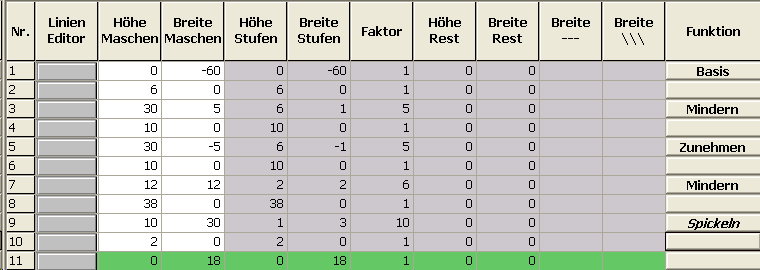
- 7
- checkbox: Deactivate
 .
.
- Different fade-out modules can be allocated to the shape edges of left and right shape part.
- 8
- Allocate and in the tabs under to the shape edges (no. 8 + 9):
- Fade-out module
- Fade-out width: 12 stitches (= width of the fade-out module)
- Type of narrowing
- Narrowing width: 8 stitches (minimum of 6 stitches (half the width of the fade-out module))
- 9
- Allocate the gore cycle to the shoulder edge (No. 9) under in the tab.
- 10
- Specify the type of binding-off in the tab:
- Shoulder standard-01 / Shoulder simultaneous 01
- Shoulder standard-02 / Shoulder simultaneous 02
II. Insert the V-neck element in the front:
- 1
- Open the shape editor via / .
- 2
- Load the shape short sleeve front with /.
- 3
- Generate a new element in the Shape Editor with the
 key.
key. - 4
- Select the entry Neck opening in the selection list.
- 5
- Generate the values for a V-neck under Left lines.
Neck opening element

- 6
- Allocate Narrowing to the edge under in the tab.
- 7
- Mirrored checkbox: Deactivate .
- Different fade-out modules can be allocated to the shape edges of left and right shape part.
- 8
- Allocate and in the tabs under to the shape edges (no. 1 + 2):
- Fade-out module
- Fade-out width: 12 stitches (= width of the fade-out module)
- Type of narrowing
- V-neck above
- V-neck underneath
- Narrowing width: 8 stitches (minimum of 6 stitches (half the width of the fade-out module))
|
V-neck above |
V-neck underneath |
|---|---|
|
|
|
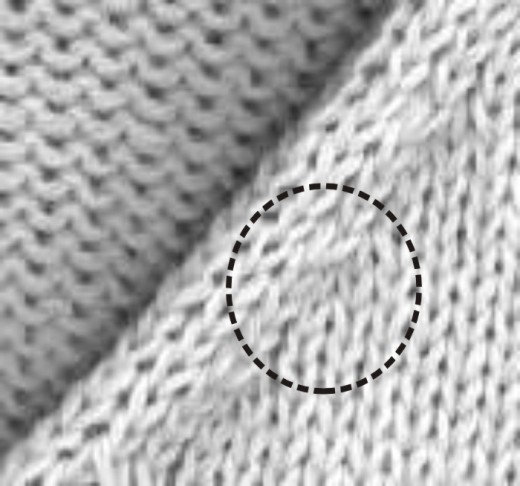
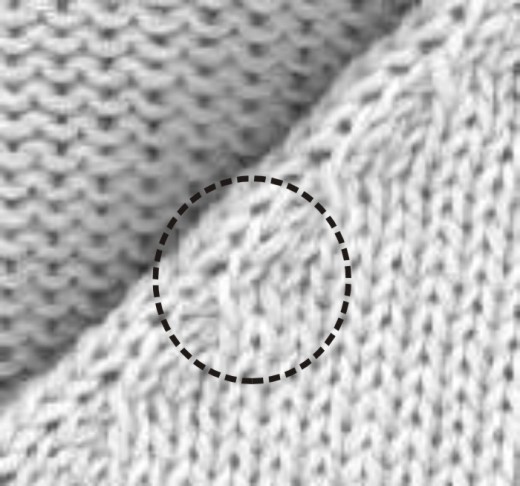
Insert a start module at the start of the V-neck:
- 9
- Select the element Neck opening in the shape editor.
- 10
- Click on the
 symbol.
- The Neck opening properties... dialog box appears.
- 11
- Enter the Structure single jersey V2 module in the tab.
- 12
- Specify Horizontal 0 und Vertical -1 under.
The module Structure single jersey V1 can be used with V-neck start with one needle.
- 13
- Enter the value 0 under Distance to end line.
- The neck is positioned on the front.
III. Generate a back in the Shape editor:
The end line of the back will be bind-off as the shape has no collar.
Create the shape for the back following the same procedure as for the front and make the same settings.
- The Shape editor dialog box is opened.
- 1
- Select the end line in the back.
- 2
- Allocate Binding-off to the edge under in the tab.
- 3
- Select Neck with draw thread in the selection list in the tab under .
- 4
- Save shape.
IV. Generate a short sleeve in the Shape editor:
- The Shape editor dialog box is opened.
- 1
- Create the table under Left Lines and enter the values for the sleeve.
Sleeve element
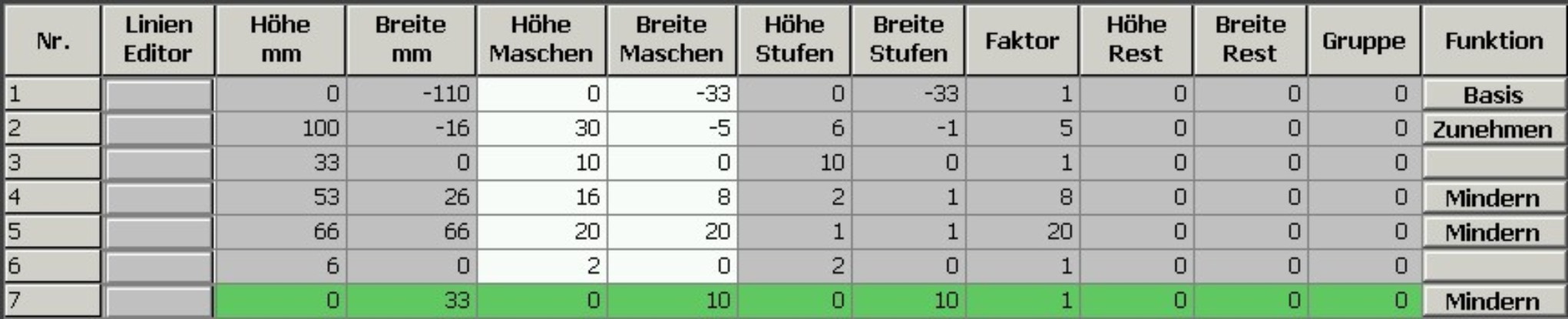
- 2
- Select end line.
- 3
- Make the Narrowing setting under in the tab.
- 4
- Select in the selection list under of the Narrowing tab .
The checkbox will be activated automatically.
- 5
- Activate the checkbox in the tab.
- 6
- Specify the number of stitches in the input field.
- The specified stitch number will be bind-off with the shoulder. This way the transition is closed.
- 7
- Save shape.