Generate Color Arrangement
I. Generate a Color Arrangement for the intarsia area:
- The processing step
 is carried out.
- 1
- Display all the knitting layers in the symbol view with the
 key.
key. - 2
- Select the corresponding intarsia pattern rows of the area with the red diamond via the row selection bar.
- 3
- Click the
 icon in the toolbar.
- or -
Call up the function / in the menu. - The Properties of: XX dialog box appears.
- 4
- Enter a module name.
- 5
- Confirm the dialog box with the OK key and close it.
- The color sequence present in the selection will be displayed in the Color Arrangement Editor.
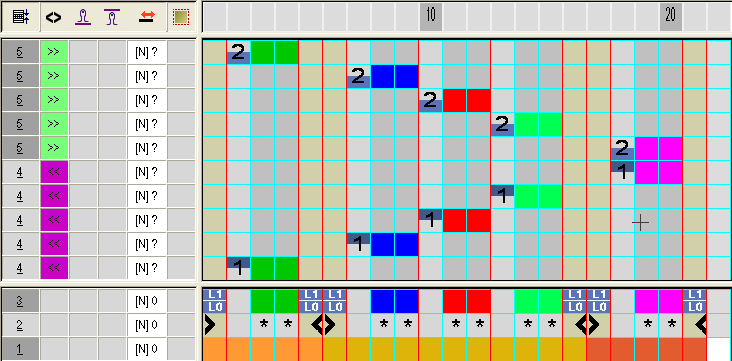
- 6
- Modify the color sequence in the shape part #1 (body) according to the intarsia knitting technique.
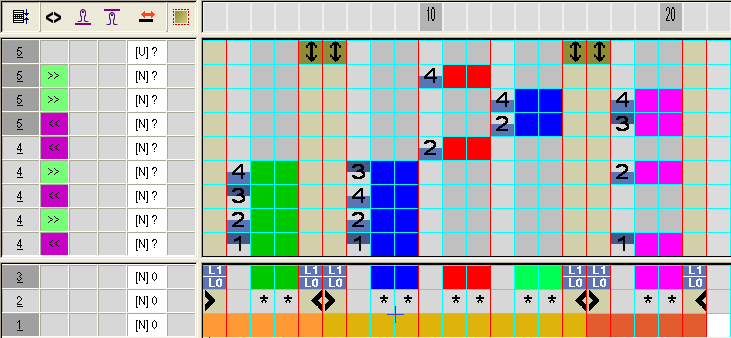
The intarsia knitting cycle contains 4 k&w complete rows.
- 7
- Close the Color Arrangement dialog box with
 .
. - The Color Arrangement will be closed and saved in the Modules toolbar under local Color Arrangements
 .
. - 8
- Select the corresponding intarsia pattern rows of the area with the light blue diamond via the row selection bar.
- 9
- Click the icon in the toolbar.
- The Color Arrangement is displayed.
- 10
- Modify also the second Color Arrangement.
- 11
- Close the Color Arrangement dialog box with .
- The Color Arrangement will be closed and saved in the Modules toolbar under local Color Arrangements .
II. Insert Color Arrangements in the pattern:
- 1
- Load the basic pattern
 processing step.
 - 2
- Switch the presentation of the symbol view into Display Pattern Cut-out
 .
. - 3
- Activate the control column Color Arrangement
 additionally.
 - 4
- Draw-in the two Color Arrangements in the control column in the height of the intarsia areas.
Ensure that the cycle height of the Color Arrangement fits into the areas of the suspending rows.