Generate pattern and Color Arrangement
I. Generate pattern without shape:
- 1
- Select / from the menu bar.
- or -
Click .
. - 2
- Enter a Pattern name.
- 3
- Select the machine type and the desired setup type.
- 4
- Select Basic pattern (pattern without shape) and .
- 5
- Set pattern size and select the Front stitch with transfer basic knitting mode.
- 6
- Select a start.
L'inizio può essere inserito anche dopo aver tracciato il disegno base.
- 7
- Confirm the settings with Generate Design Pattern.
- The Symbol view [Basic] will be opened.
II. Generate a Color Arrangement for structure with weft yarn and weft yarn presser foot to use a Qs weft yarn carrier:
Color Arrangement for the use of weft yarn carrier type Qs exists.
- 1
- Select the complete height of the pattern (without start and sj rows at fabric end) in the
 row selection bar.
 - 2
- Click the
 icon in the Default toolbar.
 - The color sequence present in the selection will be displayed in the Color Arrangement Editor.
- 3
- Insert rows for the weft yarn and transferring into the processing area.
- 4
- Draw the desired transferring into the row inserted at first by the transfer needle action.
- 5
- Draw in the
 Float needle action with any desired yarn color and define these rows as additional rows
  .
. - 6
- Draw-in the the needle actions
 for search color #3 and
  for search color #6 into the reference rows of yarn color #6.
 - 7
- Make entries to the following control columns:
- System
 :
: - specify the desired system allocation (not mandatory)
- Sequence of Technical Rows
 :
: - The
 symbol in the technical row with the weft yarn
 - The
 symbol in the technical row to enclose the weft yarn by knitting
 - Weft yarn presser foot
 :
: - The
 symbol in the technical row to enclose the weft yarn by knitting
 - Presser Foot Correction
 :
: - Set a different ESCI index for each of both the carriage directions in those technical rows in which the weft yarn presser foot is active.
Result:
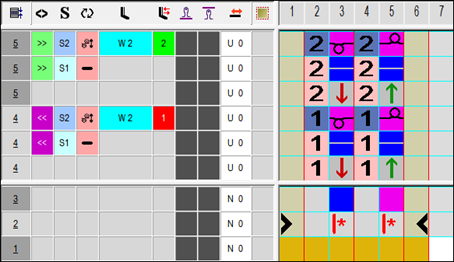
- 8
- Close the Color Arrangement Editor with
 .
. - 9
- Confirm the query with Yes.
III. Generate a Color Arrangement for structure with weft yarn and weft yarn presser foot to use a Qw weft yarn carrier:
Color Arrangement for the use of weft yarn carrier type Qw exists.
- 1
- Select the complete height of the pattern (without start and sj rows at fabric end) in the row selection bar.
- 2
- Click the icon in the Default toolbar.
- The color sequence present in the selection will be displayed in the Color Arrangement Editor.
- 3
- Insert rows for the weft yarn with transferring into the processing area.
- 4
- Draw in the
 Weft yarn / Transferring to the Rear and
  Weft yarn / Transferring to the Front needle actions with any desired yarn color and define these rows as additional rows .
 - 5
- Draw-in the the needle actions for search color #3 and for search color #6 into the reference rows at yarn color #6.
- 6
- Make entries to the following control columns:
- System :
- specify the desired system allocation (not mandatory)
- Sequence of Technical Rows :
- The symbol in the technical row with the weft yarn
- The symbol in the technical row to enclose the weft yarn by knitting
- Weft yarn presser foot :
- The symbol in the technical row to enclose the weft yarn by knitting
- Presser Foot Correction :
- Set a different ESCI index for each of both the carriage directions in those technical rows in which the weft yarn presser foot is active.
Result:
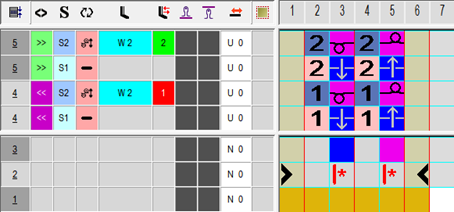
- 1
- Close the Color Arrangement Editor with .
- 2
- Confirm the query with Yes.