Step 1: Creating shape
- 1
- Open the Shape editor via /.
- 2
- Under select the corresponding k&w ... shape type.
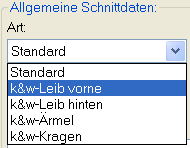
- 3
- Set to Stitches.
- 4
- Activate
 under .
 - 5
- Establish coordinates and allocate attributes.
Front
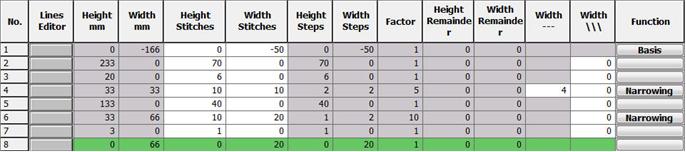
- 1
- Under allocate the desired attribute to the Narrowing edge.
- 2
- Execute the Shoulder narrowing (Line No. 6) in the sleeve.
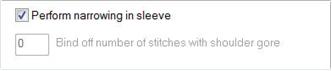
- 3
- Under in the Narrowing tab set the option.
Shape element Neck gore in the front
- 4
- Select a new
 element and under select the Gore entry.
 - 5
- Specify the coordinates for the Neck gore via the .
- Option : the gore steps can be repeated via the factor.
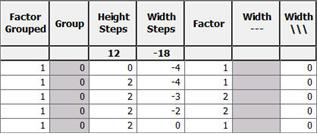
- 6
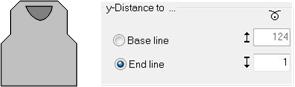
- Specify the neck gore distance until the .
Back
- 1
- Under allocate the desired attribute to the Narrowing edge.
- 2
- Execute the Shoulder narrowing (Line No. 6) in the sleeve.
- 3
- Under in the Narrowing tab set the option.
Sleeve
- 1
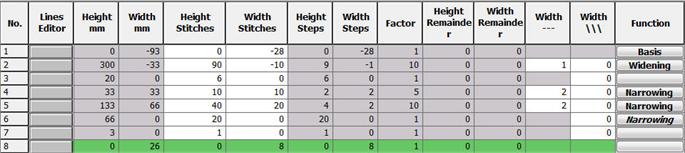
- Under , allocate the desired attributes Widening and Narrowing to the edges
- 2
- Allocate the Saddle (line No. 6) under in the Narrowing tab.
- 3
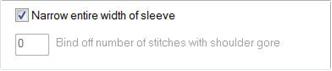
- The saddle is narrowed in the entire width.
- 4
- Under in the Narrowing tab set the option.
Collar

- 1
- Allocate the end line to the Binding-off tab under .
- 2
- Select the Neck or the Fast cut-out binding-off module.
To the step 2: Loading and adjusting shapes in the ShapeWizard