Step 2: Loading and Adjusting Shapes in the ShapeWizard
Upload shape parts to the ShapeWizard
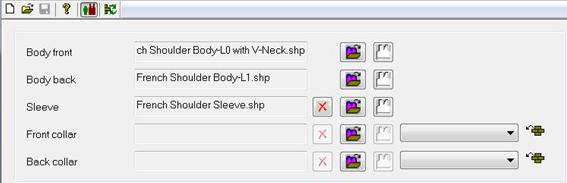
Combine the shape parts front, back and sleeve in the ShapeWizard to a k&w file.
- 1
- Run the ShapeWizard via the / menu.
- 2
- Upload the corresponding shape parts using the browser key
 .
.
- The Open dialog box appears in order to select a shape file.
- 3
- Select and upload shape.
For the sleeve the loaded shape can be removed again with the  button.
In order to correct loaded shapes call-up the Shape editor with the  button.
Settings in the ShapeWizard
- 1
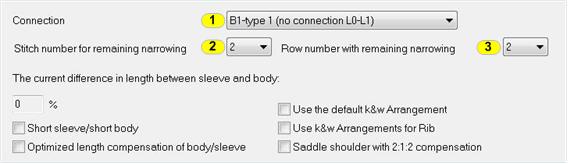
- Carry out the settings for the corresponding shapes in the ShapeWizard.
- Docking points are calculated.
- k&w arrangements are loaded.
|
|
Function |
Setting |
|
1 |
Connection |
B1 – Type1 (no connection L0-L1) |
|
2 |
Stitch number for remaining narrowing |
2 |
|
3 |
Row number with remaining narrowing |
2 |
To the next step 3: Set docking points