Change shape attributes
I. Change fade-out width and knitting mode for fading out:
- M1plus Shape Editor is running.
- 1
- Click on the desired line number (=edge number) in the column with the left mouse button.
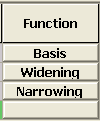
- The Lines xx No.: xx dialog box will be opened.
- 2
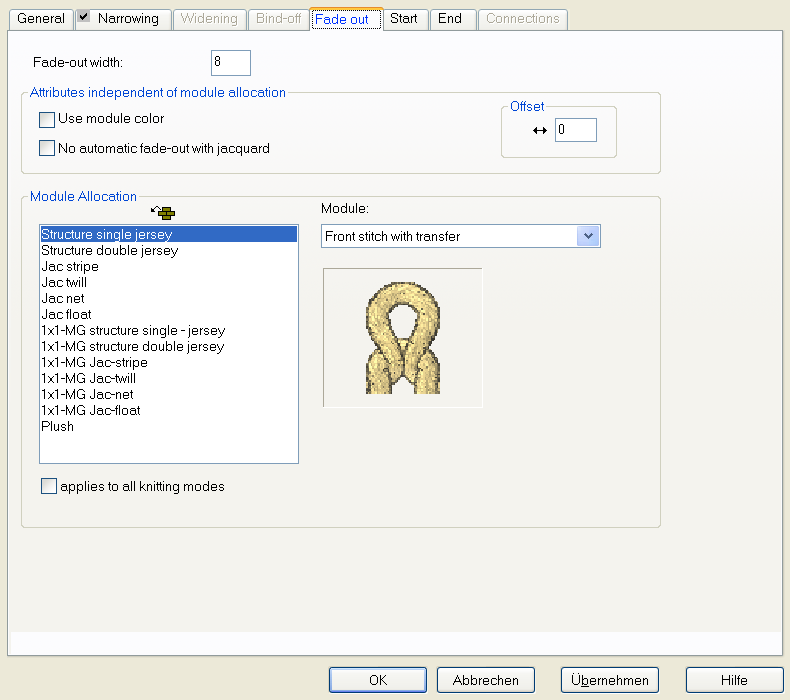
- Open the tab.
- 3
- Specify the width for Fade-out
 .
. - 4
- Select the knitting mode for Fade-out in the selection bar.
Stitch v with transfer
or
Stitch ^ with transfer
- or -
Allocate a module from the Module Explorer of Database to listfield of the corresponding knitting mode with drag & drop .
.
- or -
Allocate the module from the Modules toolbar with drag & drop. - 5
- Confirm the entry with Apply or OK.
II. Change the narrowing width and the method of narrowing:
- M1plus Shape Editor is running.
- 1
- Click on the line number with the entry Narrowing in the column with the left mouse button.
- The Lines xx No.: xx dialog box will be opened with the Narrowing tab.
- 2
- Specify the narrowing width
 .
. - 3
- Specify Binding-off from stepping.
- 4
- Click the Binding-off >> button to select the binding-off method.
- 5
- Select the method of narrowing in the selection list:
- L-R combined transfer
- Separate transfer single jersey
- Stitch ^ separate transfer overlying
- Stitch v separate transfer overlying
Selection depends on knitting mode and machine type.
- 6
- Confirm the entry with Apply or OK.
III. Change the narrowing width and the fade-out width directly in the table:
- 1
- Click on the desired line number (=edge number) in the column with the left mouse button.
- 2
- Activate the applies to all knitting modes checkbox in the Fade-out and / or Narrowing tabs.
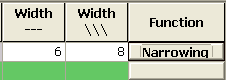
- The columns Width --- and Width \\\ will be made accessible for input in the table.
- 3
- Make changes.