Default Attributes
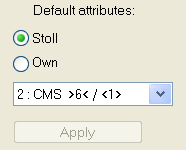
I. Allocate default attributes:
- 1
- Select the line or the lines to which you want to allocate an attribute in the or table.
- 2
- Select the desired attribute in the selection list.
- 3
- Click on Apply key.
- The selected attribute will be allocated to the selected lines.
|
No. |
Default attribute |
Meaning |
|---|---|---|
|
1 |
Basic |
Without knitting technique. |
|
2 |
CMS >6< / <1>: |
Module for narrowing. Width: 6 Needles. |
|
3 |
CMS >6< / <6>: |
Module for narrowing. Width: 6 Needles. |
|
4 |
CMS TC4 >6< / <0>: |
Module for narrowing CMS TC4. |
|
5 |
CMS 1x1 >4< / <0>: |
Module for narrowing with 1x1 technique. |
|
6 |
CMSTC-R >6<: |
Module for narrowing CMS-TC-R. |
|
7 |
CMSTC-R V: |
Module for narrowing TC-R V-neck. |
|
8 |
Fair Isle U |
Multi-step narrowing |
|
9 |
Fair Isle ^ |
Multi-step narrowing |
You may not change the Stoll default attributes.
II. Create own attributes:
- 1
- Call up the M1plus Shape Editor dialog box via the / menu.
- 2
- Select the / / / menu.
- 3
- Open the table with
 .
.
- That table does not contain any entry.
- 4
- Insert a new line in the table with the
 button.
The first line refers to the start line (=basic) of a shape.
- 5
- Insert a next new line in the table with the button.
- 6
- Click in the column of the new line.
- The Lines xx No.: xx dialog box will be opened.
- 7
- Select a function in the selection list of the General tab.
- Due to this selection, the respective tabs become active.
- Narrowing
- Widening
- Binding-off
- 8
- Make corresponding settings in the Fade-out, Narrowing etc. tabs.
- 9
- You can enter a designation for the created attribute in the column.
- 10
- Confirm the entry with Apply or OK.
- 11
- Save the new attributes via the / menu.
You have to save your own attributes under / / / / / .
- The own attributes are available when generating a shape newly.