Use Sintral functions
I. Call up Sintral functions:
- Sintral functions must be saved in a Sintral file (*.sin).
- 1
- Call up the dialog box via the / Sintral Functions... menu.
- 2
- Load the saved Sintral file with Load... in the Sintral Functions dialog box.
- 3
- Select the Sintral file (*.sin) in the Open dialog box and add it to the table with Open.
- 4
- Specify the of the inserted Sintral file in the column of the table.
The specifies the Sintral function and the position of the function call within the knitting program.
The types of Sintral functions:
|
Type |
Behavior |
|---|---|
|
Head |
The Sintral function is inserted in the knitting program from line 2 on. |
|
Start |
The Sintral function will be inserted before the F:M1-SINTRAL; function call.
|
|
FF transition |
The Sintral function F:FF-TRANS; for the Fully Fashion transition will be inserted before and after the F:M1-SINTRAL; function call. |
|
Comb |
No comb thread module will be inserted in the pattern by the Technical Processing. The Sintral function F:COMBTHREAD; will be inserted before the F:M1-SINTRAL; function call in the knitting program instead. |
|
Comb 2 parts |
No comb thread module for 2 parts will be inserted in the pattern by the Technical Processing 2 parts. The Sintral function F: COMBTHREAD-2P; will be inserted before the F:M1-SINTRAL; function call in the knitting program instead. |
|
YLC |
Sintral test program (YLC3) for yarn length control. |
|
YLC two pieces |
Sintral test program (YLC3) for yarn length control for 2-piece knitting. |
|
| |
|
Technical Rows |
This types of Sintral functions can be allocated to any technical row, with or without function call, before or after the stroke, in the Technical row data dialog box. |
|
| |
 : No start may be inserted in the pattern.
- Default directory for Sintral functions:
D:\Stoll\M1plus\x.xx.xxx\Database\Sintral\transition\ - Directory for personal Sintral functions:
D:\Stoll\M1plus\x.xx.xxx\Database\Sintral\transition_private\
- 5
- Activate the checkbox in the column
- The Sintral function and the function call F:xxx will be inserted into the Sintral.
- 6
- Close the dialog box with
 .
.
- The loaded Sintral functions will be saved within the *.mdv file.
II. Edit Sintral functions:
- 1
- Select the desired Sintral function in the Sintral Functions dialog box.
- 2
- Open the Sintral Editor with the Edit... button.
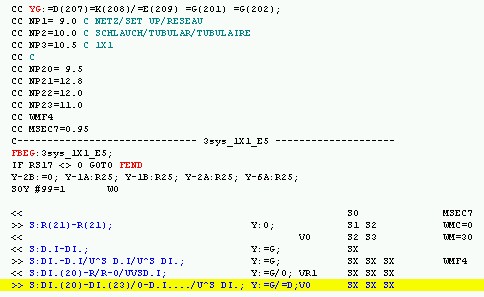
- The Sintral will be displayed as temporary file (Tmp\.....*2.sin).
- 3
- Edit the Sintral.
- 4
- Save the Sintral function.
- The Sintral function will be saved as temporary file (Tmp\.....*2.sin).
The original Sintral function will not be changed.
- 5
- Close the Sintral Editor.
- 6
- Click the Update button of the Sintral Functions dialog box.
- The Sintral function already loaded in the table will be replaced by the modified function.
III. Delete Sintral functions:
- 1
- Select the Sintral function to be deleted in the Sintral Functions dialog box.
- 2
- Click the Delete button.
- The selected Sintral function will be deleted.
IV. Use a Sintral function of the type:
- 1
- Load the desired Sintral function in the Sintral Functions dialog box.
- 2
- Allocate the Technical Rows type to the loaded Sintral function in the column.
- 3
- Activate the Sintral function with the checkbox in the column.
- The Sintral function will be entered as function (FBEG:…FEND) in the MC-Program.
- 4
- Select a pattern row in the Symbol View [Basic].
- The Sintral-Function of the Technical Rows type will be inserted at this position.
- 5
- Call up the dialog box via / / Function Calls....
- or -
Display the Function call control column and open the dialog box via the Function Calls... context menu.
The selected pattern row will be displayed.
- 6
- Open the Function section with the button.
- 7
- Activate the checkbox.
- 8
- You can enter additional Sintral commands in the entry fields.
- These will be inserted before the function call (F:;).
- 9
- Select the desired Sintral function in the F: selection list.
- 10
- Enter a repetition factor for the selected Sintral function in the entry field if necessary.
- or -
Define a cycle counter or counter. - 11
- Specify whether to insert the function or after stroke under Execute.
- 12
- Confirm the entry with Apply or OK.
- The function will be set automatically to Used in the Sintral functions dialog box.
- The Sintral function will be entered as function call (F:;) in the MC-Program.
Only Sintral functions specified in the Technical row data dialog box will be appear in the MC-Program as function call.