Working with Sequences
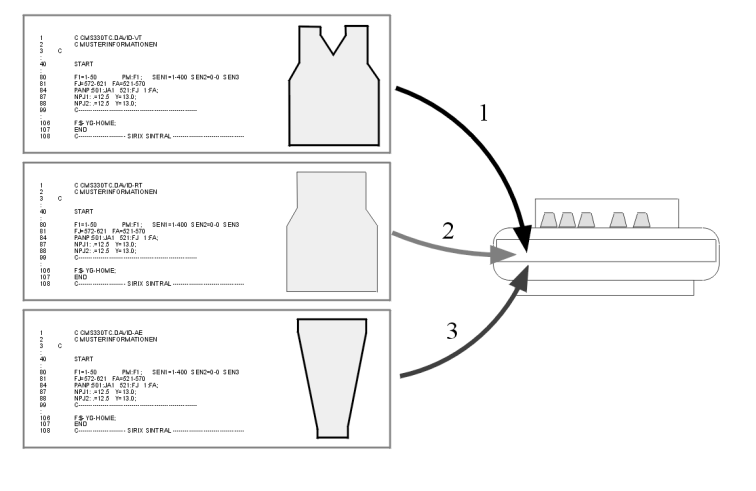
Examples for the use of a sequence:
-
Fully fashion:
The knitting of parts in the sequence of front, back and sleeve. -
Knitting sets of sizes
The same pattern in different sizes.
Requirements:
The following settings must be identical for all knitting programs used in the sequence:
- Same type of the machine
- Same SEN areas
-
With TC machines:
Same yarn carrier home position -
With OKC machines:
Different yarn carrier home position possible with active Seq EAY button at the machine. : Recommended for the programing with comb.
I. Generate a sequence:
- 1
- Call up the Sequence Editor dialog box via the / menu.
- The Sequence editor is displayed.
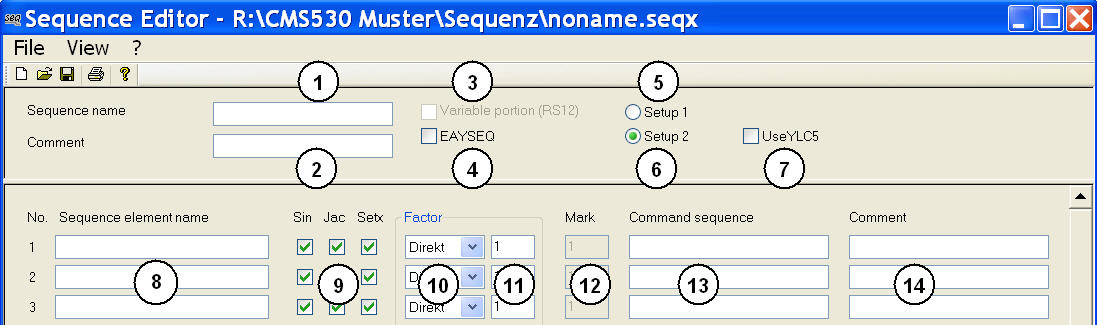
No. | Function | ||
|---|---|---|---|
1 | Input field for the sequence name | ||
2 | Input field for comments | ||
3 | Knitting of different sizes | ||
4 |
| The EAY command will be called up between the sequences. | |
| The S0Y command will be called up between the sequences. | ||
5 | Generate a sequence with Setup1 (.seq) | ||
6 | Generate a sequence with Setup2 (.seqx) | ||
7 |
| Yarn length control with original piece (Masterpiece) | |
| Deactivated yarn length control | ||
8 | Edit box for the sequence elements and the order in which the elements are knitted. | ||
9 |
| Element will be loaded | |
| Element will not be loaded | ||
10 | Direct | Number of a sequence element from column 6 | |
RS | Number of a sequence element via cycle counter | ||
11 | Number of repetitions of a sequence element | ||
12 | Delete program from line XX on when loading the next sequence element | ||
13 | Specification of cycle counters and counters. | ||
14 | Input field for comments | ||


- 2
- Name the sequence under Sequence Name in the dialog box.
- 3
- List the order of the sequence elements under the consecutive numbers in the Sequence Element Name column.
- This list determines the order of production.
With | Element name | None | Element name |
|---|---|---|---|
David | -VT | No name | David-VT |
-RT | David-RT | ||
-Sleeve | David-sleeve |
A sequence can be generated with or without sequence name.
- 4
- Make further settings in the Sequence Editor.
- 5
- Save sequence:
- Name the sequence.
- Select the directory of the sequence elements.
II. Check a sequence:
You can check a sequence in the Sintral Check.
- A sequence file (xxx .seqx) must exist.
- 1
- Call up the Sintral Check program via the / menu.
- 2
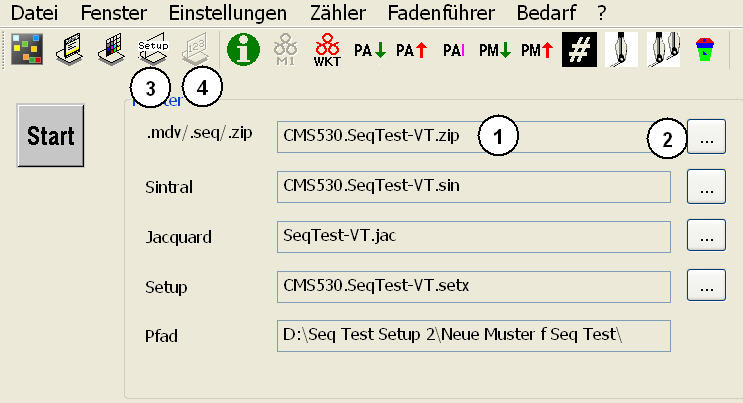
- Load the sequence (xxx .seqx) using the
 (2) button.
|
No. |
Function |
|---|---|
|
1 |
Display of the loaded sequence |
|
2 |
Define path for . |
|
3 |
Display the Setup Editor. |
|
4 |
Display the Sequence Editor. |
- 3
- Press the Start button.
- The Sintral Check tests the sequence.