Creating shape
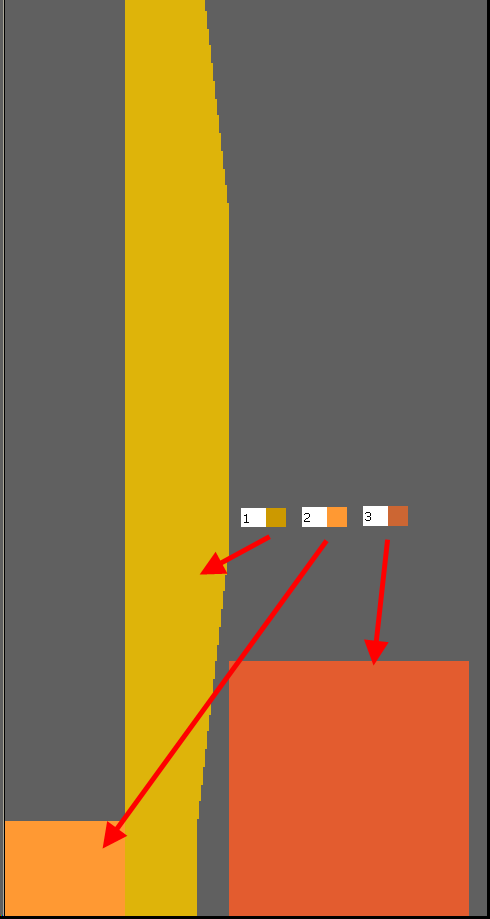
Description of the shape parts:
Shape Part 1: Sleeve
Shape Part 2: Collar
Shape Part 3: Body
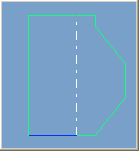
Generate the sleeve (shape part 1) in the Shape Editor:
- 1
- Open the shape editor via /.
- 2
- Select the k&w Body front under .
- 3
- Deactivate
 under .
 - 4
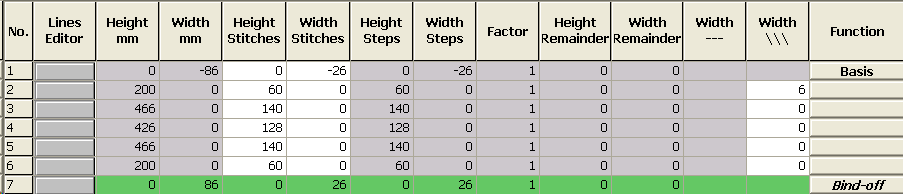
- Create the table under Left Lines and enter the values for the front.
Sleeve: Left Line
- 5
- Allocate to the end edge under Function and select the Shoulder Stadard-01 module.
- 6
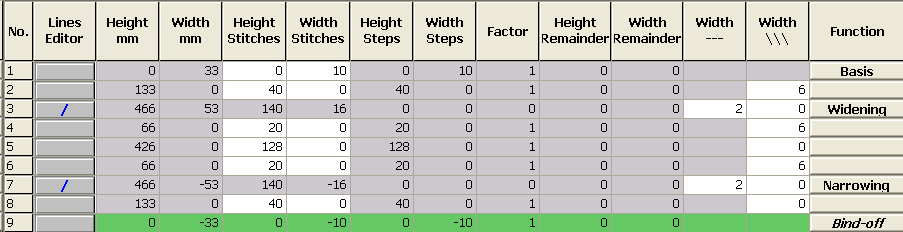
- Create the table under Right Lines and enter the values for the front.
- 7
- Allocate the desired attributes to the edges Widening and Narrowing under Function.
- 8
- Allocate to the end edge under Function and select the Shoulder Stadard-01 module.
- 9
- Save the shape part in the desired folder.
Generate the element for the collar (shape part 2) in the Shape Editor:
- 1
- Open the Shape Editor.
- 2
- Select k&w Sleeve under .
- 3
- Generate a new shape / table for the collar using the
 key.
key. - 4
- Create table with values.
Collar

- 5
- Allocate to the end edge under Function and select the Shoulder Stadard-01 module.
- 6
- Save the shape part in the desired folder.
Generate the element for the body (shape part 3) in the Shape Editor:
- 1
- Open the Shape Editor.
- 2
- Select k&w Sleeve under .
- 3
- Generate a new shape / table for the body using the button.
- 4
- Create table with values.
Body (Shape Part 3)

- 5
- Allocate to the end edge under Function and select the Shoulder Stadard-01 module.
- 6
- Save the shape part in the desired folder.
You have to save all shape parts in the same directory.