Shapewizard: Determine docking points and k&w Arrangements
I. Open ShapeWizard and set docking points:
- 1
- Open the ShapeWizard dialog box via the / menu.
- 2
- Open the Docking Points dialog box with the
 icon in the toolbar of the Shapewizard.
 - 3
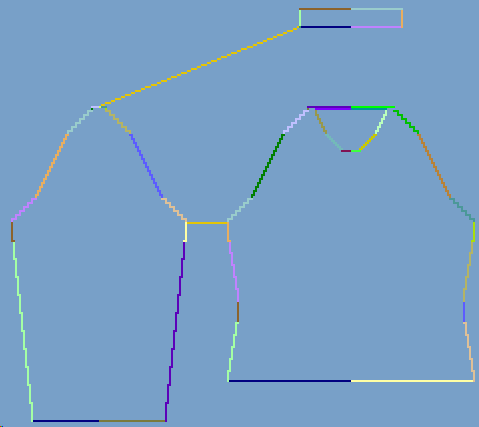
- Set the docking points for sleeve-body.
If the Ctrl key is pressed while specifying the docking points, then the cursor automatically jumps to the nearest edge start or edge end.
- 4
- Set the docking point Collar.
- Always set the connecting line on the left collar side.
- The same position is automatically applied for the right side.
- Overwrite the position for the right side in the Docking points dialog box if you whish the collar to be positioned asymmetrically.
Result: The width of the collor element is adjusted by the docking point.
All docking points:
II. Determine k&w Arrangements:
- 1
- Press Determine k&w Arrangements.
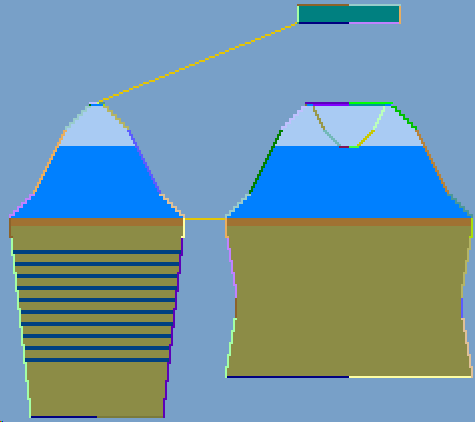
You can delete the determined k&w Arrangements with the Initialize button.
- 2
- Exchange k&w Arrangements:
Select the k&w Arrangement in the ShapeWizard dialog box by double click.
- A window with alternative k&w Arrangements appears.
- 3
- Select the desired k&w Arrangement.
- 4
- Close the dialog box with the OK button.
- The selected k&w Arrangement is inserted.
The elements of the shape (front, back, sleeve and collar) and the kaw file must all be located in the same directory.
- 5
- Close the Shapewizard dialog box.