Expand pattern
I. Make settings before expanding:
- 1
- Specify the racking priority of the modules via the / menu.
- Large before Small Racking
- Small before Large Racking
- Left before Right Racking
- Right before Left Racking
The settings will be displayed after expanding.
II. How to expand
|
Selection |
Meaning | ||
|---|---|---|---|
|
Steps of Processing toolbar | |||
|
|
|
|
The entire pattern will be expanded and the technical processing may follow then. |
|
Control Views toolbar | |||
|
|
|
|
The area shown in the Symbol View will be expanded in the entire width of pattern as preview. |
|
|
|
The selection of the Symbol View will be expanded in the entire width of pattern as preview. | |
|
|
|
The entire pattern will be expanded as preview. | |
The Control View can be displayed as Symbol, Fabric or Technical View.
Make the desired setting under / in the tab.
Control Views are write-protected!
Processing Step:  Complete expanding
- 1
- Get the entire pattern expanded for further processing with of the Steps of Processing toolbar.
|
State of pattern |
Presentation |
Description |
|---|---|---|
|
Basic pattern |
|
Before expanding: |
|
Expanded Pattern |
|
After the expanding: |

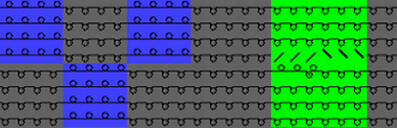

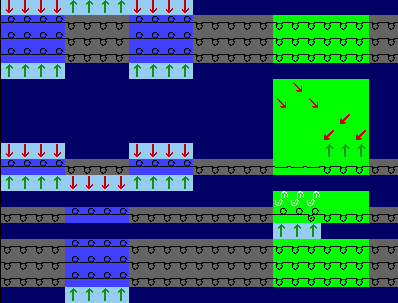
Presentation options of the Control View
Presentation in the Control View
Modules, Color Arrangements and Module Arrangements only will be displayed in expanded mode in the control view.
You cannot see information of Configuration and Yarn Field Allocation! No technical rule will be processed.
- Visible detail (control view)
- 1
- Set the zoom to match the desired part of the pattern in the Symbol View [Basic].
- 2
- Expand the visible detail with
 in Control Views toolbar in order to check it.
- The expanded detail will be displayed with the corresponding specifications in the Symbol View [Control View].
- 3
- Close the preview with
 .
.
- Selection (control)
- 1
- Select the desired pattern rows.
- 2
- Expand the selection with
 in Control Views toolbar in order to check it.
- The expanded selection will be displayed with the corresponding specifications in the Symbol View [Control View].
- 3
- Close the preview with .
- Pattern (control)
- 1
- Expand the entire pattern with
 in Control Views toolbar in order to check it.
- The entire pattern will be displayed with the corresponding specifications in the Symbol View [Control View].
- 2
- Close the preview with .
Changes in the Basic Pattern
Control View will not be updated automatically after changes in the basic pattern!
(Marked by red font of the window title).
Press the E key to get the Control View updated. The font of the window title will change to green then.