File system
I. Save the data to the USB Memory Stick:
- 1
- Call up the Extract jac/sin/set files… dialog box via the / menu.
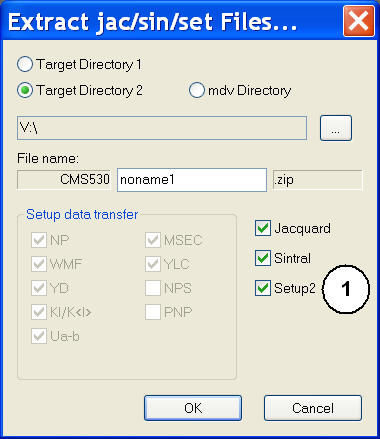
|
No. |
Entry |
Meaning |
|---|---|---|
|
1 |
Setup1 |
The Setup type 1 was selected when generating the program. Under Setup data transfer select the data to be extracted which are to be saved in the setup file. Result: The data will be extracted to sin / jac / set files and saved. |
|
Setup2 |
The Setup type 2 was selected when generating the program.
Result: The data will be extracted to sin / jac / setx files and saved as a zip file. |
 : No selection possible under Setup transfer.
- 2
- Select .
- 3
- With the … button, specify the drive and the path, to which the USB Memory Stick is connected in the file system.
- 4
- Activate the checkbox for the files to be extracted:
 or
or - 5
- Under
- Pattern with Setup1: Select the data to be extracted
- Pattern with Setup2: no selection possible
- 6
- Close the dialog box with OK.
- The Sin/Jac/Set files or the zip file will be generated and saved to the USB Memory Stick.
II. Save data to the hard disk:
- 1
- Call up the Extract jac/sin/set files… dialog box via the / menu.
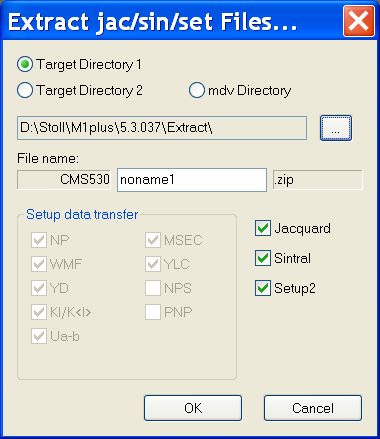
- 2
- Select .
D:/Stoll/M1plus/<Version>/Extract is the default setting for this target directory
- 3
- If necessary, change the drive and path with the ... button.
Example: D:/Stoll/M1/KnitLan.
If a network exists between the OKC machine and the M1plus Pattern Workstation, the KnitLan folder is automatically shared for data transfer.
- 4
- Close the dialog box with OK.
- The Sin/Jac/Set files or the zip file will be generated and saved in the specified folder.
III. Save the data to the mdv directory:
- 1
- Call up the Extract jac/sin/set files… dialog box via the / menu.
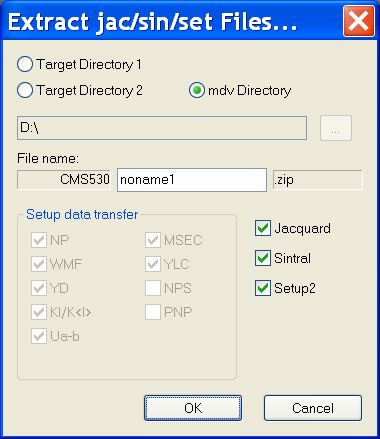
- 2
- Select the .
The path of the mdv file (pattern) appears as default.
- 3
- Close the dialog box with OK.
- The Sin/Jac/Set or the zip file will be generated and saved in the same folder with the mdv file.