Module Explorer of Pattern: Modify the Inserted Start
|
Task: | Edit the start |
|---|---|
Machine type: |
|
M1plus working technique | Modify the start used in the pattern. |
You can find the start inserted in the pattern in the Module Explorer of Pattern and modify it if desired.
I. Modify the start inserted in the pattern:
- The pattern is loaded as basic pattern.
- 1
- Open the Module Explorer via the / menu.
- 2
- Open the desired directory with the corresponding pattern name .
- 3
- Open the Start Directory with a double-click.
- The container module of the inserted start is displayed.
The displayed module is a copy of the original from the Module Explorer Database and has no L marking.
- 4
- Open the container module of the inserted start double-clicking.
- The container with the write-protected
 elements is displayed.
- 5
- Place the cursor on the element in the container to be changed and open it double-clicking.
Changes for example in the:
- Element Start
- Transition element
- 6
- In the Pattern colors toolbar switch to the
 (technical yarns) color palette and select the technical colors needed for drawing.
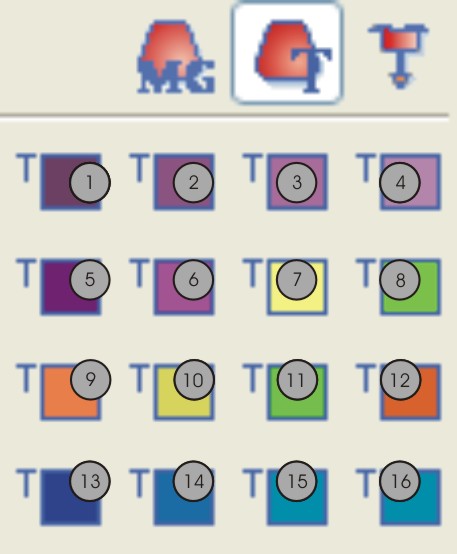
No. | Function | Color number |
|---|---|---|
1 | Rib thread 1 | 201 |
2 | Rib thread 2 | 202 |
3 | Rib thread 3 | 203 |
4 | Rib thread 4 | 204 |
5 | Protection thread 1 | 205 |
6 | Protection thread 2 | 206 |
7 | Draw thread 1 | 207 |
8 | Comb thread 1 | 208 |
9 | Elastic yarn 1 | 209 |
10 | Draw thread 2 | 210 |
11 | Comb thread 2 | 211 |
12 | Elastic thread 2 | 212 |
13 | Rib thread 5 | 213 |
14 | Rib thread 6 | 214 |
15 | Rib thread 7 | 215 |
16 | Rib thread 8 | 216 |
- 7
- Select the
 drawing tool and the desired needle actions.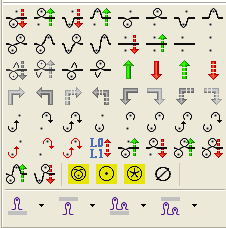
- 8
- Change the knitting sequence in the element.
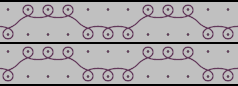
Watch out when modifying:
- Adapt the length cycles contained in the start
- When changing the row number, has to be adapted if necessary.
- 9
- Close the Module Editor with
 .
. - 10
- Confirm the Apply Modifications? query with Yes.
- Changes are saved, the element is marked with an L and displayed in the container.
- 11
- Close the Container module with OK.
- The container module is marked with an L, displayed in the Module Explorer of Pattern and applied to the basic pattern.