Create the shape in the M1plus Shape Editor
I. Generate shape:
- 1
- Call up the M1plus Shape Editor via the / menu.
- The dialog box will be opened.
- 2
- Open an existing shape via the / menu.
- or -
Click .
.
Example:D:\Stoll\M1plus\Versions\Form\2_set-in-front-v-neck-38.shv.
- or -
Create a new shape via the button.
 - 3
- Convert the *.shv shape into the *.shp format via the / menu.
- 4
- Change basic element.
Basic element Front:

- 5
- Select the edge lines 2 – 4 in the basic element.
- 6
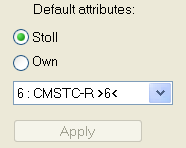
- Select and apply the default attribute No.6: TC-R>6<.
- 7
- Select the basic element and set the Distance of the shape halves to 1.
- The V-neck will be started with one needle.
- 8
- Select and change the Neck opening element.
Element Neck opening:

- 9
- Click on the
 button in the toolbar.
- The Left lines No.: 1 dialog box is opened.
- 10
- Under module allocation click on Structure double jersey and in the selection list select Structure double jersey V1 for the start of the V-neck.
- 11
- Define the horizontal and vertical position via .
- 12
- Select the edge lines 1 - 2 in the Neck opening element.
- 13
- Select and apply the default attribute No.7: CMS TC-R-V.
The narrowings in the neck opening elements are positioned at the same height.
- 14
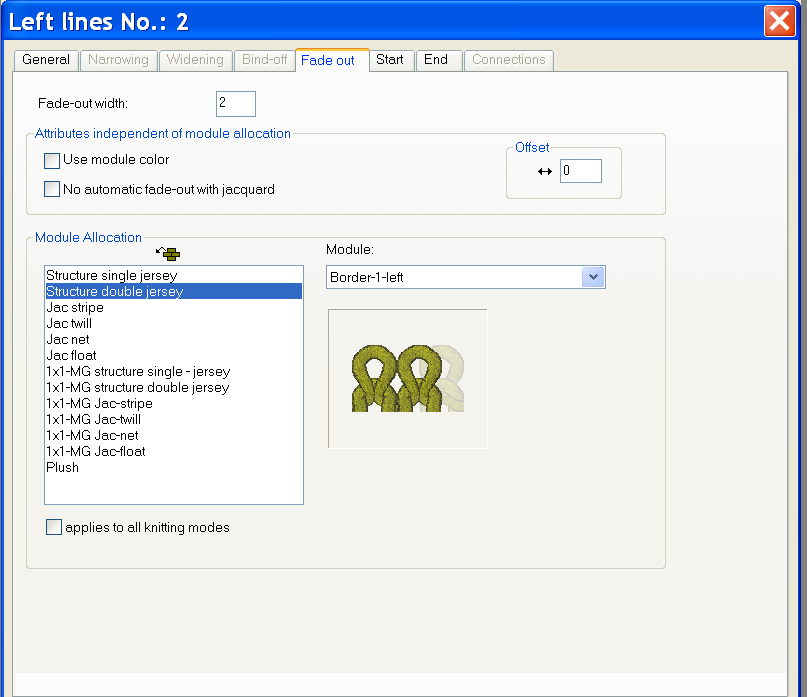
- Allocate fade-out modules to the edges of the basic elements and to the element Neck opening.
Based on the allocation of the default attributes it will be hidden with Front stitch – Rear stitch
- 15
- Use the fade-out modules from the Module Explorer of Database.
- Left Rolling Edge/Right Rolling Edge
- RR left edge / RR right edge
- Generate your own fade-out modules:
|
Left fade-out edge |
Right fade-out edge |
|---|---|
|
|
|

- 16
- Allocate the desired narrowing width to the edges of the basic element and the Neck opening element.
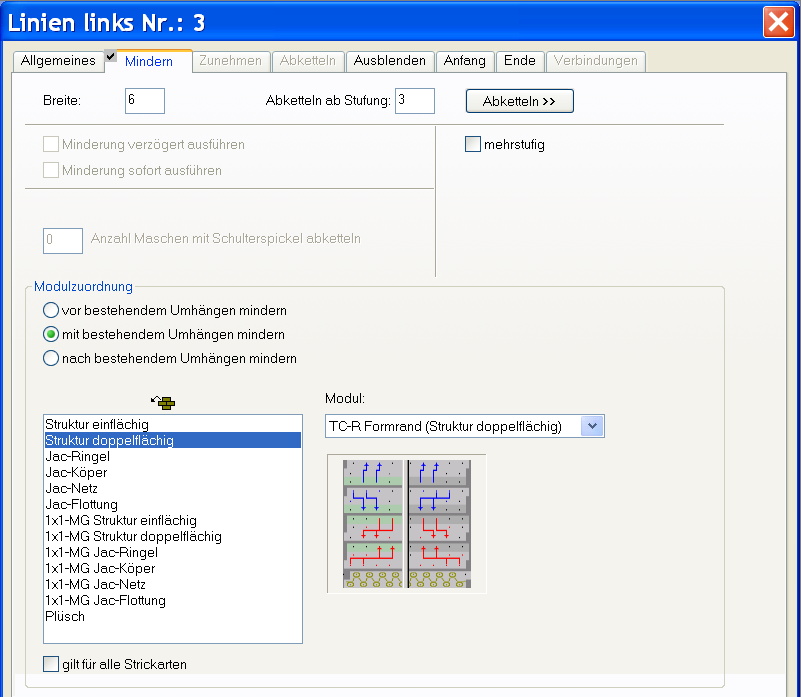
Narrowing methods for TC-R double jersey structure knitting mode:
|
Narrowing module |
Function |
|---|---|
|
Standard |
Narrowing without additional beds |
|
TC-R Shape Edge |
Common narrowing at the outer edge of the shape |
|
TC-R Shape Outer Edge without combination transfer |
Separated narrowing at the outer edge of the shape |
|
TC-R-V |
Common narrowing in the V-neck |
|
TC-R-V without combination transfer |
Separated narrowing in the V-neck |
- 17
- Save the shape via the / or menu.
- The shape will be saved in the shp format.
- 18
- Close the Shape Editor with
 .
.
II. Generate a neck-opening element with narrowings displaced in the height:
- 1
- Select the Neck opening element.
- 2
- Deactivate the Mirrored checkbox.
- The table Right lines can be displayed.
- 3
- Open and change the table Right lines for the neck element.

- 4
- Insert a new line no.1 and enter the value 1 at .
- The right V-neck edge will be placed one row higher.
- 5
- Reduce the number by one row in line no. 3.
- Compensation of the total height of the left lines and the right lines.
- 6
- Allocate shape attributes to the new line no. 1.
- Default attributes No.7: CMSTC-R-V
- Fading-out
- Type of narrowing
- 7
- Save the shape under a new name via the / menu.
- The shape will be saved in the shp format.
- 8
- Close the Shape Editor with .