What was new in CREATE PLUS V2.6
Release V2.6. 11/2023
Versione file: 14 (V2.6)
Compatible with:
- EKC 3.0
- CKC 2.0
- OKC 6.6
Individuare automaticamente l'immagliatura sul lato opposto in Configurazione / Altre impostazioni
-
 Individuare automaticamente l'immagliatura sul lato opposto
 - Default for tandem with comb
- Default for machines with clamping at the right only
- Setting applies always to all yarn carriers
- Lavorazione di più teli
- Yarn carriers of the right fabric piece are at YG right
- Yarn carriers of the left fabric piece are at YG left
- Alternating binding-off of left and right fabric piece.
You can toggle the display of the stitch lengths within Sintral.
Call up the File tab -> Opzioni dialog box.
Option of the  Opzioni dialog box, Impostazioni progetto sections:
|
|
All the NP values used in the pattern are displayed as comment within the Sintral. |
|
|
The NP values are not displayed as comment within Sintral. |


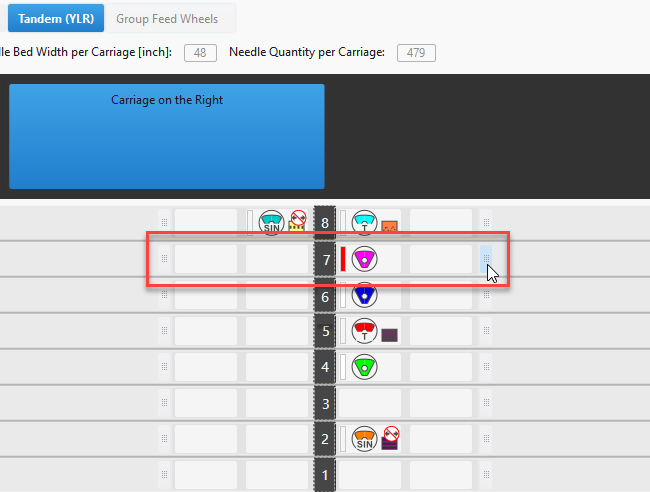
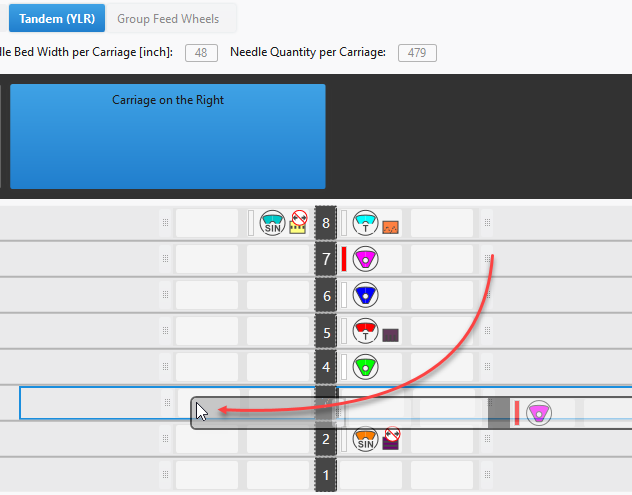
Move the yarn carriers for the right carriage in tandem mode
With the tandem mode enabled on the machine, you can modify the yarn carrier allocation of the right carriage independently to left carriage.
- 213
- Call up the Tandem (YLR) tab in the Guidafili tool window.
- 214
- Click the right carriage.
- 215
- Click the button at the right or left of the yarn carrier home positions and drag the whole yarn carrier track to the desired position.
Do Not Combine Yarn Carriers
New option in the Altre impostazioni tab of the Configurazione dialog box under Raggruppa guidafili:
 Non combinare.
Each yarn carrier of intarsia sequences is knitted by a separate system within the whole pattern.
Detect Knitting-in to Opposite Side Automatically
- You can specify for each yarn carrier to be knitted-in to the opposite side by the Immaglia sul lato opposto option of the Guidafili tool window.
- Now the Individuare automaticamente l'immagliatura sul lato opposto option is available.
- Configurazione -> Altre impostazioni
- For each yarn carrier, the knitting-in to the opposite side will be determined automatically.
- The yarn carriers which will be used closer the opposite side of the home position will be knitted-in before the start to the opposite side.
- The Immaglia sul lato opposto function in the Guidafili tool window will get disabled.
- More
Start modules of the Tecnica di scarico 1x1 type
New start modules of the Tecnica di scarico 1x1 knitting technique are available in the Knit Explorer under the path of the same name.
You will find these modules under Inizi / Tecnica di scarico 1x1:
- Inizio, 1x1, Tecnica di scarico 1x1
- Inizio, 1x1, Tecnica di scarico 1x1, Finezza grossa
- Inizio, 2x1, Tecnica di scarico 1x1
- Inizio, 2x1, Tecnica di scarico 1x1, Finezza grossa
- Inizio, 2x2, Tecnica di scarico 1x1
- Inizio, 2x2, Tecnica di scarico 1x1, Finezza grossa
- Inizio, Tubolare, Tecnica di scarico 1x1
- Inizio, Tubolare, Tecnica di scarico 1x1, Finezza grossa
Saving the patterns of a pattern project individually.
In the Disegno tool window, you will find the Esporta il disegno... function in the context menu of a pattern.
- A new pattern project will be created.
- The pattern you clicked will be saved within this pattern project.
- Context menu on the pattern name
CMS W - New Weft Yarn Carrier Qt
Another type of weft yarn carrier available for the CMS W machines:
|
Up to now |
Qw yarn carrier One weft yarn carrier can be used per system. |
|
|
New |
Qt yarn carrier Up to three weft yarn carriers can be used per system. |
|
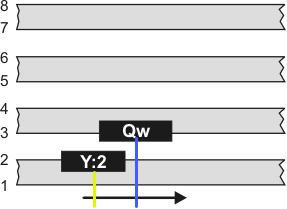
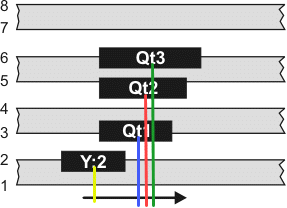
There are three versions of the Qt weft yarn carrier:
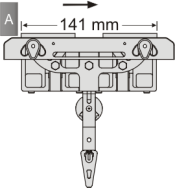
- Qt1 – 141 mm (ID 4170 282 857)
- Qt2 – 161 mm (ID 4170 282 858)
- Qt3 – 181 mm (ID 4170 282 859)
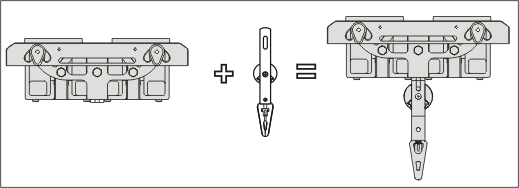
The yarn carrier plunger (A) drives of the yarn carrier carriage at the outside and pushes the yarn carrier ahead.
Advantage:
- No additional system is required for the weft yarn.
- One system only inserts the weft yarn and encloses it.
|
Working with Qt |
One system only inserts the weft yarn and encloses it (S2).
|
|
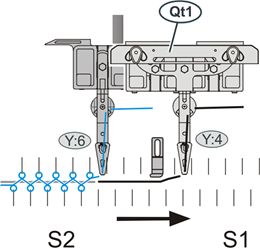
 The yarn carriers must be on different tracks.
Notes:
- Height of the Qt yarn carrier = Height of a normal yarn carrier
- The yarn carrier bow is taken from the corresponding normal yarn carrier.
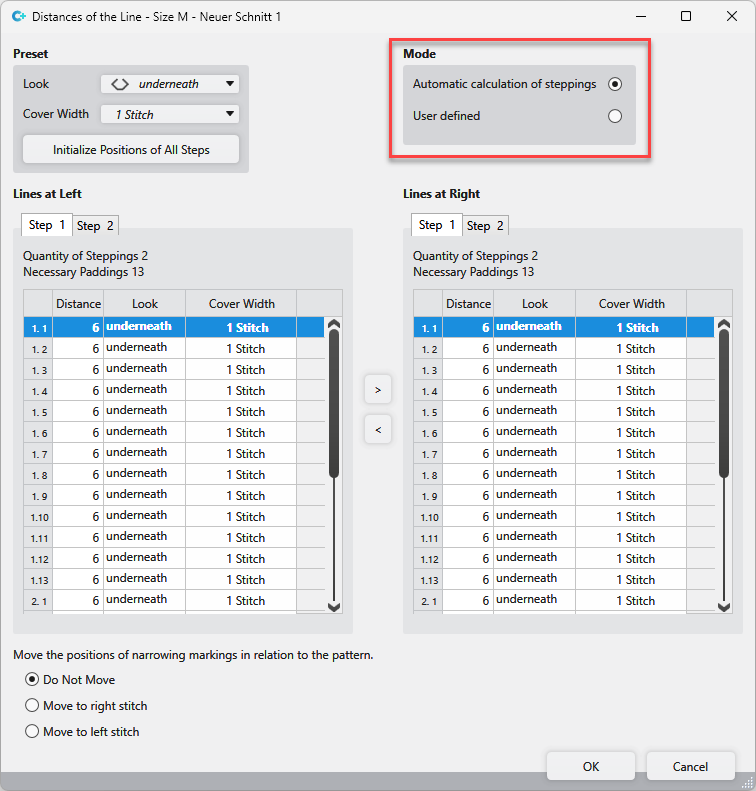
New feature for the Fair Isle stepping kind.
Now you can select the calculation of the steppings in the Distanze della linea tool window:
- Calcolo automatico dei passi
- - or -
- Personalizzato
- Multi-step Narrowing
Dimensioned Shape - Deleting Several Sizes at Once
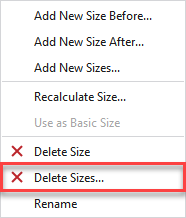
You will find the Elimina taglie... function in the context menu of the status bar of the Dimensioned Shape.
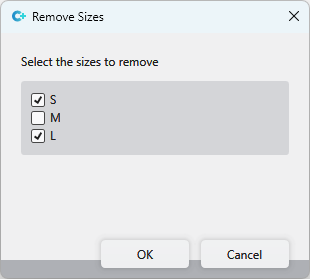
Select the sizes to be removed in the Elimina taglie dialog box.
Cancel Selection in the Start Ribbon
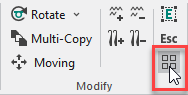
You can call-up the  Annulla selezione
function directly in the Modifica group of the Avvio tab.
Annulla selezione
function directly in the Modifica group of the Avvio tab.
New functions of the Trova e sostituisci dialog box
- The cursor attributes will be applied to the Cerca and the Sostituisci area by calling-up the dialog box.
-
Elimina tutto function at the top right of the dialog box
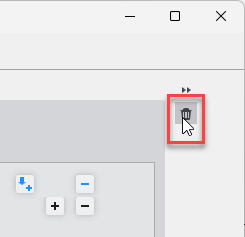
All data input will be removed from the dialog box. - Find and Replace
Symbols for deleting within the Knitting Element Editor.
The symbols for deleting are all available in the top row of the Knitting Element Editor.
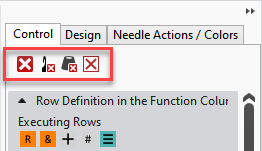
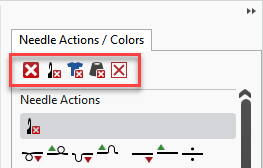
Applies to the following tool windows and tabs:
- Azioni dell'ago
- Simboli forma a griglia
- Colori del disegno
- Sistema di controllo
- Design
- CA
Renaming Multiple Knitting Elements Simultaneously
You can select and rename multiple knitting elements at the same in the Moduli, CA, MA and Parti di disegno tool windows.
- 216
- Select the knitting elements.
- 217
- Call up Rinomina più voci... function of the context menu.
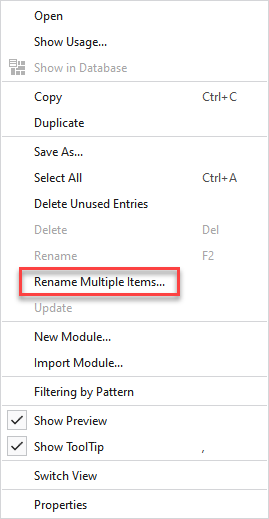
- The Rinomina più voci dialog box appears.
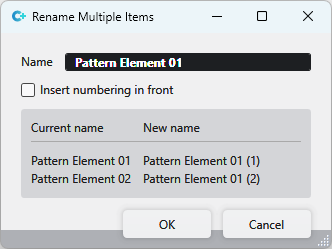
Make the following settings in this dialog box:
|
Nome |
Enter the new and common name for the knitting elements. |
|
|
The numbering appears in front of the name. |
|
|
The numbering follows the name. |
|
Display |
The current and the new names of the knitting elements are shown in the lower part of the dialog box. |
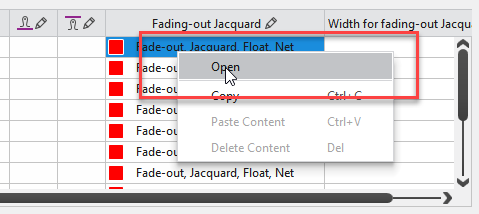
Open a module inserted in a table.
Now you can open modules inserted in a table via the context menu.
Within shape edges for examples:
Recolor a multicolored pattern element:
You can change the colors of a multicolored pattern element as desired before you draw with the pattern element.
With selecting the pattern element, an arrow appears next to the pattern color in the cursor attributes.
You can open the presentation of the colors of a pattern element by this arrow.
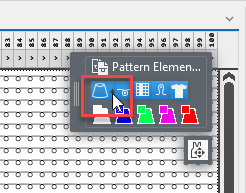
- 218
- Click a color of the Colori del disegno which you want to insert.
- 219
- Click the color of the pattern element which you want to replace.
- 220
- Repeat this procedure with all colors which you want to replace.
- 221
- Delete the color selected at last from the cursor attributes.
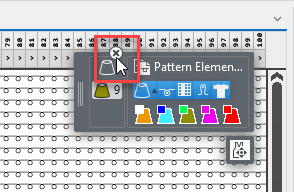
- 222
- Insert the pattern element with the new color combination into the pattern.
New Function: Move Raster Shape Part
You will find the Sposta forma a griglia function under the display of the cursor attributes.
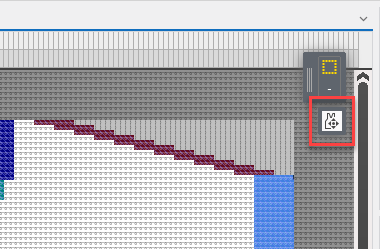
- The function is only available if no shape is positioned on the pattern.
- Click on the Sposta forma a griglia function to select the raster-shape.
- Move the raster-shape to the desired position with the mouse button pressed on the selection.
- Then click Sposta forma a griglia again to cancel the selection.
Call-up Shape Configuration Directly
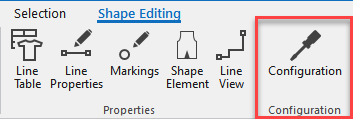
You can open the Tutti i tagli tab of the Configurazione dialog box directly in the Elaborazione del taglio tab of the lined shape layer.
New Dialog Box for Multiple Processing
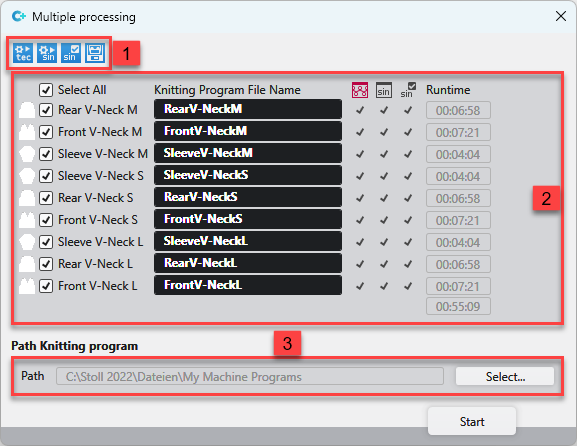
You start the joint technical processing and creation of the knitting programs exclusively in Lavorazione multipla dialog box.
Call up the dialog box in the Avvio tab next to the Sintral group.

Therefore, the Modifica multipla tab is completely eliminated.
Make the following settings in the Lavorazione multipla dialog box:
|
1 |
Select the steps of processing you want to be done. You can click only the patterns which are ready for this selection. |
|
2 |
Select the patterns that you want to get processed. You can edit the file name of the knitting programs. The knitting time appears after the Sintral Check at right of the pattern. |
|
3 |
Enter the path where the knitting programs shall be saved. |
Additional tabs of Parametri del disegno .
In connection with the Editor Modello STOLL, the following tool windows are integrated into the Parametri del disegno :
- Sintral
- Richiamo della funzione (F:)
- Istruzione Sintral/PRINT
- Funzioni Sintral
- Densità delle maglie
- Colori
These tool windows are therefore exported together with the Modello di dati Setup.
Parametri del disegno and configuration data of a pattern project can be saved as a template, edited and used in a new pattern project.
Esporta
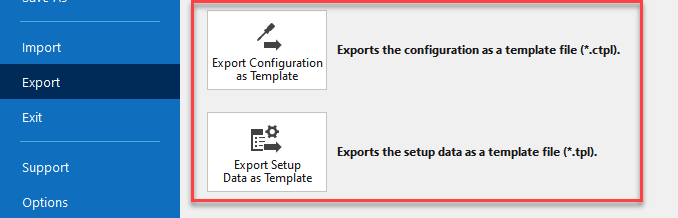
From an existing pattern project, setup data and the configuration can be exported as a template file.
Buttons of the Backstage View / Esporta :
|
Esporta configurazione come modello |
Salva i dati di configurazione come modello (*.ctpl).
Default path: |
|
Esporta dati Setup come modello |
Salva i dati Setup come modello (*.tpl). |
Editor Modello STOLL
Open the Editor Modello STOLL on the Pagina iniziale.
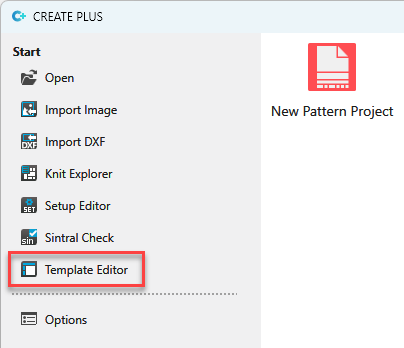
You can load, edit and save template files.
 Only project relevant data will be saved in the setup file.
This affects both the configuration and the setup data.
Use Modelli di dati Setup per nuovi progetti in a pattern:
- 223
- Open the Generale section of the Opzioni dialog box via the Backstage View.
- 224
- Load a Modello fully fashion under Modelli di dati Setup per nuovi progetti.
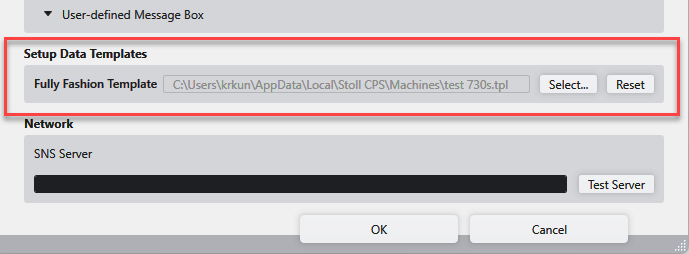
- This template will be used by every new pattern project.
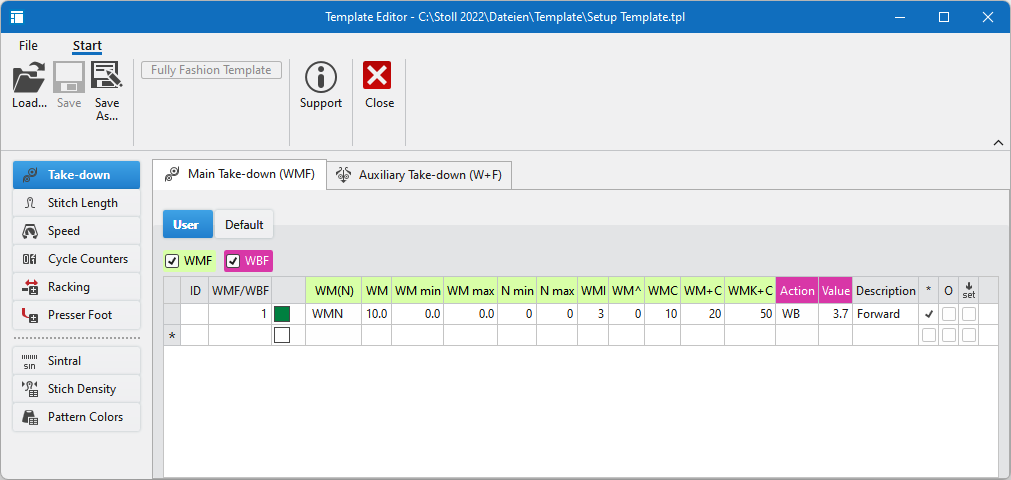
- The G ( √ = La voce viene salvata a livello globale per progetti successivi. ) column is omitted.
Use configuration templates in in a pattern.
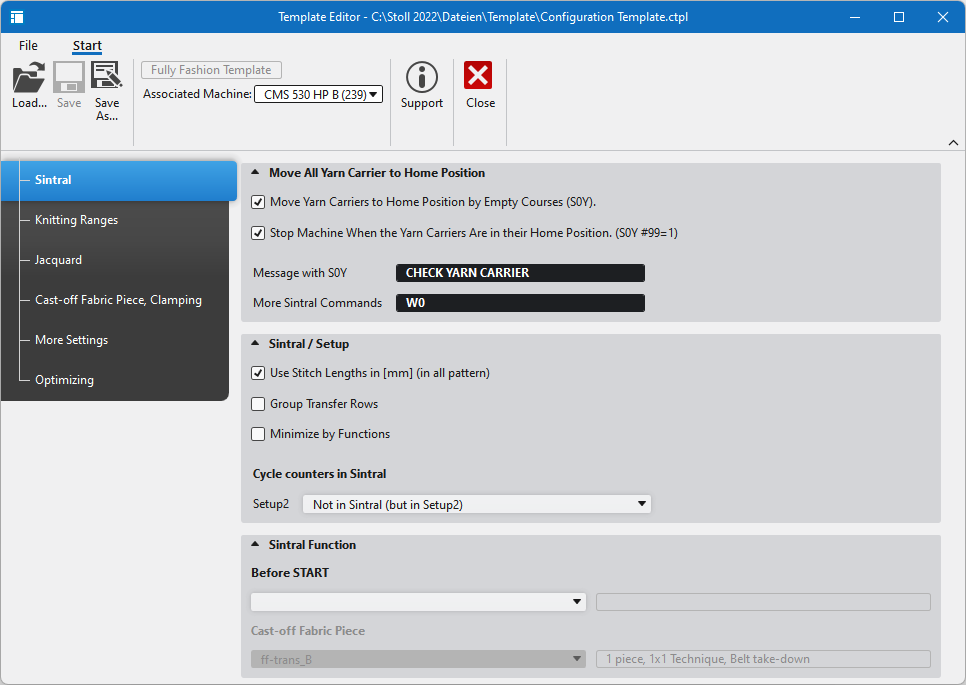
You assign configuration templates to your own machines in the Seleziona macchina dialog box.
- The configuration template must be saved in the same folder as your own machine.
Default path:
C:\Users\[username]\AppData\Local\Stoll [CPS|CDESIGN|CLITE]\Machines
- 225
- Create a private machine in the Seleziona macchina dialog box.
- 226
- Open the Proprietà della macchina dialog box via the context menu of this machine.
- 227
- Load the Modello fully fashion under Generale of the properties.
- The data of the corresponding configuration template will always be used for this machine then.
Statistica Dialog Box
You will find the statistical evaluations of the settings and the knitting elements of a pattern project in the Statistica dialog box.
You open the dialog box by the context menu.
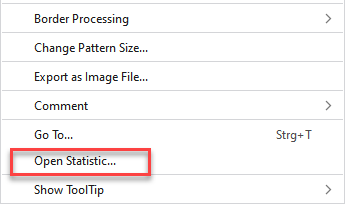
The Statistica dialog box can be opened within the following realms:
- All layers of the pattern editing except the lined shape and the dimensioned shape.
- All knitting elements
Make the following settings in the Statistica dialog box:
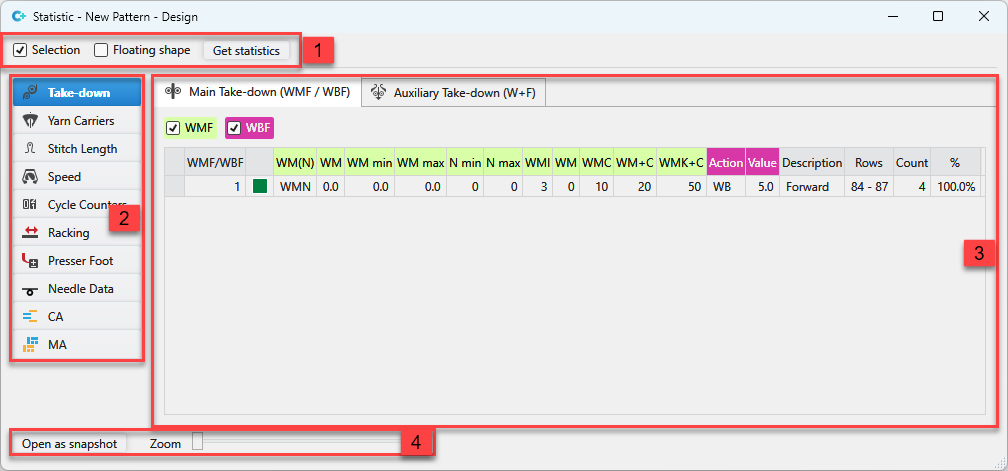
|
1 |
Define the scope and recalculate the statistical data. |
|
2 |
Select the data that is to be displayed. |
|
3 |
Joint display of the entries and the statistical evaluation |
|
4 |
Open a second view and make zoom settings. |