What was new in CREATE PLUS V2.2
Fully Fashion via Raster-Shape
Beside many minor improvements, there is a complex item for creating fully fashion patterns:
The Raster-Shape
Beside the lined shape, you can create a fully fashion fabric independently to it.
New tools are available in order to edit an existing raster-shape quickly.
We recommend an update training via Microsoft Teams by the STOLL Academy. If desired, please contact training@stoll.com.
- Modify by Trova e sostituisci i dati per forma a griglia
- The Cimose della forma tab of the Trova e sostituisci i dati per forma a griglia
tool window allows quick modification of the Raster-Shape.
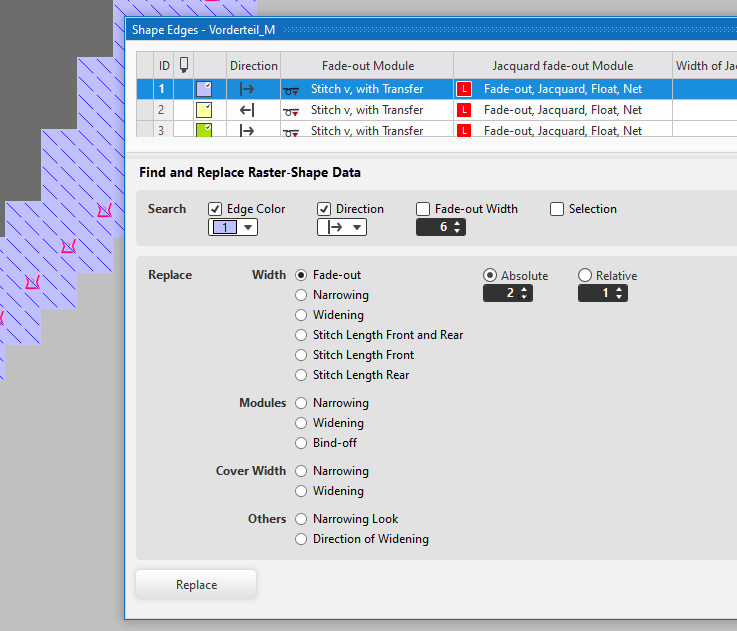
- Apply the data (color, direction) to the Cerca section by picking within the Raster-Shape (F7), or by selecting in the table.
- Select one of the criteria for the modification in the Attributi section and apply it to the Raster-Shape by the button.
- You can easily replace widening modules, narrowing modules or binding-off modules as well.
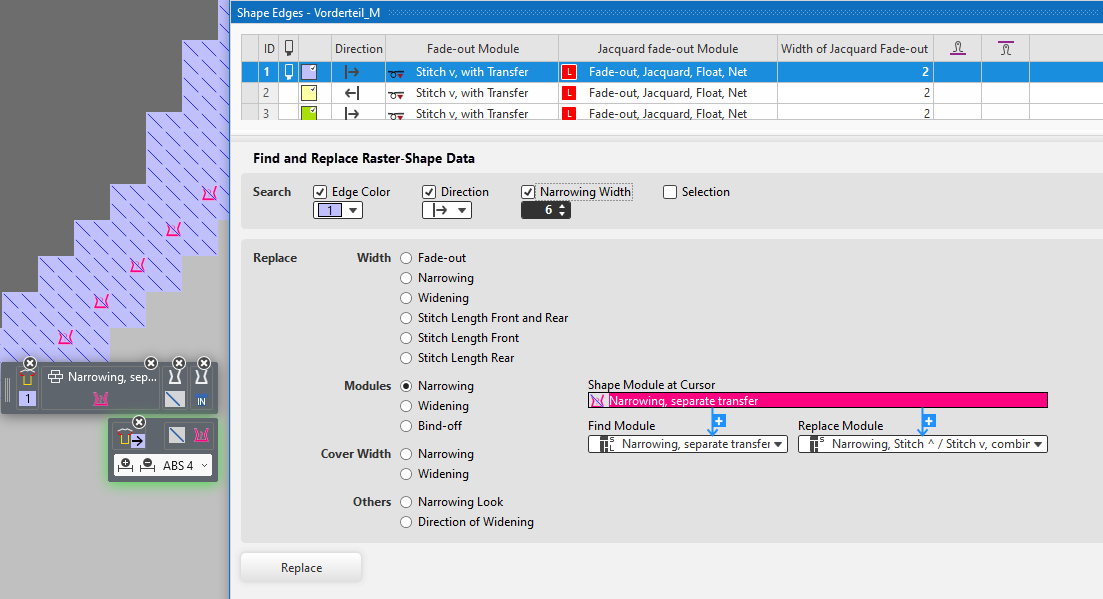
- The module (picked by F7 in the shape edge) will automatically be applied to the Attributi section (Modulo della forma sul cursore field).
- You can replace the module at the shape edge of within the whole fabric piece.
Deactivate the Colore del bordo check box in order to replace within the whole fabric piece. - New and Changed Key Combinations
- The different behavior of the plus and minus keys is fixed.
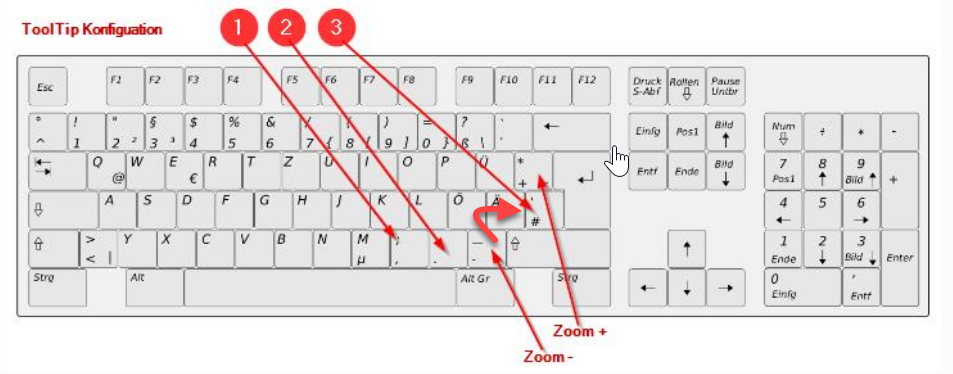
- Up to now:
Minus key for the Vista di controllo in the Descrizione comandi - New:
# key for the Vista di controllo in the Descrizione comandi -
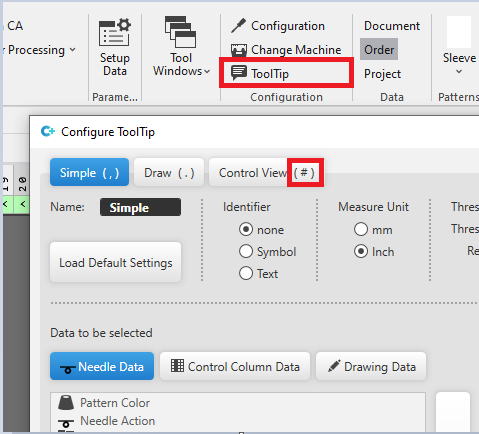
Already with version 2.2.7 :
Data Backup of Private Files / Automatic Backup
- Content of the Data Backup:
Backup per elementi di lavoro, filati, Le mie macchine e layout di stampa di tagli di dimensionamento. -
Backup dei dati tab
Pagina iniziale → Opzioni -
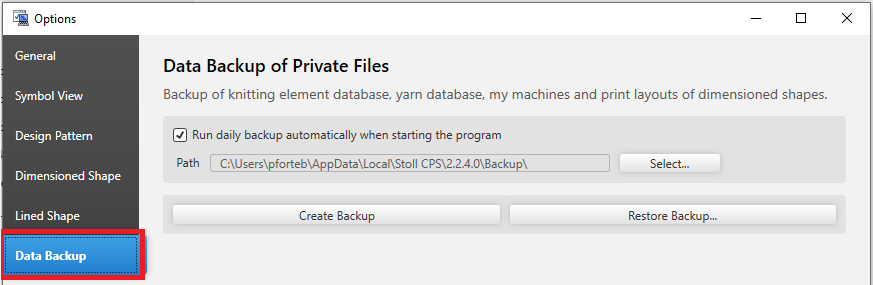
- The automatic data backup will be done once a day.
 Esecuzione automatica e giornaliera del backup al primo avvio del programma
 - You can start the data backup manually as often as you like.
Crea backup... - Data Backup
Symbol View / View
In addition to Disattiva sfondo, the Disattiva primo piano option is available now. Import for the raster-shape; therefore available within the status bar.
- Up to now:
Display available only for the background and only by theConfigura vista.... -
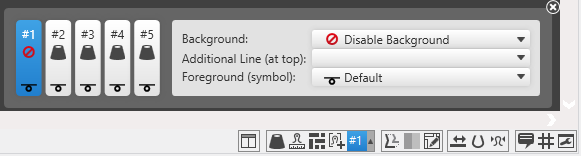
- New view with background or foreground disabled by the status bar.
Correzione lunghezza della maglia per gruppi (NPGK) button of the configurable view #1. -
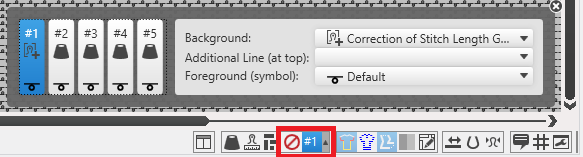
-
Note:
With another view of #1, reset to STOLL default.
You will find the function in the context menu of the status bar.
Reimposta l'impostazione predefinita STOLL per la visualizzazione di disegni design
Module Selection by Path Navigation
Unified and extended view of the knitting element navigation (breadcrumb):
Restrictions are canceled.
Here as example Configurazione:
- Comb thread module within V2.1
-
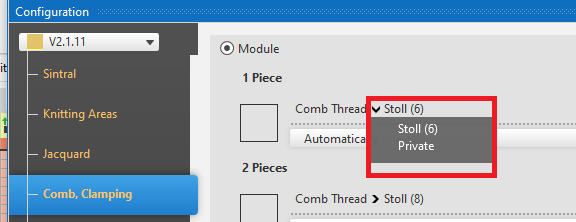
- Restricted navigation among both of the directories of the STOLL module database.
- Comb thread module within V2.2
-
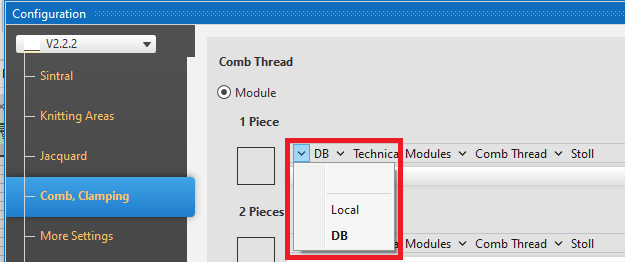
- Unrestricted navigation to all items of the STOLL module database or of the pattern.
-
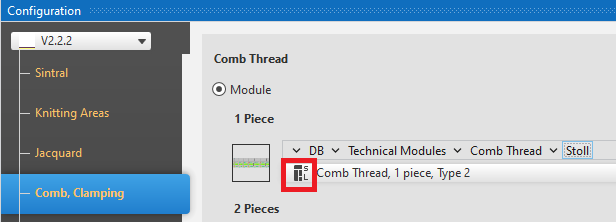
After the technical processing, the STOLL module (S) is shown belonging to the pattern as localized (L).
Symbol View / Drawing and Modifying
- Keyboard commands of the Bacchetta magica drawing tool
- New function for selecting by the magic wand
- Developed in order to edit the raster-shape (see below)
- The selection will be extended to the whole row if you create a selection by the magic wand and keep the SHIFT key pressed.
-

- Selection of the blue area by magic wand (SHIFT + click of left mouse button)
- Selection without SHIFT key:
-

- Selection of the blue area by magic wand (click of left mouse button)
- Hiding drawing attributes temporarily (keyboard command)
- Up to now:
If there were drawing attributes on the user control and you wanted to create a selection beforehand, then you had to remove the drawing attributes and select them again after the selection had been created. - New:
Keeping the ^ key pressed, you can disable the selected attributes. -
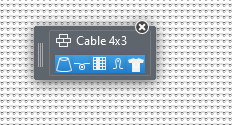 Selection
 - Press and hold the ^ key
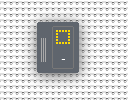
- Execute the action (create new selection)
- Release the ^ key
- By the ^ key, you can recall the attributes which you had deselected by ESC.
- Function Ridimensiona
-
 Ridimensiona of the Modifica ribbon group.
 -
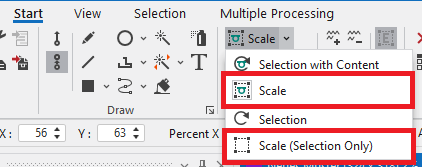
- You can scale the size of a selection or of a selected pattern element by this function.
Symbol View / Vai a
- The dialog box is extended by the following options:
- Go to Colonna
- Go to Ago
- Go to Numero di riga Jacquard
- Go to Numero di righe Sintral
-
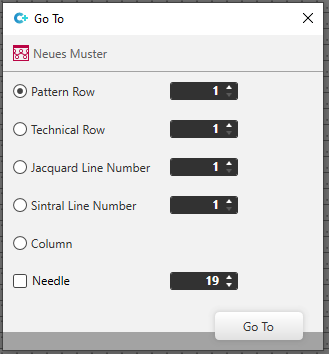
- Call-up of the function by the context menu of the view or by the CTRL + T keys.
Symbol View / Assigning Color Arrangements Automatically
- If the Tenere conto delle zone a disegno monocromatiche option is enabled in the Assegna Color Arrangements automaticamente dialog box, the function regards pattern areas with a single color.
-
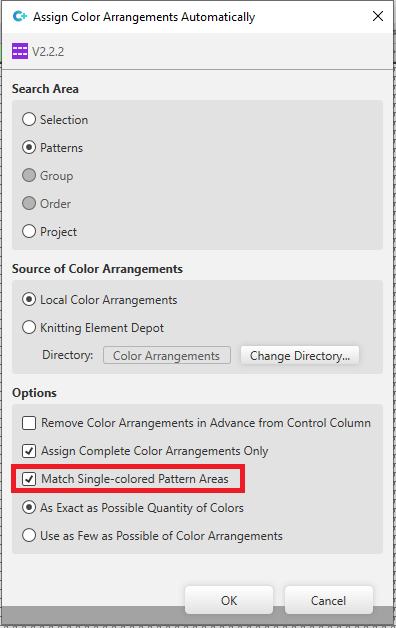
Importa immagine
Context menu of the Parti di disegno tool window
- Yarn carrier color may occur in the created pattern element by the import as the colors of picture are related to the pattern colors by the RGB values.
-
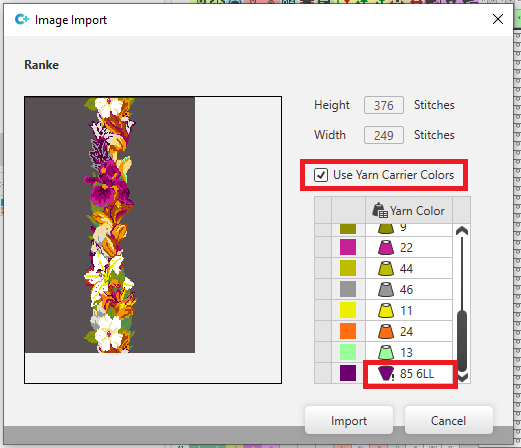
- You can exclude the use of yarn carrier colors by
 Utilizza colori del guidafilo.
Fully Fashion / Lined Shape
The Taglia il taglio function is omitted. The feature of creating a raster-shape (see below) replaces this function.
New graphical tools are available to edit the shape.
- Tabella delle linee / Specchia
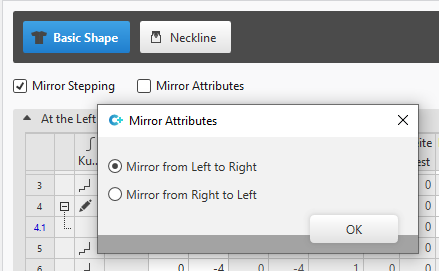
- You can select the side of the source when mirroring the stepping and / or the attributes.
- specchiare da sinistra a destra
- specchiare da destra a sinistra
-
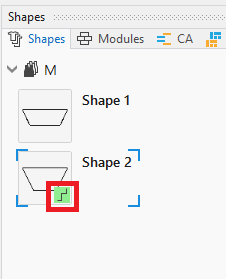
- Display of shapes in the tool windows
- Lined shapes of the Gradi input format are marked in the Tagli tool window.
-
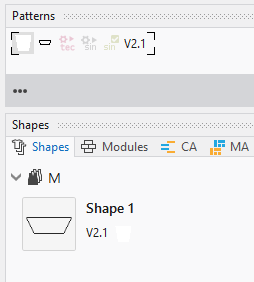
- The display of a pattern with pending shape in the Disegno tool window has changed.
- Up to now:
-
- New
-
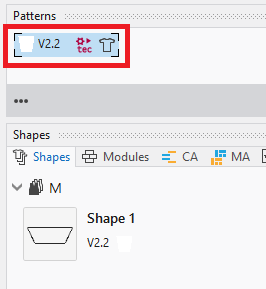
- A common symbol without concrete contour represents the pending shape.
Relevant buttons only appear according to the state of processing of the pattern. - Graphical Editing
- You can edit lined shapes (beside the Gradi input format) graphically with the new tools.
- If the Modifica livello del taglio lineare (Y) mode is enabled, these new tools are also available for the pending shape directly on the pattern.
- Moving the shape point by the left mouse button
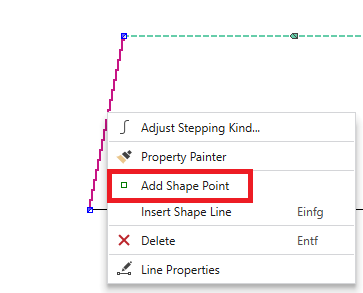
- Adding a shape point at the cursor position
-
- Moving by the arrow keys of the keyboard
- Moving a shape point is modified.
The following shape points will no longer be moved accordingly; they will keep their positions. - Tip: Select the all shape points you want to move.
- Improvement of moving marking points, shape elements and knitting ranges:
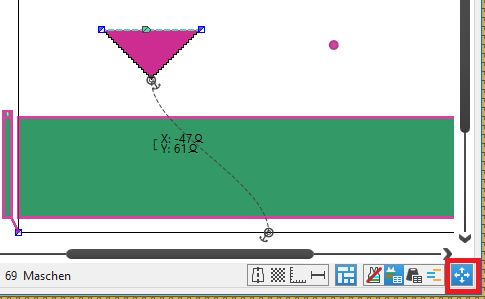
Activating the button of the status bar is required now.
 -
- Multiple selection is possible now.
Fully Fashion / Raster-shape
The new procedure creating fully fashion patterns independently from a pending lined shape.
A raster-shape contains shape edges and shape markings.
The procedures of raster-shape and pending lined shape cannot be mixed up.
With import from M1plus (starting with version 7.5), a fully fashion pattern will always be created as raster-shape.
- Raster-shape / Shape Symbols
- You will find the shape symbols for editing the raster-shape in the Azioni dell'ago tool window.
Needle Actions -

-
 All'esterno della forma
 -
 All'interno della forma
 -
 Cimose della forma (F2)
 -
 Marcature della forma
 -
 Allineamento a sinistra
 -
 Allineamento a destra
 -
 Lavorazione a tasselli
 -
 Separazione
 -
 Riempi scollatura
 -
 Riempi scollatura
 -
 Dissolvenza
 -
 Lunghezza della maglia in prossimità della cimosa della forma davanti
 -
 Lunghezza della maglia in prossimità della cimosa della forma dietro
 -
 Elimina dati della forma
- If the shape symbols are not mutually exclusive, you have a multiple selection by the CTRL key.
- You can no longer insert the All'esterno della forma needle action into the pattern.
-
Note 1:
The selected shape symbol overwrites the existing shape symbols when inserting it into the pattern.
You can enter the shape symbol in addition by the CTRL key pressed.
You can remove the shape symbol by the CTRL-ALT key. -
Note 2:
Elimina dati della forma
Removes all shape symbols and the edge colors.
If you selectElimina dati della forma
in combination with another shape symbol, only the selected shape symbol will be removed from the pattern. -
Note 3:
The same logic is now used for the do not sink symbols as well. - Raster-shape / View
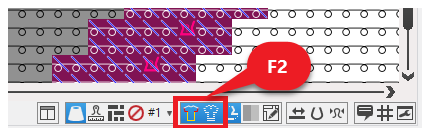
- You can toggle the shape edges (at the left of image) and shape symbols (at the right of the image) by both of the new button of the status bar.
- Note: Use the F2 key to toggle both buttons together.
-
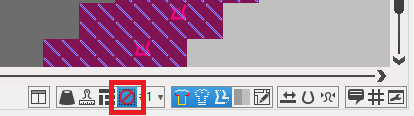
- Combined with the new buttons Disattiva sfondo / Disattiva primo piano , the pattern will be displayed in its raster-shape.
-
- Raster-shape / Context Menu
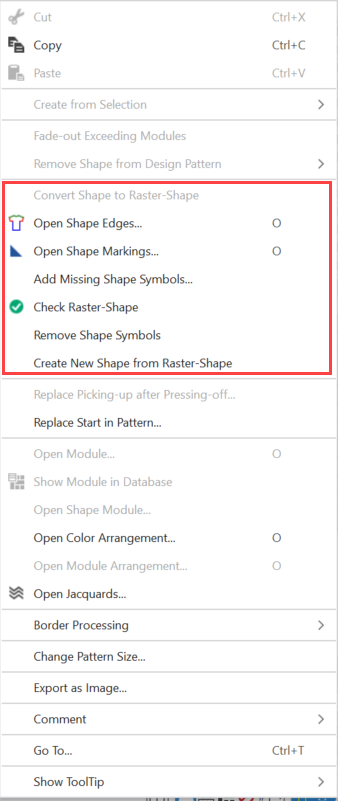
- Special items for the raster-shape are available in the context menu of the symbol view of the pattern.
-
-
Converti taglio in forma a griglia
The data of the lined shape of a pattern with pending shape will converted to a raster-shape. - Apri cimose della forma... and Apri marcature della forma... display the tool windows of the same names.
-
Controlla forma a griglia
Errors are reported as warnings. -
Rimuovi forma a griglia
Removes all shape symbols from the pattern.
After it, you can position a lined shape again. - Now, the functions Completa simboli della forma and Crea nuovo taglio da forma a griglia... apply to the raster-shape.
- Raster-shape / Creating
- Converting a pending lined shape creates automatically a complete raster-shape.
- If there is no lined shape available for the pattern, create the raster-shape manually by drawing-in the All'esterno della forma areas, the shape edges, the shape symbols and the markings.
All drawing tools are available for it. - In the Cimose della forma tool window, you create, edit and select for drawing, the shape edge and its knitting technique for fading-out or its special stitch length.
-
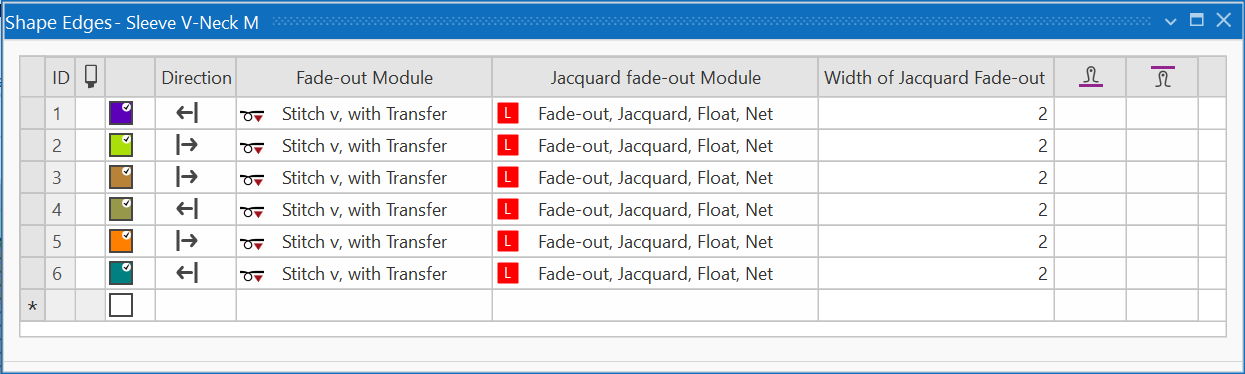
- In the Direzione column, you specify the side of the fabric piece for the shape edge.
The upright line represents All'esterno della forma.
The direction is important for modules greater 1x1 used for fading-out. - In the Marcature della forma tool window, you create, edit and select for drawing, the shape markings and their knitting technique, their anchor points and distances.
-
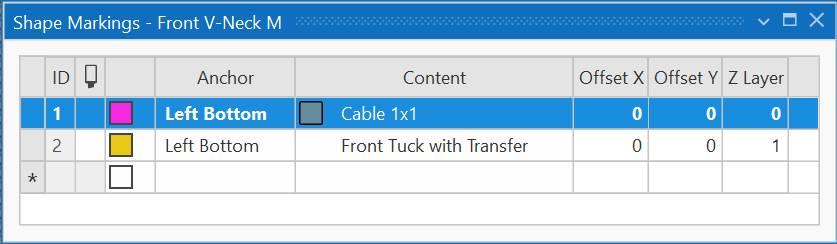
- In the Livello Z column, you can specify the order if overlaying knitting techniques of different shape markings occur.
The example shows the needle action above the cable module. - Note: Shape edges and shape markings in use are shown in the Simboli della forma section of the Azioni dell'ago tool window.
- Raster-Shape / Modifying
- A new tool has been developed in order to edit the raster-shape graphically and quickly. This appears at the user control if a edge color with shape symbol is selected.
- Modifying a Shape Edge
-
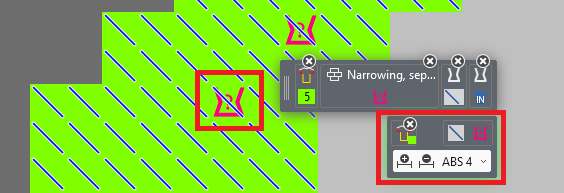
- By the F7 key at the cursor position (left marking of the image), the shape data will be applied to the user control and the tool appears (right marking of the image).
- Meaning starting from the left:
Tool applies to shape color #5 / widen the shape edbe by 1 / reduce the shape edge by 1 / set the shape edge to the selected width - The shape symbol will be shifted according to the selection.
- The narrowing shape symbol will be kept untouched if you remove it from the selection (with the small x).
Only the narrowing shape symbol will be modified if you remove the fading-out shape symbol. - Repeated tapping the F7 key at cursor position:
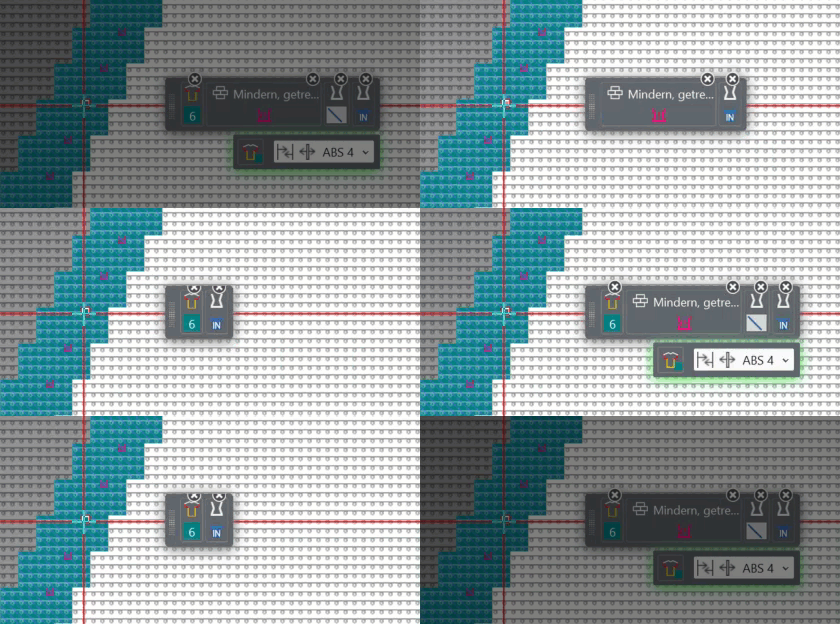
- Modifying within selection
- Selection via shape edge:
Shape edge #5 will be modified within the selection. - Switching off the selection icon by the small x button activates the shape edge in total.
-
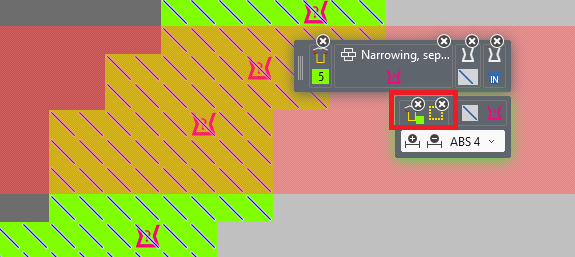
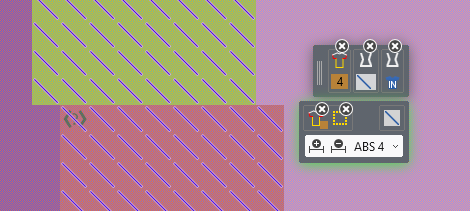
- Selection of several shape edges:
The shown shape edge will be modified within the selection. You can switch to the other shape edge by picking its color with F6 (color under the cursor) -
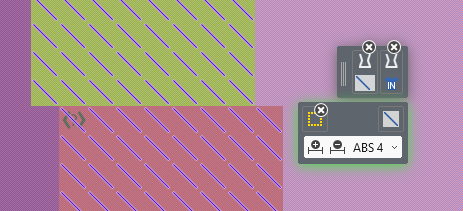
- Switching off the edge color by the small x button activates all shape edges within the selection.
-
-

You can modify both sides of the shape in common by a row selection.
You can make the row selection quickly by the magic wand and the pressed SHIFT key.
You can create each new selection without deselecting the shape attributes.
Therefore, press the ^ key.
Knitting Program
ASCON device for the yarn length control is supported.
- Yarn Length Control (YLC)
- Select the operating mode in Configurazione / Altre impostazioni.
-
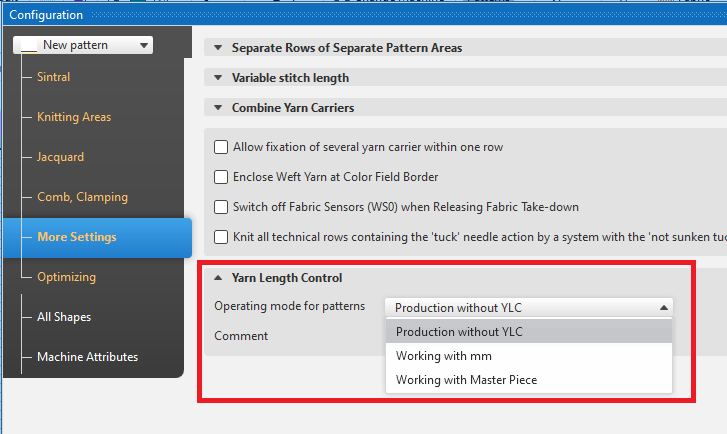
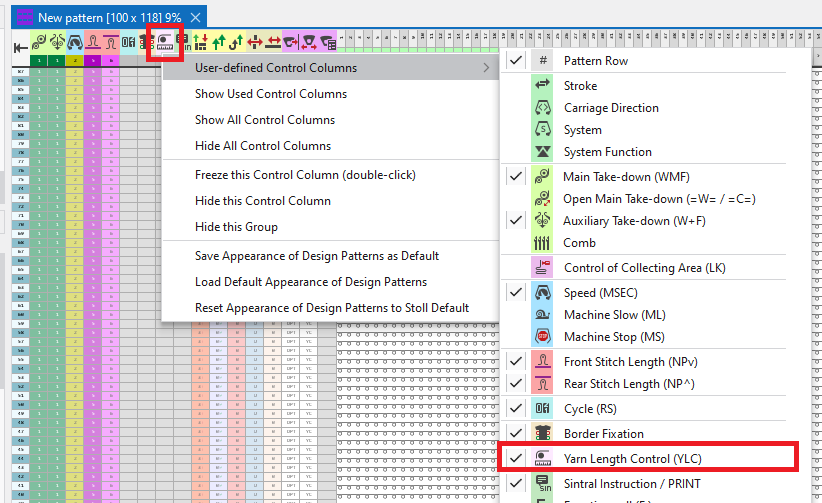
- Selecting an operating mode makes the
 Controllo della lunghezza del filo (YLC) control column available.
 -
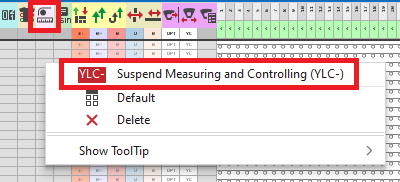
- You can exclude individual pattern areas from measuring and controlling via the control column.
-
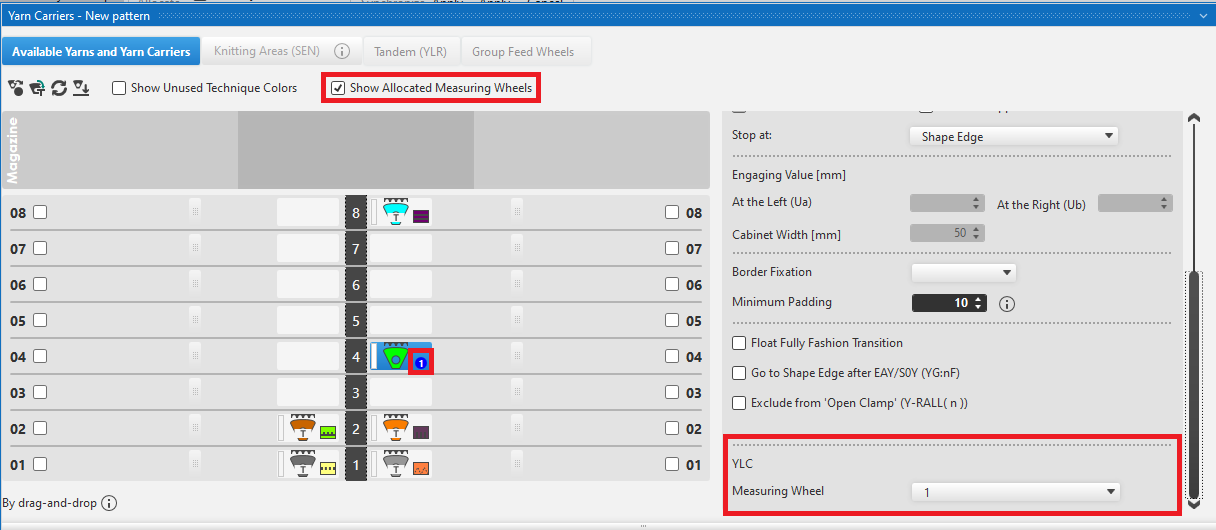
- You allocate the yarn carriers to the measuring wheels in the Guidafili tool window of the preview of yarn carriers.
-
- After the allocation, the data will be applied to theLunghezza del filo tab of the Setup Data tool window.
-
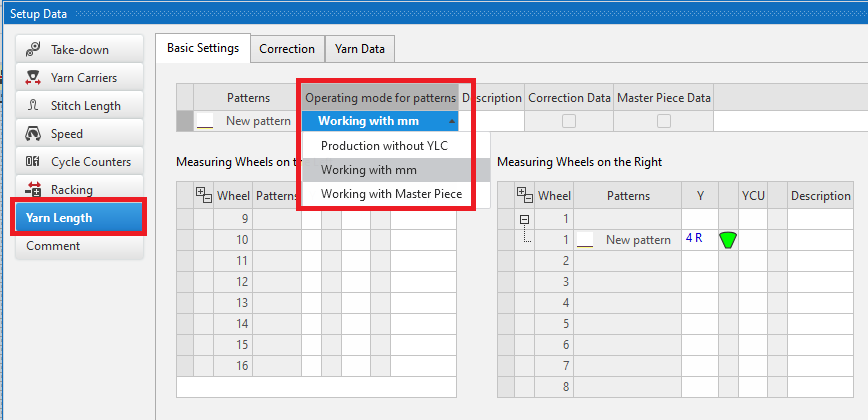
-
Note:
You can select the operation mode directly in the Setup data as well. The selected operation mode will be adjusted between Setup data and configuration and vice versa.
500 indices for stitch lengths (NP)
Maximum number raised from 250 to 500.
- Stitch length (setup data) in Dati Setup
- Impostazioni delle camme di discesa / lunghezze della maglia in Sintral
Sintral function Pettine INS/DIS (RS17) extended by S0YCR0
-
RS17=1 IF#100=1 RS17=0 IF RS17=1 YD YC S0YCR0 -
S0YCR0
Empty courses until all yarn carriers are at the area of use (SEN or #L, #R) - Avoids a machine stop (MS) if the piece counter gets the value 1 (IF #100=1).
- With Pinzatura alla fine del tessuto nella funzione di scarico (RS17=0) applies:
- Ranghi protetti, S0YCR0, Con scarico module no longer required.
- Ranghi protetti, Con scarico module is sufficient under Ranghi di protezione / Con scarico
- Protection Rows (Configurazione / Zone di lavoro )
Clamping (Configurazione / Pettine, pinzatura )
You can find the news of the previous releases in the Guida CREATE (F1) help.